Quick Answer
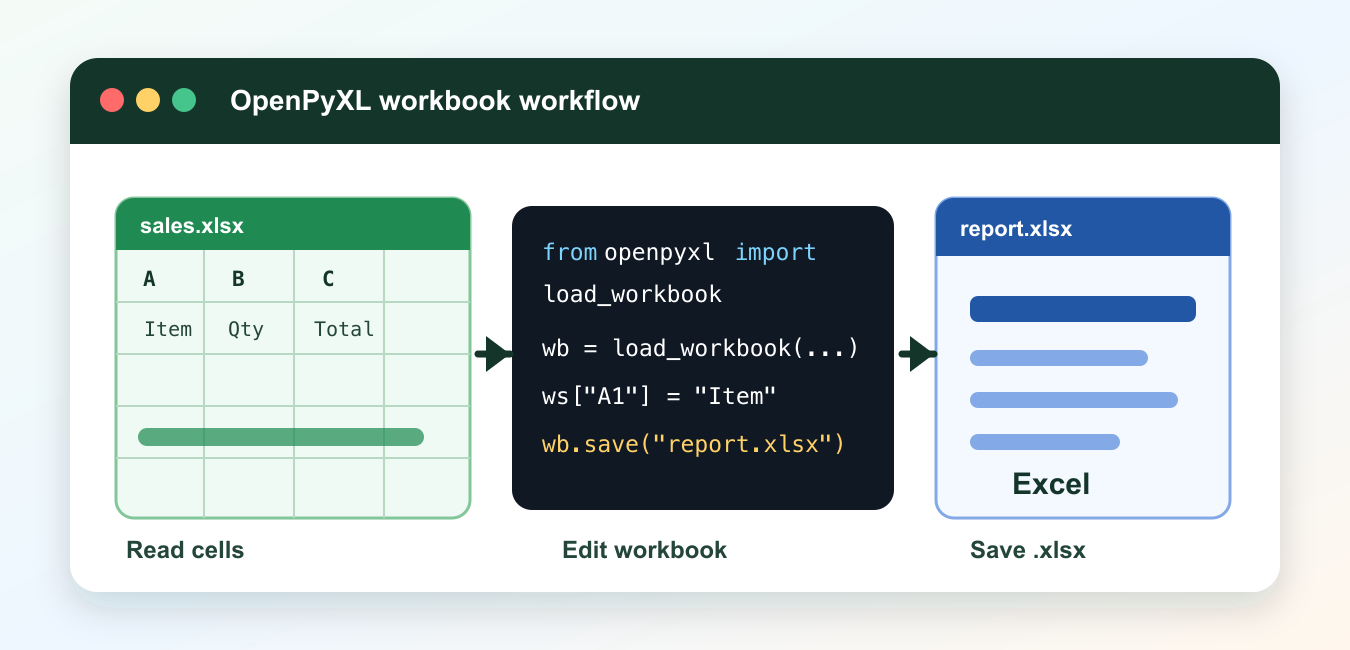
Install openpyxl with python -m pip install openpyxl, load a workbook with load_workbook(), select a worksheet, read or write cells, and call save(). For macro-enabled files, use keep_vba=True and preserve the .xlsm extension.
Openpyxl is a Python library for reading and writing Excel .xlsx workbooks. It is useful when a script needs to inspect cell values, create reports, update formulas, style headers, or add worksheets without opening Excel. The official openpyxl documentation covers the full API, and the openpyxl tutorial is the best reference for workbook basics.
Use openpyxl when you need workbook structure: sheets, rows, columns, formulas, formatting, and saved Excel files. If you only need tabular analysis, pandas may be more convenient. If your goal is a different file format, see the Python text to PDF guide for a separate file-generation workflow.
The safest workflow is simple: load or create a workbook, select a worksheet, read or edit cells, save the result to a new filename, and keep a backup of important files. Excel formulas are stored as formulas unless you load cached values from a workbook that Excel has already recalculated.
Openpyxl works with the workbook file itself, not with a running Excel window. That makes it useful on servers, scheduled jobs, and command-line tools. It also means that Excel-only features such as macros, live recalculation, and interactive charts need extra care. For routine .xlsx reports, though, openpyxl gives Python direct control over the cells and sheet layout.
Read A Cell From An Excel File
Use load_workbook() to open an existing workbook. The active worksheet is often enough for small files, but named sheets are better for repeatable scripts.
from openpyxl import load_workbook

workbook = load_workbook("sales.xlsx")
sheet = workbook.active

print(sheet["A1"].value)
print(sheet.cell(row=2, column=3).value)
Cell coordinates such as A1 are convenient for quick checks. Row and column numbers are better when a script loops over many cells.
If the workbook has many tabs, avoid relying on the active sheet. A named worksheet makes the script clearer and prevents surprises when someone saves the workbook with a different tab selected.

Loop Through Rows
The iter_rows() method reads rows without hard-coding every cell address. Set values_only=True when you only need values rather than full cell objects.
from openpyxl import load_workbook

workbook = load_workbook("sales.xlsx")
sheet = workbook["January"]

for row in sheet.iter_rows(min_row=2, values_only=True):
    item, quantity, price = row
    print(item, quantity * price)
This pattern is useful for reports that have one header row followed by repeated records.
For large sheets, restrict the row and column range as much as possible. Reading only the rows you need is faster and makes it easier to skip notes, blank totals, or helper columns that should not be part of the result.
Create A New Workbook
Use Workbook() to create a file from scratch. Add headers first, append records, then save the workbook.
from openpyxl import Workbook

workbook = Workbook()
sheet = workbook.active
sheet.title = "Report"

sheet.append(["Item", "Quantity", "Price"])
sheet.append(["Keyboard", 3, 49.99])
sheet.append(["Mouse", 5, 19.99])

workbook.save("report.xlsx")
Saving to a new filename prevents accidental changes to the original workbook while testing.
When creating reports, write data first and formatting second. That keeps the data step easy to test. Once the rows are correct, add widths, colors, freeze panes, and number formats as a separate pass.
Update Cells And Formulas
Openpyxl can write plain values and Excel formulas. Formula text begins with an equals sign and is stored in the workbook for Excel to calculate.
from openpyxl import load_workbook

workbook = load_workbook("report.xlsx")
sheet = workbook["Report"]

sheet["D1"] = "Total"
sheet["D2"] = "=B2*C2"
sheet["D3"] = "=B3*C3"
sheet["D4"] = "=SUM(D2:D3)"

workbook.save("report-with-totals.xlsx")
If you need calculated results in Python, open a workbook that already contains cached formula results from Excel, or calculate the values in Python before writing them.
Do not assume that openpyxl will behave like Excel’s calculation engine. It can preserve and write formulas, but another program usually needs to calculate them. For automated reports, many teams write both the formula and the already known value in nearby cells for easier checking.
Format A Header Row
Formatting makes generated spreadsheets easier to scan. Openpyxl supports fonts, fills, alignment, widths, freeze panes, and many other worksheet settings.
from openpyxl import load_workbook
from openpyxl.styles import Alignment, Font, PatternFill

workbook = load_workbook("report-with-totals.xlsx")
sheet = workbook["Report"]

header_fill = PatternFill("solid", fgColor="1F4E78")
for cell in sheet[1]:
    cell.font = Font(color="FFFFFF", bold=True)
    cell.fill = header_fill
    cell.alignment = Alignment(horizontal="center")

sheet.freeze_panes = "A2"
sheet.column_dimensions["A"].width = 18

workbook.save("report-styled.xlsx")
Keep formatting code close to the report creation step so the workbook is readable immediately after it is generated.
Simple formatting goes a long way. A bold header row, frozen top row, and readable column widths often matter more than complex styling. Keep generated sheets quiet and predictable so users can sort, filter, and copy data without fighting the layout.
Work With Multiple Sheets
A workbook can contain many worksheets. Create separate tabs for summaries, raw data, and audit notes when one sheet would become too crowded.
from openpyxl import Workbook

workbook = Workbook()
summary = workbook.active
summary.title = "Summary"

details = workbook.create_sheet("Details")
details.append(["Item", "Quantity"])
details.append(["Keyboard", 3])
details.append(["Mouse", 5])

summary["A1"] = "Rows in Details"
summary["B1"] = details.max_row - 1

workbook.save("multi-sheet-report.xlsx")
Openpyxl is best for direct workbook changes: reading cells, creating sheets, applying styles, and saving .xlsx files. Keep scripts predictable by using named sheets, checking file paths, writing to new output files during testing, and separating data cleanup from workbook formatting.
Before overwriting a file, check that the path is correct and that no one has the workbook open. Excel can lock files on some systems, which may cause a save error or leave users with an older copy than expected. A timestamped output filename is often the easiest way to keep report runs separate.
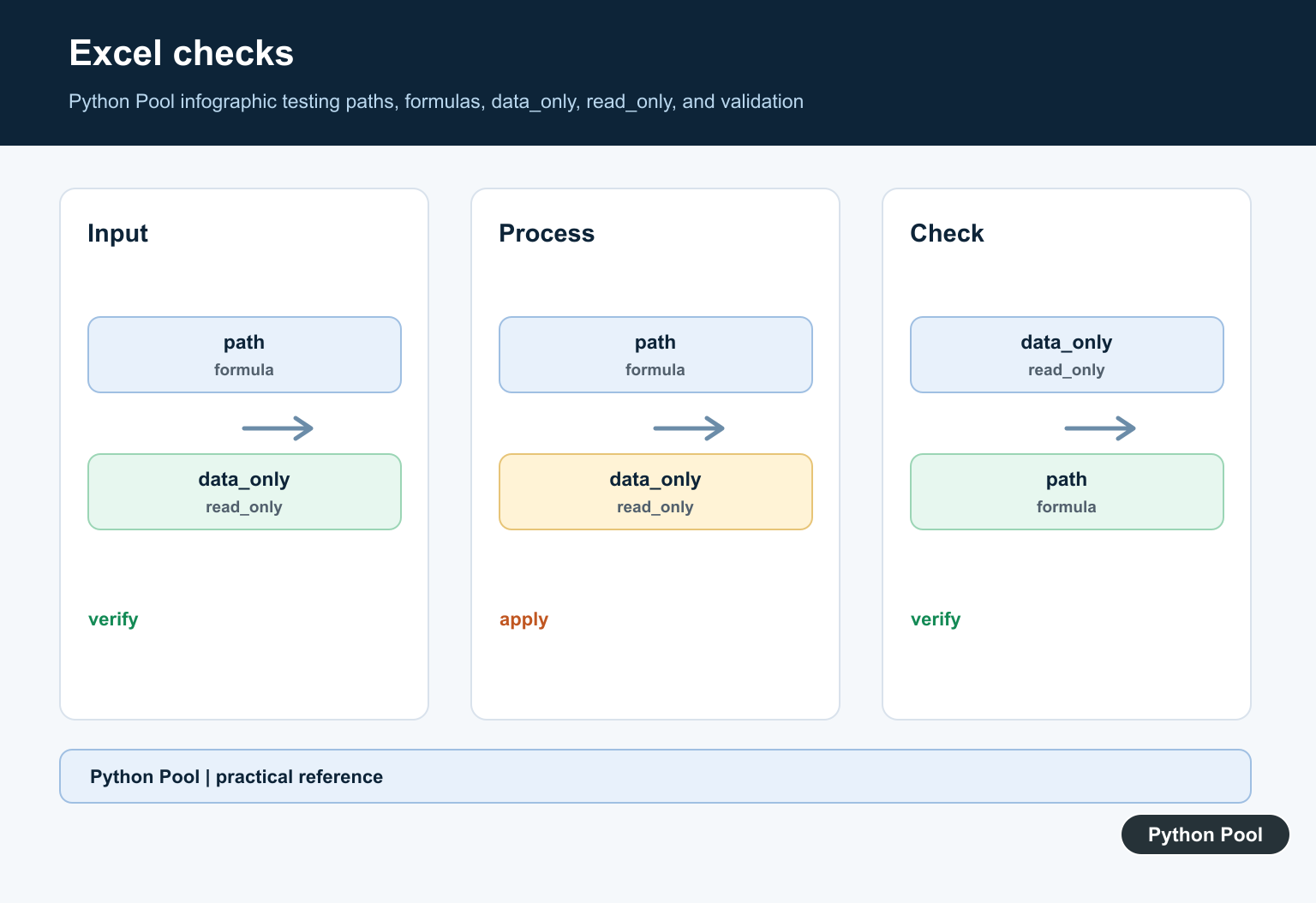
Basic openpyxl Read and Write Workflow
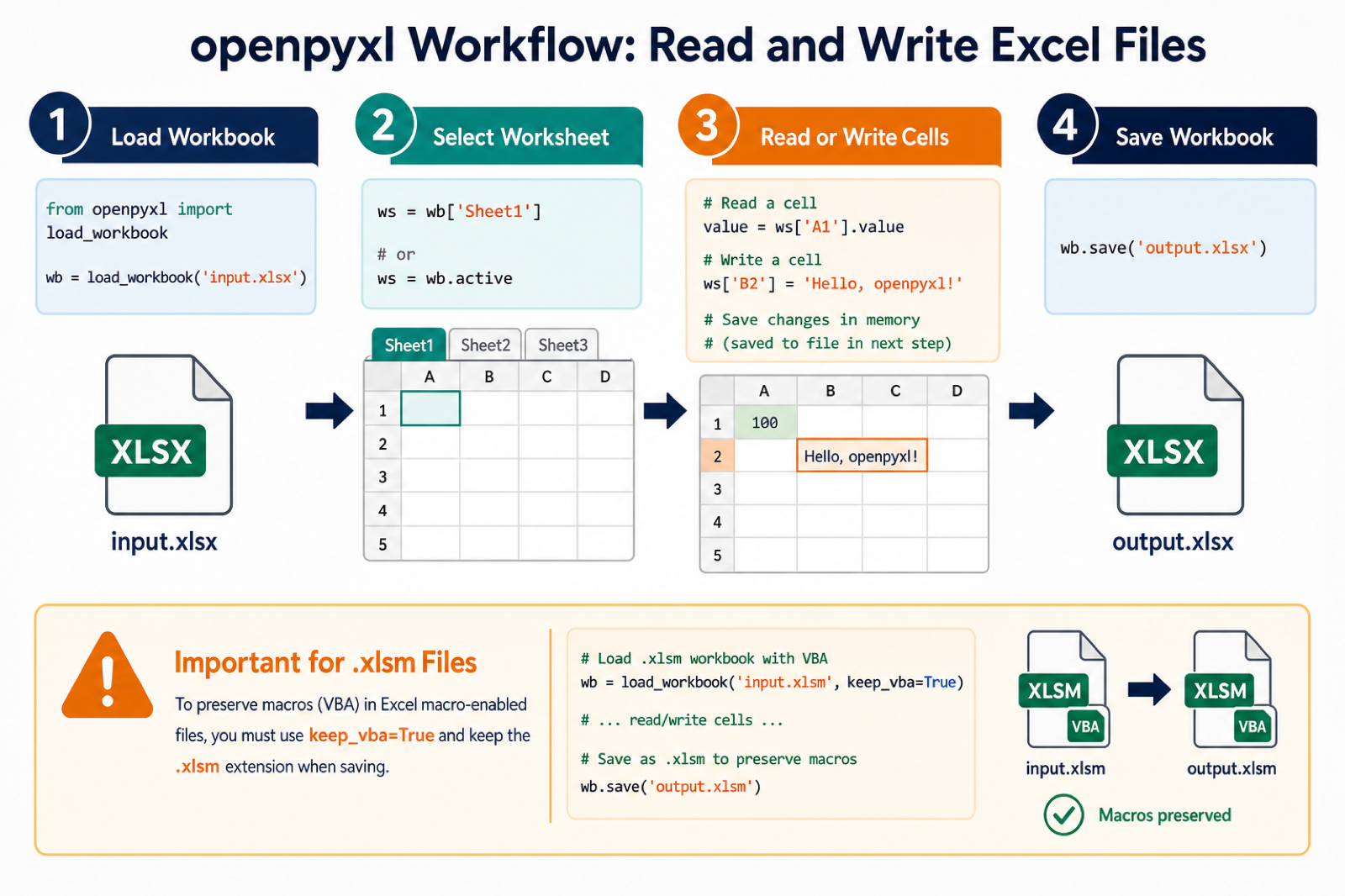
openpyxl works with modern Excel workbooks such as .xlsx and, with the right options, .xlsm. Keep the file extension and workbook mode aligned with the job: use normal mode for editing and read-only mode for large read-only scans.
from openpyxl import load_workbook

workbook = load_workbook("input.xlsx")
sheet = workbook["Sheet1"]

value = sheet["A1"].value
sheet["B2"] = "Hello, openpyxl!"
workbook.save("output.xlsx")
Use data_only=True when you want cached formula results instead of formula text, but remember that openpyxl does not calculate formulas. Excel or another calculation engine must recalculate the workbook.
Preserve Macro-Enabled Workbooks
When editing a macro-enabled workbook, load it with keep_vba=True and save it with an .xlsm extension. Make a backup before saving because save() overwrites the destination without an interactive warning.
from openpyxl import load_workbook

workbook = load_workbook("input.xlsm", keep_vba=True)
workbook["Sheet1"]["A1"] = "Updated"
workbook.save("output.xlsm")
openpyxl is not a full Excel rendering engine. Shapes, charts, external links, and advanced workbook features may have limitations, so test a copy and inspect the saved file in Excel when fidelity matters.
For the authoritative API and current behavior, consult the openpyxl documentation.
Frequently Asked Questions
How do I install openpyxl?
Install it into the interpreter that runs your script with python -m pip install openpyxl, then import load_workbook or Workbook.
How do I read a cell with openpyxl?
Load the workbook, select a worksheet, and read its value, such as workbook[‘Sheet1’][‘A1’].value.
Does openpyxl calculate Excel formulas?
No. It can preserve and read formula text, or read cached results with data_only=True, but a spreadsheet application must calculate formulas.
How do I preserve macros in an XLSM file?
Load the workbook with keep_vba=True and save it with the .xlsm extension. Test a copy because saving can overwrite the destination.