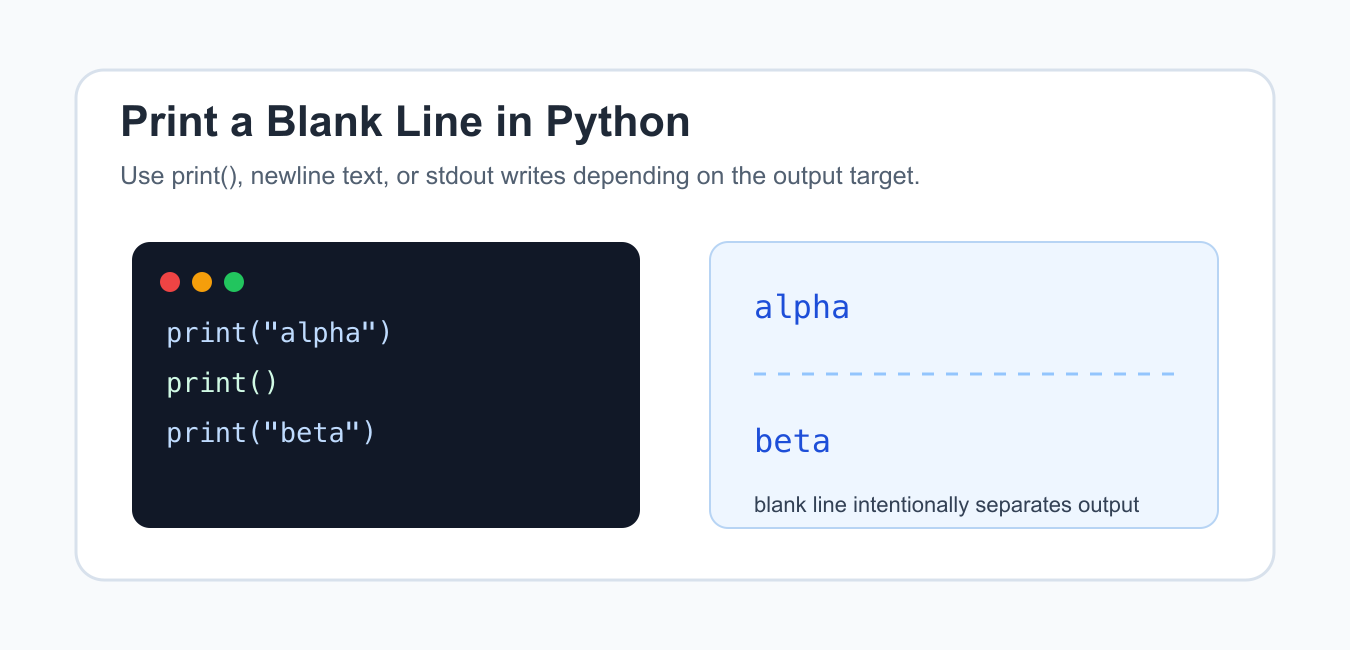
Quick answer: Call print() with no arguments to write a blank line. Use newline characters when composing a larger string, sep and end when controlling field boundaries, and logging configuration when output is consumed by a log collector rather than a terminal.
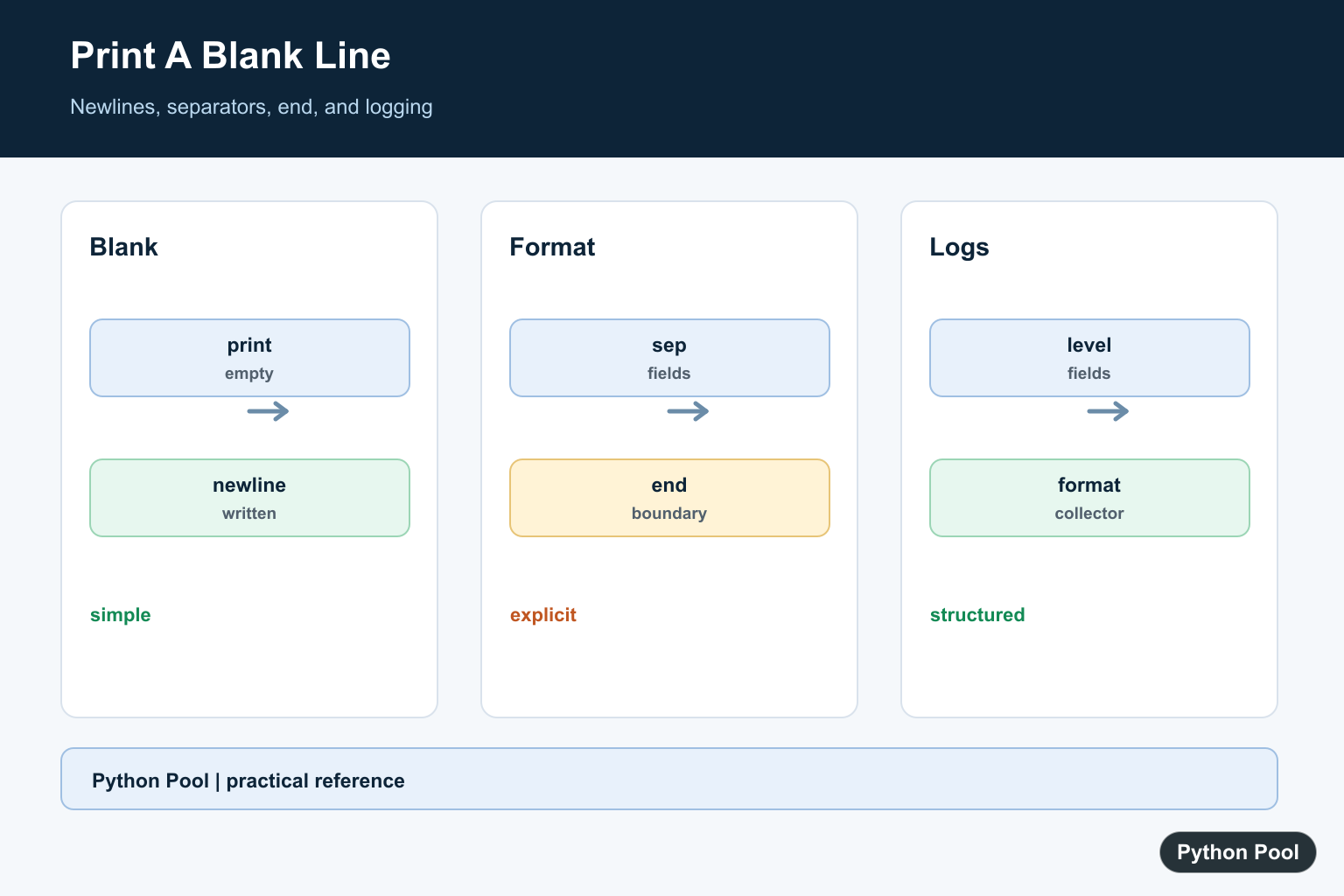
Printing a blank line in Python is usually as simple as calling print() with no arguments. That call writes only the line ending, so the next output appears after an empty line.
The official Python documentation for print() explains the sep, end, file, and flush arguments. The official input and output tutorial covers common text output patterns, including writing readable console output.
Choose the method based on where the output goes. For human-readable console output, print() is clearest. For building a string, put newline characters in the text. For file-like objects, pass the destination with file=. For low-level stream control, write to sys.stdout directly.
If an interactive program should replace the entire display instead of adding vertical space, use the cross-platform Python console clearing patterns and skip control sequences when output is redirected.
A blank line is different from a string full of spaces. Spaces can confuse tests, copy-paste output, and text comparison tools. When you want an empty line, emit a newline without extra spaces.
It also helps to think in terms of line endings. A normal print("text") writes the text and then one line ending. A following print() writes another line ending. Those two adjacent line endings are what create the visible empty line between output lines.
If you are testing printed output, compare the captured string or split it into lines instead of judging by how the terminal looks. Some terminals wrap long text, trim trailing whitespace visually, or use fonts that make spaces hard to notice.
Use print With No Arguments
The most readable way to print one blank line is print().
print("first")
print()
print("second")
This writes first, an empty line, and then second. Use this in scripts, examples, and command-line tools when the visual spacing is part of the output.
Do not use print(" ") unless you intentionally want a line containing a space. That line looks blank to a person, but it is not empty text.
In tutorials and debugging output, an explicit blank line can make sections easier to scan. In machine-readable output, avoid extra blank lines unless the consuming program expects them.
Print Several Blank Lines
Call print() repeatedly or print newline text when you need more spacing.
print("header")

for _ in range(2):
    print()

print("body")
The loop makes the number of blank lines obvious and easy to adjust. For a fixed one-off message, two explicit print() calls are also fine.
Keep output spacing modest in logs. Too many blank lines can make errors harder to scan, especially in continuous integration output or system logs.
When the count is configurable, validate that it is not negative. A negative count should usually mean no extra spacing or an input error, not a surprising loop.
Use Newline Characters In Text
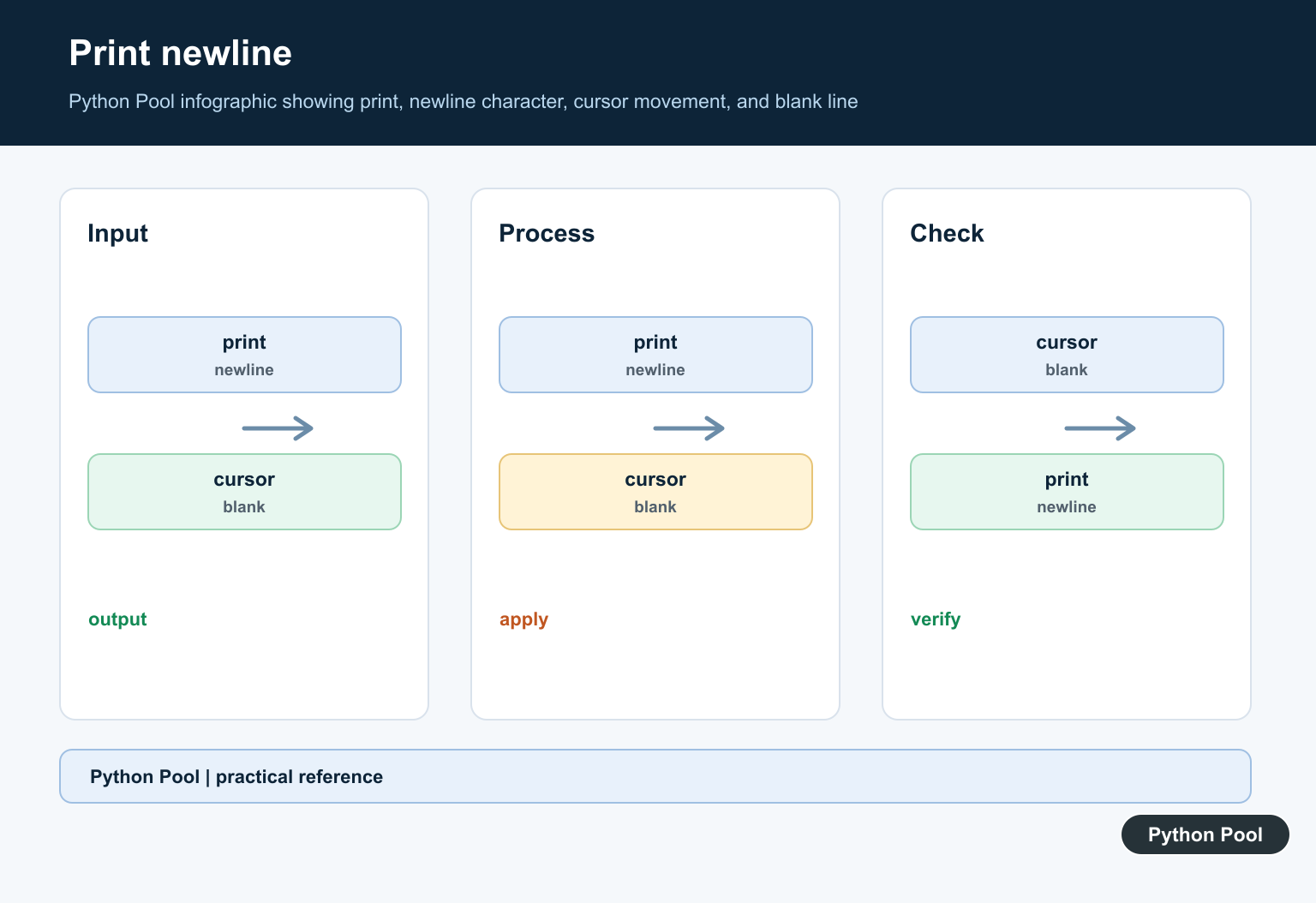
When building a string first, include \n where the blank line should appear.
message = "alpha\n\nbeta"

print(message)
print(message.splitlines())
The two newline characters between alpha and beta create one blank line. This is common in email bodies, markdown generation, and multi-line status messages.
Use splitlines() in tests when you need to check the produced line structure without relying on visual spacing.
Python normalizes common newline patterns in many text APIs, but generated strings still contain exact characters. If a protocol, template, or test fixture requires exact output, inspect repr(text) while debugging.
Control The end Argument
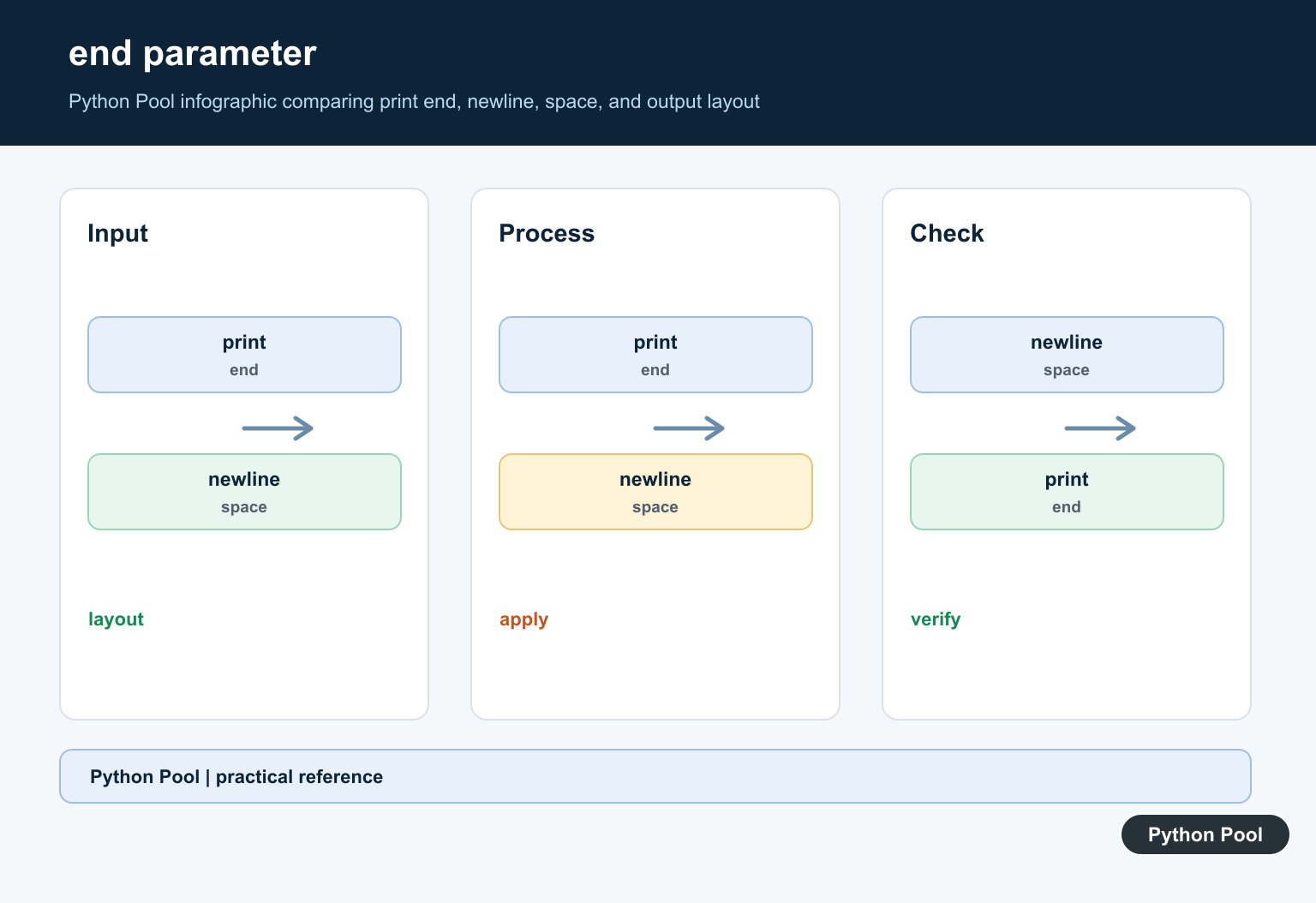
The end argument controls what print() writes after its values. The default is one newline.
print("alpha", end="\n\n")
print("beta")

print("done", end="\n")
Using end="\n\n" prints the value and then leaves one blank line before the next output. This is useful when the spacing belongs to the line being printed.
Keep end simple. If output formatting becomes complex, build the text explicitly and print it once.
The sep argument is separate from end. Use sep to control text between values on the same line, and use end to control what appears after the printed values.
Write Blank Lines To A File
The same idea works for file output by passing a file object to print().
from io import StringIO

buffer = StringIO()

print("row one", file=buffer)
print(file=buffer)
print("row two", file=buffer)

print(buffer.getvalue().splitlines())
This example uses StringIO so it is safe to run anywhere. With a real file handle, the file= argument writes the same line endings to disk.
For CSV, JSON, or structured formats, do not add decorative blank lines unless the format allows them. Blank lines are best for human-readable text files and console output.
When writing files, use a context manager for the real file handle so data is flushed and closed properly. StringIO is useful for tests because it behaves like a text file without touching disk.
Write Directly To stdout
For stream-level control, use sys.stdout.write(). Unlike print(), it does not add a newline automatically.
import sys

sys.stdout.write("top\n")
sys.stdout.write("\n")
sys.stdout.write("bottom\n")
This is useful when writing progress output, wrappers, or libraries that need exact control over emitted characters. For most application code, print() remains easier to read.
In short, use print() for a simple blank line, use \n\n inside text when composing messages, pass file= for file-like output, and write to sys.stdout only when exact stream control matters.
Use An Empty print Call
The default print ending is a newline, so an empty call creates one blank line between surrounding output. This is the clearest choice for small terminal scripts.
print("before")
print()
print("after")
Compose Exact Text
When output is built as one string, include newline characters deliberately and write it once. This makes the format easier to test and avoids accidental spaces from multiple calls.
message = "before\n\nafter"
print(message)
Control end And sep
end controls what follows the final argument and sep controls the boundary between multiple arguments. Keep these explicit when generating a small machine-readable line.
print("name", "value", sep=": ", end="\n\n")
print("next")
Keep Logging Structured
A blank line may look fine in a terminal but become noise in centralized logs. Use log levels, fields, and formatter configuration when another system will parse the message.
import logging

logging.basicConfig(level=logging.INFO)
logging.info("job finished")
Python’s print() documentation defines sep, end, file, and flush. Related references include string formatting, iteration output, and text and bytes.
For related output formatting, compare string operations, iteration output, and text and bytes when controlling line breaks.
Frequently Asked Questions
How do I print a blank line in Python?
Call print() with no arguments, which writes a newline using the configured line ending.
How do I print two blank lines?
Use two empty print calls or include the intended newline characters in one formatted string.
Should I use a newline character or print?
Use print for simple terminal output and explicit newline characters when composing a larger string or exact format.
How do I add blank lines to logging output?
Prefer structured log messages and configure formatting rather than relying on whitespace that may be lost by a log collector.
How to print two strings line after line in python with a single command?
You mean
print("\nLine1\nLine2")?