Quick Answer
Call shutil.rmtree(path) to delete a directory and everything below it. Validate that the resolved path is the intended directory, reject symlinks or paths outside an allowed root, and do not pass unchecked user input. Use onexc when you need a recovery callback for errors such as read-only files.
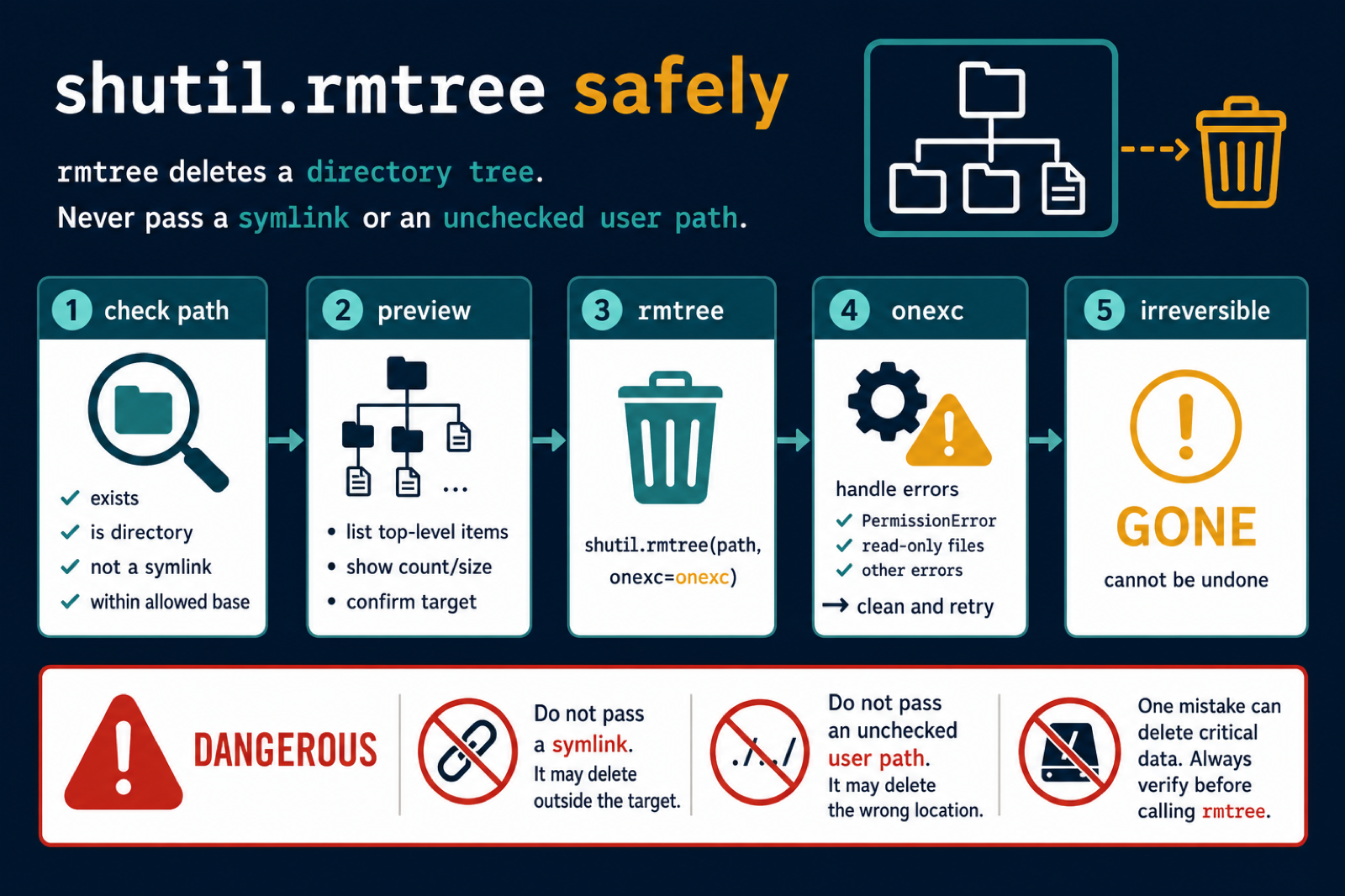
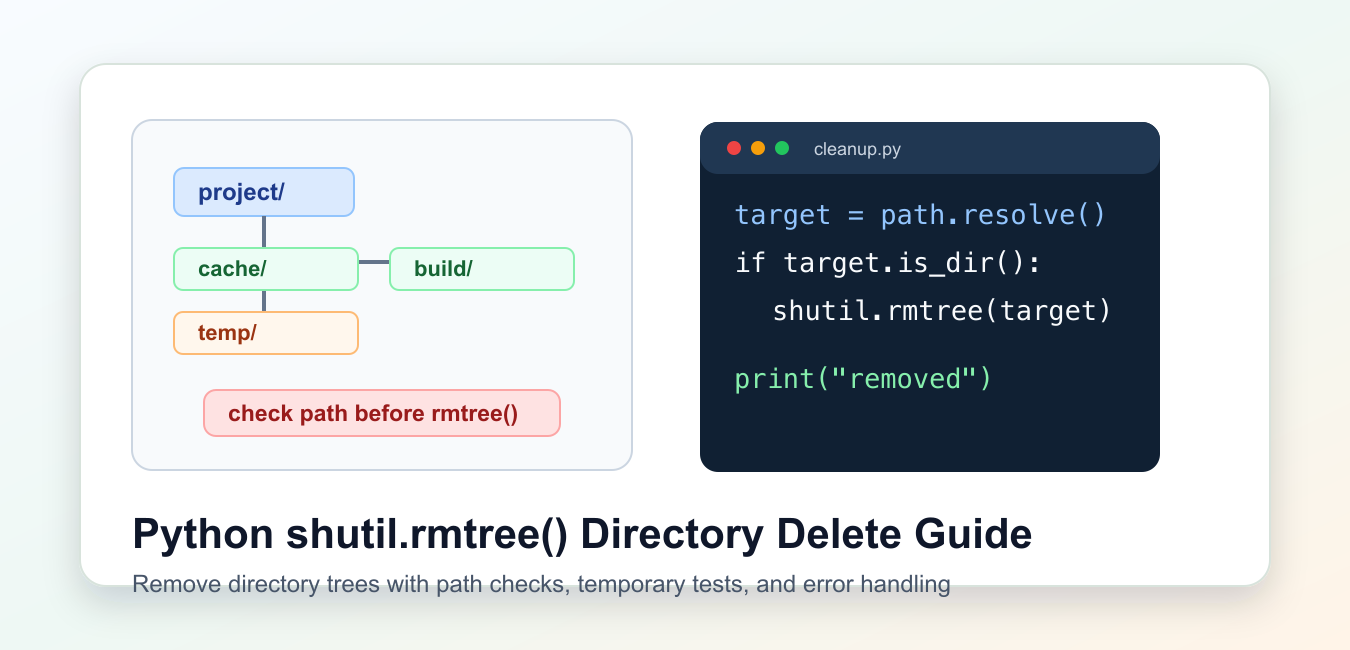
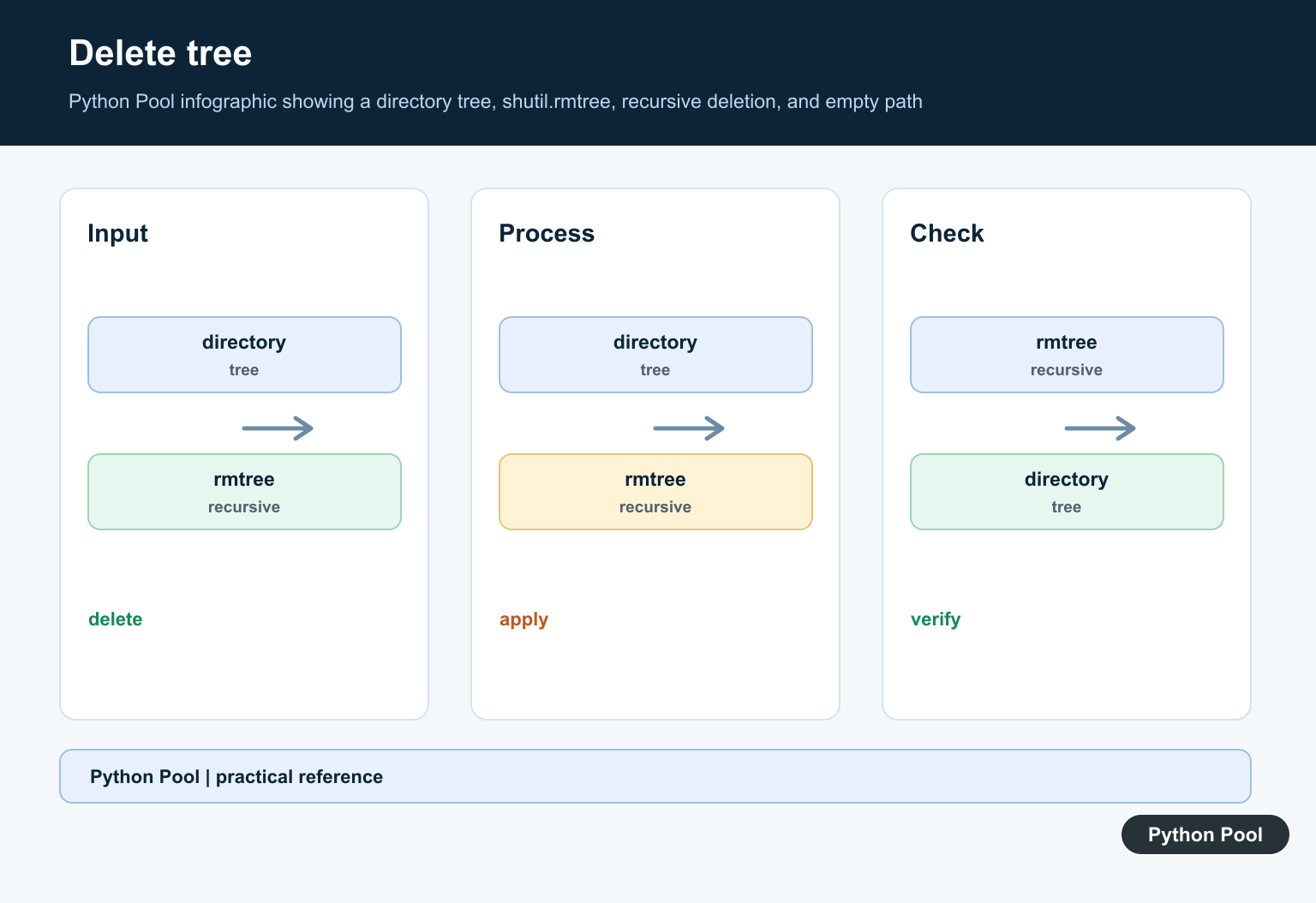
shutil.rmtree() removes an entire directory tree in Python. That includes the target folder, every nested subfolder, and every file inside it, so the function should be used with clear path checks.
The main reference is the Python documentation for shutil.rmtree(). Related standard-library docs cover pathlib and tempfile.
Use rmtree() for generated folders such as build output, temporary workspaces, extracted archives, cache folders, and test directories. Do not point it at user data unless the user has clearly requested that removal and the path has been checked.
A good cleanup script should be boring and explicit. It should name the base directory, build the target path from known pieces, print or log what it is about to remove, and fail loudly when the target is not the expected kind of path.
That extra caution matters in scheduled jobs and CI pipelines because a typo can run unattended. A few path checks are cheaper than recovering accidentally removed project output or user files.
Remove A Temporary Directory Tree
The safest way to learn rmtree() is to create a temporary folder, put files inside it, and remove that test tree.
from pathlib import Path
import shutil
import tempfile

base = Path(tempfile.mkdtemp())
target = base / "demo-tree"

(target / "logs").mkdir(parents=True)
(target / "logs" / "app.log").write_text("hello\n")
(target / "notes.txt").write_text("temporary note\n")

print(target.exists())
shutil.rmtree(target)
print(target.exists())

shutil.rmtree(base)
This example avoids touching a real project folder. It also shows the key behavior: after rmtree() runs, the target directory no longer exists.
Unlike Path.unlink(), which removes one file, rmtree() is built for nested directories.
Use temporary directories for examples, tests, and experiments. They let you verify behavior on your machine without risking files that belong to a real project.
Check The Path First
Before removing anything, confirm that the path exists, is a directory, and points to the area you expected.
from pathlib import Path
import shutil

project_root = Path.cwd().resolve()
target = (project_root / "build" / "cache").resolve()

if not target.exists():
    print("Nothing to remove")
elif not target.is_dir():
    raise NotADirectoryError(target)
elif project_root not in target.parents:
    raise ValueError(f"Refusing to remove outside project: {target}")
else:
    shutil.rmtree(target)
    print(f"Removed {target}")
The parent check protects against deleting a folder outside the intended project. This is especially important when a path comes from a command-line argument, config file, or job input.
Resolve paths before comparing them so relative parts like .. do not hide the real target.
For command-line tools, accept a relative path under a configured workspace instead of accepting any absolute path. That keeps the cleanup boundary small and easy to review.
Preview Files Before Removal
A preview step is useful for scripts that clean generated folders. It gives you a chance to print the first few paths before removal.
from pathlib import Path

target = Path("build").resolve()

if target.is_dir():
    contents = sorted(path.relative_to(target) for path in target.rglob("*"))
    for path in contents[:10]:
        print(path)
    print(f"Total entries: {len(contents)}")
else:
    print("Target directory is missing")
For automated cleanup, you might log the count and target path. For interactive cleanup, ask for confirmation after showing the preview.
A preview is not a substitute for path guards, but it makes mistakes easier to spot before the final call.
For large folders, avoid printing every entry. A short sample and a total count are usually enough to confirm that the script is looking at the right tree.
Handle Missing Paths
If a folder may already be gone, check first or use ignore_errors=True only when you genuinely do not care about failures.
from pathlib import Path
import shutil

target = Path("cache").resolve()

if target.exists():
    shutil.rmtree(target)
    print("cache removed")
else:
    print("cache was already absent")
This explicit form is usually clearer than suppressing every error. It distinguishes a missing folder from permission problems, locked files, and incorrect path types.
Use ignore_errors=True for best-effort cleanup in short-lived temporary directories, not for important maintenance scripts.
If cleanup is part of a larger workflow, report whether anything was removed. That makes logs easier to read when a previous step skipped folder creation.
Fix Read-Only File Problems
On some systems, read-only files can block removal. Python supports an onexc callback for handling errors during traversal.
from pathlib import Path
import os
import shutil
import stat

def make_writable(function, path, excinfo):
    current = Path(path)
    current.chmod(current.stat().st_mode | stat.S_IWRITE)
    function(path)

target = Path("readonly-cache")
if target.exists():
    shutil.rmtree(target, onexc=make_writable)

print("cleanup attempted")
Keep callbacks narrow. In this case the callback only makes a blocked path writable and retries the failing operation.
If permission errors keep happening, log the path and stop. Repeated retries can make troubleshooting harder and may hide a real access problem.
Create A Safer Helper
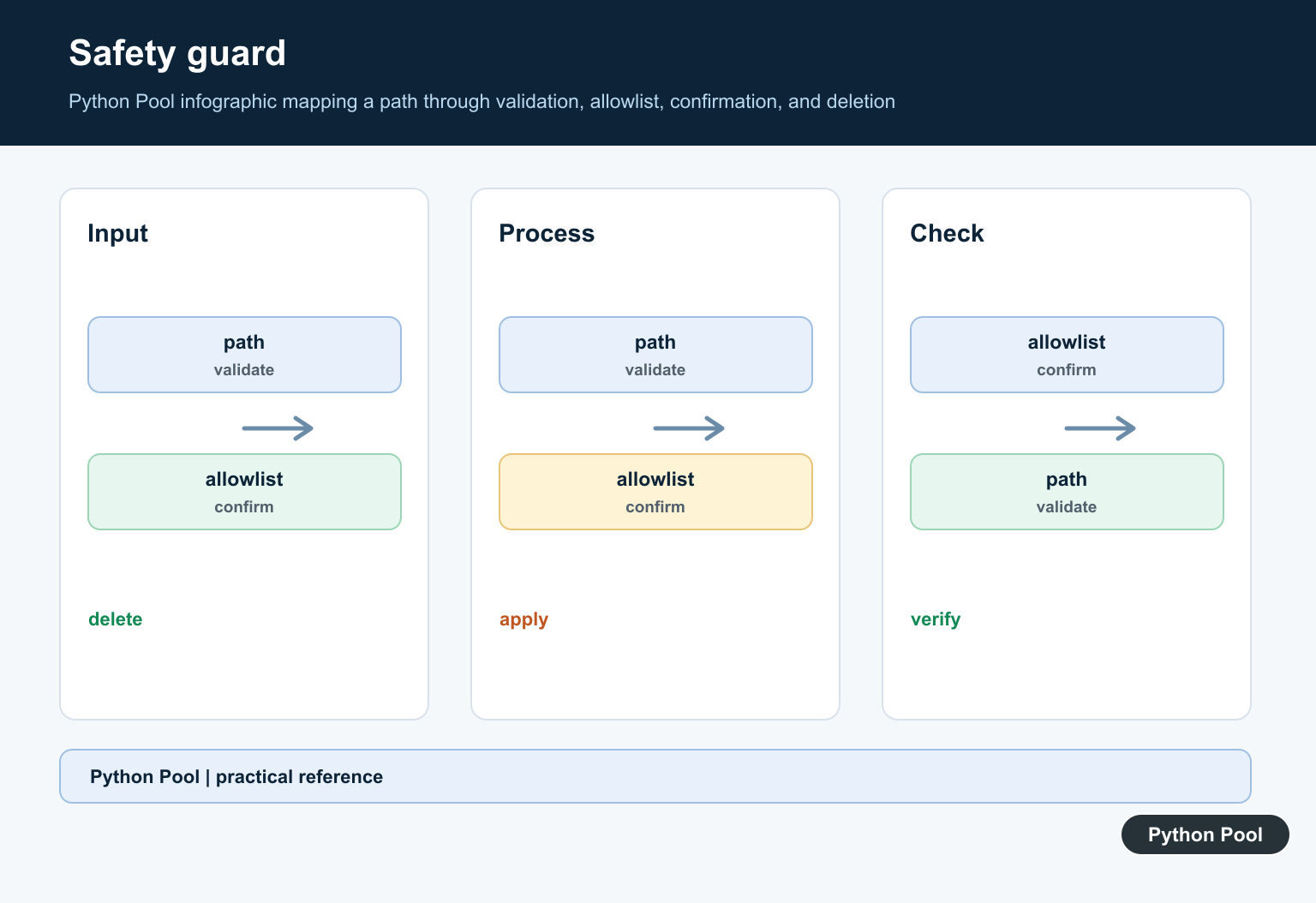
For repeated cleanup tasks, wrap rmtree() in a helper that accepts only paths under a known workspace.
from pathlib import Path
import shutil

def remove_tree_under(base_dir, relative_path):
    base = Path(base_dir).resolve()
    target = (base / relative_path).resolve()

    if base == target or base not in target.parents:
        raise ValueError(f"Unsafe removal target: {target}")
    if not target.exists():
        return False
    if not target.is_dir():
        raise NotADirectoryError(target)

    shutil.rmtree(target)
    return True

removed = remove_tree_under(Path.cwd(), "build/cache")
print(removed)
This pattern works well for deleting build folders, cache folders, and generated test output because the allowed base directory is explicit.
The practical rule is to treat shutil.rmtree() as a powerful cleanup tool: use it for directory trees, test with temporary folders, resolve and guard paths, preview important removals, and handle errors without hiding unexpected failures.
When a task only needs to remove one file, use Path.unlink(). When a task needs to remove an empty folder, use Path.rmdir(). Save rmtree() for full directory trees.

Validate and Preview the Target
rmtree() is recursive and irreversible. Resolve the target, check that it is a directory, keep it inside an allowed project root, and preview entries before removal.
from pathlib import Path
import shutil

root = Path.cwd().resolve()
target = (root / "build" / "cache").resolve()
if not target.is_dir() or target.is_symlink():
    raise ValueError("refusing to remove this target")
if root not in target.parents:
    raise ValueError("target is outside the project root")
print([p.name for p in target.iterdir()])
# Call shutil.rmtree(target) only after an explicit confirmation.
Never infer permission to delete from a filename alone. A path such as build can resolve somewhere unexpected when the process working directory changes.
Handle Read-Only Files With onexc
On Windows, a tree can contain files with a read-only attribute. An onexc callback can clear that attribute and retry the operation, while other failures should still propagate so the caller knows cleanup was incomplete.
import os
import shutil
import stat

def remove_readonly(function, path, exc):
    os.chmod(path, stat.S_IWRITE)
    function(path)

shutil.rmtree("temporary-tree", onexc=remove_readonly)
For untrusted paths or security-sensitive cleanup, use an allow-list and consider a dedicated sandbox. Do not set ignore_errors=True when silent partial deletion would be dangerous.
Before removing a directory, compare safe file copying and checking whether a path exists. Read python copy file and python check if file exists for the related workflow.
Frequently Asked Questions
What does shutil.rmtree() do?
It recursively deletes a directory and the files and subdirectories below it. The operation is destructive and should be preceded by path validation.
How do I delete a directory only if it is safe?
Resolve the path, verify it is the intended directory, reject symlinks, keep it under an allowed root, and preview its contents before calling rmtree().
How do I remove read-only files with rmtree()?
Use an onexc callback that changes the file permissions and retries the failed operation, while allowing unrelated errors to propagate.
Should I use ignore_errors=True with shutil.rmtree()?
Only when silent partial cleanup is acceptable. Otherwise let errors propagate or handle them explicitly so a failed deletion is visible.