Quick answer: use cls on Windows and clear on macOS or Linux when your Python program runs in a real terminal. For compatible ANSI terminals, writing "\033[2J\033[H" clears the visible screen and moves the cursor home without starting another process. Clearing the display does not reset variables or restart the program.
To clear the Python console while a program is running, first identify what “console” means in that environment: a system terminal, an IDE panel, or a notebook output cell. No single command behaves identically in every environment. Detect the context, choose a display operation, and keep program state separate from presentation.
If you only need spacing, use the techniques in Python Pool’s print blank lines guide. A screen clear should be reserved for interactive interfaces where replacing old output improves usability.
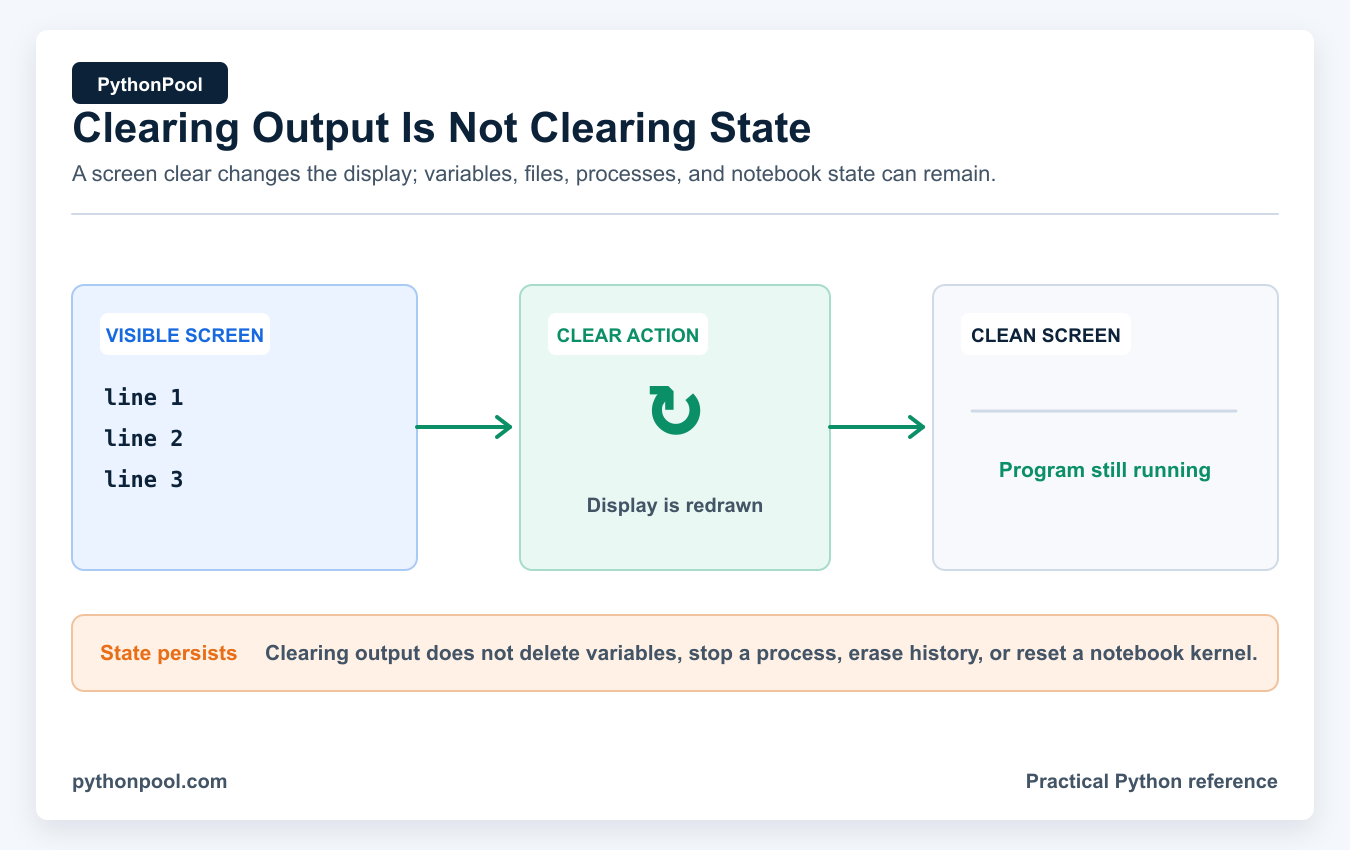
Clearing output changes the display; it does not reset the running Python process.
Clear the Terminal with cls or clear
The simplest cross-platform approach selects a fixed operating-system command from os.name.
import os

command = "cls" if os.name == "nt" else "clear"
exit_code = os.system(command)

if exit_code != 0:
    print("The terminal could not be cleared.")
Use only a fixed command that your code controls. Never concatenate untrusted input into os.system(), because the shell can interpret metacharacters and execute additional commands.
Use subprocess Without a Shell
subprocess.run() makes the child process and error policy explicit. It also avoids invoking an extra shell when shell=False, which is the default.
import os
import subprocess

def clear_with_command() -> bool:
    command = ["cmd", "/c", "cls"] if os.name == "nt" else ["clear"]
    result = subprocess.run(command, check=False)
    return result.returncode == 0

if not clear_with_command():
    print("Clear command is unavailable in this environment.")
The official Python subprocess documentation recommends run() for common child-process use cases. Python Pool’s Python shell command guide provides additional examples and security notes.
Clear with ANSI Escape Sequences
Many modern terminals support ANSI control sequences. ESC[2J clears the visible display, and ESC[H moves the cursor to the home position.
import sys

def clear_ansi() -> None:
    sys.stdout.write("\033[2J\033[H")
    sys.stdout.flush()

clear_ansi()
print("The program is still running.")
This does not necessarily erase the terminal’s scrollback buffer. Exact behavior depends on the terminal emulator. Flushing ensures the control sequence is written immediately; the Python unbuffered output guide explains related buffering behavior.
On compatible Windows terminals, ESC[2J is the Erase in Display control sequence with parameter 2. The Microsoft virtual-terminal sequence reference documents the matching Windows console behavior.
Refresh One Console Line Instead of the Whole Screen
A progress counter usually needs only one line. Carriage return moves to the start of the current line, while ESC[2K erases that line in ANSI-compatible terminals.
import sys
import time

for percent in range(0, 101, 20):
    sys.stdout.write("\r\033[2K")
    sys.stdout.write(f"Progress: {percent}%")
    sys.stdout.flush()
    time.sleep(0.3)

print()
This produces less flicker and preserves more context than repeatedly clearing the Python console. If ANSI line erasure is unavailable, overwrite the previous text with a fixed-width message and spaces.
Check Whether Output Is Interactive
A clear sequence should usually be skipped when output is redirected to a file, a pipe, or a log collector. Otherwise the captured output contains escape characters instead of useful history.
import os
import sys

def clear_console() -> bool:
    if not sys.stdout.isatty():
        return False

    if os.name == "nt":
        return os.system("cls") == 0

    if not os.environ.get("TERM"):
        return False

    sys.stdout.write("\033[2J\033[H")
    sys.stdout.flush()
    return True

clear_console()
isatty() is a useful signal, not a guarantee. IDEs can emulate terminals partially, and test runners may capture output even when a console exists.
Refresh a Running Text Interface
Clearing is often used inside a loop that redraws status. Keep the update rate reasonable and allow a clean exit.
import os
import time

def clear_screen() -> None:
    os.system("cls" if os.name == "nt" else "clear")

for remaining in range(5, 0, -1):
    clear_screen()
    print("Background task")
    print(f"Seconds remaining: {remaining}")
    time.sleep(1)

print("Finished")
The loop continues because only terminal output changes. Variables such as remaining, open files, network connections, and imported modules remain in memory.
For a polished terminal UI, update only the lines that changed instead of clearing the full screen on every frame. Excessive clearing can flicker, waste work, and make diagnostics impossible to review.
Clear Jupyter or IPython Output
Notebook cells are not system terminals. Use IPython’s display API rather than cls, clear, or ANSI terminal assumptions.
import time

from IPython.display import clear_output

for step in range(1, 6):
    clear_output(wait=True)
    print(f"Progress: {step}/5")
    time.sleep(0.5)
wait=True waits for replacement output and can reduce visual flicker. Clearing a cell’s output does not reset the notebook kernel; variables and imports remain available. Restart the kernel only when you intentionally need a clean execution state.
What About IDE Consoles?
IDLE, PyCharm, VS Code, and other IDEs expose their own run or debug consoles. Some emulate ANSI sequences; others display them literally or provide a user interface action for clearing output. Avoid writing core application logic that depends on one IDE’s console behavior.
If a clear fails in an IDE, print a section divider or render a small status block instead. Production programs should send persistent diagnostics to structured logs rather than repeatedly deleting them from view. Python Pool’s Python logging guide shows a basic file and console configuration.
Use a Portable No-ANSI Fallback
When an IDE output pane ignores terminal commands, printing enough newlines can move old output out of the visible area. It does not truly clear the console or its history, but it is predictable text output.
import shutil

def push_output_out_of_view() -> None:
    size = shutil.get_terminal_size(fallback=(80, 24))
    print("\n" * size.lines, end="")

push_output_out_of_view()
Use this only as a presentation fallback. Captured logs will contain the blank lines, so an application that can detect redirected output should skip the operation.
Manual Shortcuts Are Not Programmatic Clearing
Ctrl+L clears the visible area in many Unix-style terminals, and terminal applications may provide their own menu command or shortcut. Those actions help a person working interactively; a running Python program cannot depend on the user pressing them. Use cls, clear, ANSI output, or the notebook display API when the program itself controls the refresh.
There is also no portable Python call that securely erases terminal scrollback. Clearing the viewport is a display operation, not a data-erasure guarantee. Treat any printed secret as exposed even if the screen later looks empty.
Clearing Is Not Resetting
A screen clear does not:
- delete Python variables or objects;
- stop threads, subprocesses, or timers;
- close files or network connections;
- erase terminal history or scrollback reliably;
- restart an IDE interpreter or notebook kernel; or
- remove sensitive information that may already have been logged or captured.
If you want to stop the application, use normal control flow or an intentional exit. Python Pool’s Python sys.exit() guide explains how the exit signal differs from clearing output.
Test Console-Clearing Code
Keep the decision logic separate from the side effect. A function that returns the selected strategy can be tested without erasing a developer’s screen. For integration tests, capture output and confirm that redirected streams do not receive ANSI sequences.
Also preserve an accessibility option. Rapid redraws and disappearing output can be difficult for screen readers and users who need time to review a message. A --no-clear flag or configuration setting is a considerate addition to interactive tools.
Frequently Asked Questions
How do I clear the Python console on Windows?
Run the fixed cls command, commonly through os.system("cls") or subprocess.run(["cmd", "/c", "cls"]).
How do I clear the terminal on macOS or Linux?
Run the clear command or write a supported ANSI clear-and-home sequence to an interactive terminal.
Does clearing the console delete variables?
No. It changes the visible display only; the Python process and its state continue unless your code explicitly changes them.
How do I clear output in Jupyter Notebook?
Call IPython.display.clear_output(wait=True). This clears cell output without restarting the kernel.
Why does os.system(“cls”) not clear PyCharm or VS Code?
The code may be writing to an IDE output pane rather than a real terminal. Use an integrated terminal, enable terminal emulation when the IDE supports it, or fall back to ordinary text output.
Can Python clear terminal scrollback securely?
Not portably. Terminal emulators interpret clear and scrollback controls differently, and logs or screen capture may already contain the output.