
Quick Answer
Run python -m pip in the same environment that shows the warning. Inspect the reported site-packages directory for a leftover temporary folder such as ~package or -package, rename it first, then reinstall only the affected package and run python -m pip check. Never delete an unknown package directory blindly.
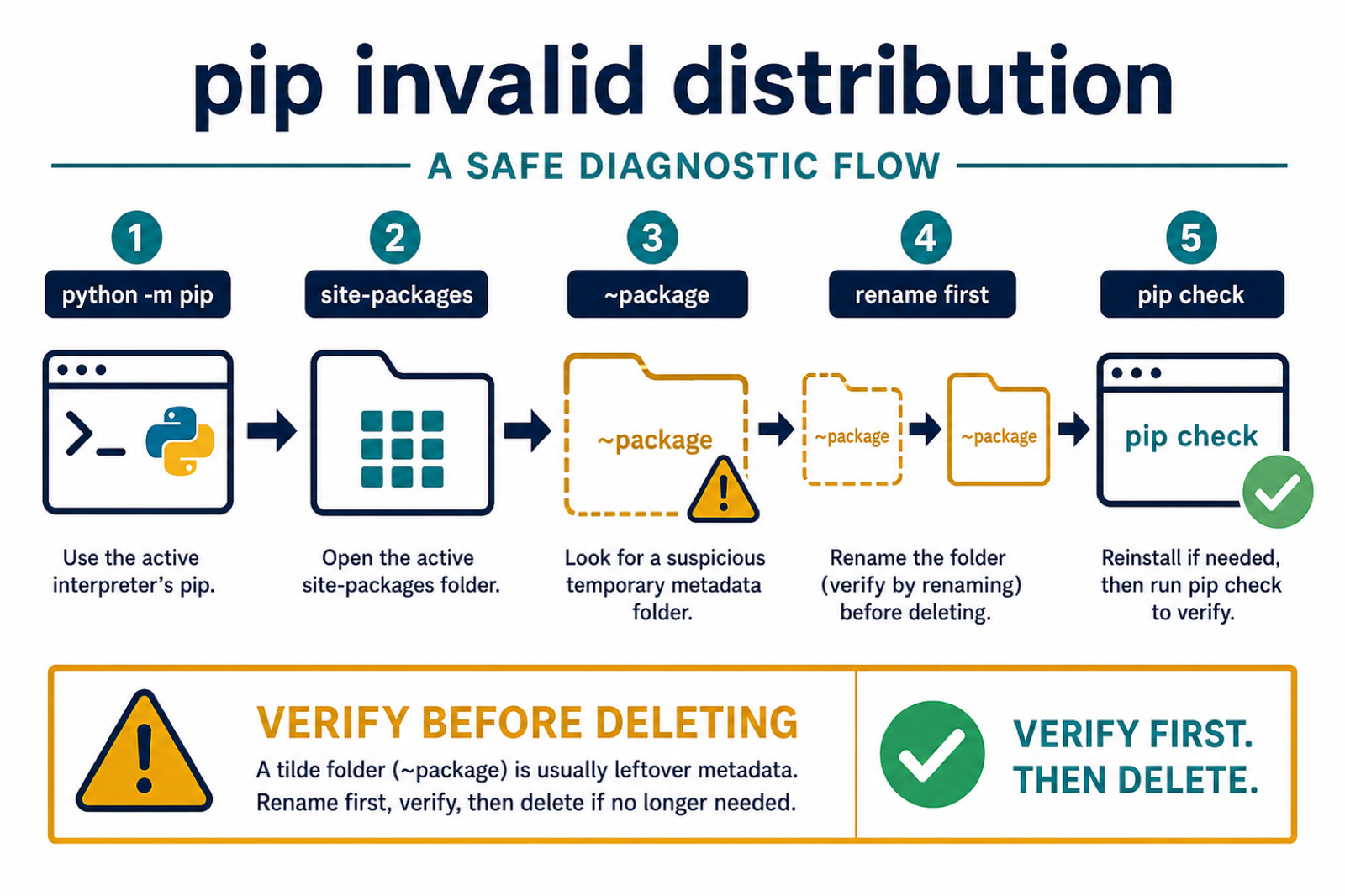
The warning WARNING: Ignoring invalid distribution appears when pip finds broken package metadata inside the active Python environment. It often looks like this:
WARNING: Ignoring invalid distribution -ip (C:\Python311\Lib\site-packages)The package name may show as -ip, ~ip, -andas, ~umpy, or another partial package name. The path in parentheses is the important part because it tells you which site-packages directory pip is reading.
Why the warning happens
This warning usually means an install, uninstall, or upgrade stopped before pip cleaned up a temporary package folder. The result is a leftover directory or .dist-info metadata folder with a strange name, often starting with ~ or -. After repairing invalid package metadata, Fix error: legacy-install-failure in pip covers legacy build failures that require current build tools, wheels, or a compatible package release.
It can also happen when you mix package managers, install some packages globally and others in a virtual environment, or run pip against a different Python interpreter than the one your project uses.
1. Check which Python environment pip is using
Always run pip through the Python interpreter you intend to repair. The official pip install documentation uses python -m pip because it binds pip to that exact interpreter.
python -m pip --version
python -c "import sys; print(sys.executable)"
On Windows, you can also use:
py -m pip --version
py -c "import sys; print(sys.executable)"
If the warning path does not match the Python interpreter you expect, fix the interpreter selection first. Our guide to Python is not recognized as an internal or external command helps with Windows path issues.
2. Locate the broken metadata folder
Read the path in the warning and open that exact site-packages folder. Look for folders whose names begin with ~ or -, or folders that look like a damaged package name.
For example, this warning:
WARNING: Ignoring invalid distribution -ip (/path/to/.venv/lib/python3.12/site-packages)usually means there is a leftover folder such as ~ip, -ip, ~ip-23.3.dist-info, or similar inside that directory.
Do not delete random package folders. Rename the suspicious folder first so you can undo the change if needed.
# Example only: use the folder name from your own warning.
mv "~ip" "~ip.bak"
On Windows, rename the folder in File Explorer, or use PowerShell inside the reported site-packages directory:
Rename-Item "~ip" "~ip.bak"After renaming the suspicious folder, run:
python -m pip listThe official pip list documentation covers this command. If the warning disappears, you found the broken metadata.
3. Upgrade pip, setuptools, and wheel
Once the invalid metadata folder is out of the way, upgrade the packaging tools in that same environment.
python -m pip install --upgrade pip setuptools wheelIf the warning named a package other than pip, reinstall that package too:
python -m pip install --force-reinstall package-nameThe --force-reinstall option is documented in pip’s install options. Use it for the affected package, not as a blanket command for every package in the environment.
4. Check for broken dependencies
After cleanup, run:
python -m pip checkThe official pip check documentation explains that this command checks installed packages for dependency conflicts. If it reports missing or incompatible dependencies, reinstall the affected packages.
5. If pip itself is broken
If python -m pip fails completely, repair pip with Python’s built-in ensurepip module, then upgrade pip.
python -m ensurepip --upgrade
python -m pip install --upgrade pip
Python’s ensurepip documentation covers this bootstrap module.
Do not just suppress the warning
This is a pip environment warning, not a normal Python runtime warning from the warnings module. Hiding it does not repair the broken metadata. If you only want to understand Python’s warning system, see our separate guide to suppress warnings in Python, but use the repair steps above for this pip warning.
Conda, PyCharm, and virtual environments
If you use Conda, repair the environment you actually activated. Avoid mixing conda install and pip install without a reason. If the environment is badly corrupted, creating a new environment is often faster than trying to repair every package.
If you use PyCharm, open the project interpreter settings and confirm the interpreter path. Then run python -m pip --version in PyCharm’s terminal. The path should match the interpreter selected for the project.
For isolated project work, use a virtual environment. Python’s venv documentation covers creating virtual environments. If an old virtual environment is beyond repair, our guide to remove Python venv safely explains how to delete one cleanly.
Common mistakes
- Deleting the wrong folder: only rename or remove the suspicious folder inside the path shown in the warning.
- Running plain
pipfrom a different Python: preferpython -m piporpy -m pip. - Ignoring dependency conflicts: run
python -m pip checkafter cleanup. - Using cleanup tools too early: fix the environment first. If you are troubleshooting
pip_autoremove, see No module named pip_autoremove. - Assuming the IDE fixed it: IDE package managers still point to a real Python environment, so verify the interpreter path.
Conclusion
To fix WARNING: Ignoring invalid distribution, identify the active Python environment, inspect the site-packages path shown in the warning, rename the damaged metadata folder, then reinstall or upgrade the affected package with python -m pip. Do not suppress the warning as a substitute for repairing the environment.
Confirm the Active Environment First
The warning belongs to the interpreter that ran pip, not necessarily the Python selected by your editor. Use the interpreter explicitly and print its locations before changing files.
python -c "import sys, site; print(sys.executable); print(site.getsitepackages())"
python -m pip --version
python -m pip list
On Windows, use py -m pip when the Python launcher is the authority for the environment. On a virtual environment, activate it or call its interpreter by full path.
Repair Metadata Without Guessing
pip uses installed-distribution metadata in .dist-info directories to identify packages. An interrupted install or uninstall can leave a temporary or incomplete directory that pip reports as invalid.
# Inspect the exact directory named in the warning first
python -m pip show package_name
python -m pip check

# After verifying the package and environment:
python -m pip install --force-reinstall package_name
python -m pip check
Rename a suspicious leftover folder before deleting it so the change is reversible. If the environment has several damaged distributions, recreate the virtual environment rather than manually deleting unrelated metadata. The packaging specifications require valid installed metadata such as METADATA and RECORD for reliable package management.
Frequently Asked Questions
What does pip Ignoring invalid distribution mean?
pip found a directory or installed-package metadata in site-packages that does not describe a valid distribution, often after an interrupted install or uninstall.
How do I find the site-packages directory used by pip?
Run the same interpreter with python -c to print sys.executable and site.getsitepackages(), then compare it with python -m pip –version and the path in the warning.
Should I delete folders beginning with a tilde?
Only after verifying the exact environment and package name. Rename the suspicious folder first, rerun pip, and keep a backup before deleting anything.
What should I run after repairing an invalid distribution?
Run python -m pip check to find dependency conflicts, then import the affected package in a clean test and repeat the original pip command.