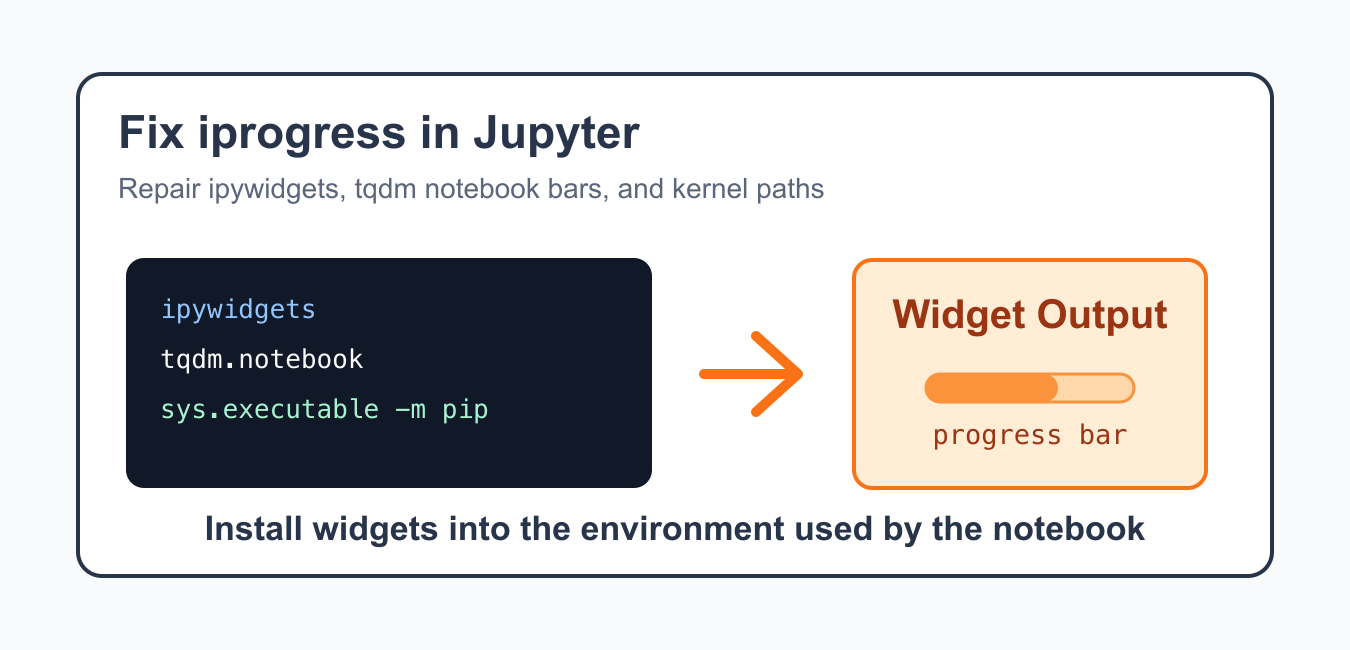
The message iprogress not found. please update jupyter and ipywidgets usually appears when notebook progress bars cannot load the widget frontend they need. It is common with tqdm.notebook, older notebook installs, mismatched kernels, or an environment where ipywidgets is missing.
Quick Answer
If Jupyter says IProgress is not found, print sys.executable inside the failing notebook, install ipywidgets and the matching widget support into that interpreter, restart the kernel and frontend, and test a simple widget before testing tqdm.notebook. After installing ipywidgets, a stale or missing front-end model can still break display; Fix Error Displaying Widget: Model Not Found covers extension versions, kernels, and cache cleanup.
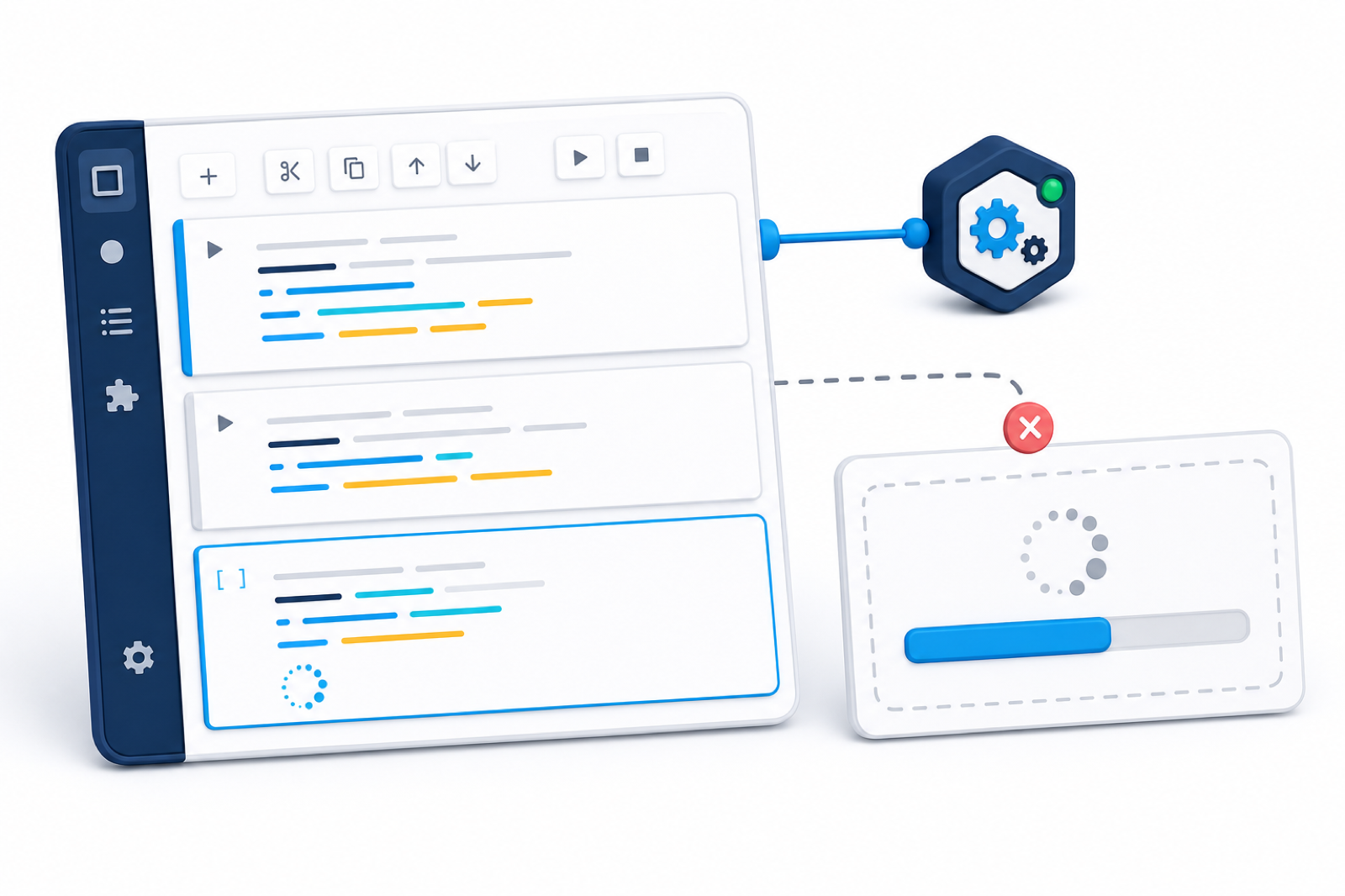
The fix is not just “update everything” in any terminal. You need to update or install packages in the same Python environment that the notebook kernel uses. If Jupyter runs from one environment and the kernel points to another, widgets may still fail after a successful install.
This error is usually a frontend and environment mismatch, not a problem with the loop itself. The Python code may continue running, but the notebook cannot display the interactive progress widget. That is why a plain text progress bar can work while tqdm.notebook fails.
Use the official ipywidgets installation guide, tqdm notebook documentation, IPython display documentation, and JupyterLab extensions documentation as primary references.
Check The Notebook Kernel Environment
Start inside the notebook that shows the error. Print the executable so you know which environment needs the widget packages.
import sys

print(sys.executable)
print(sys.version)
print(sys.prefix)
This path is more useful than the terminal path. Install into this environment if the error appears in this kernel.
If you use multiple projects, repeat this check in the notebook that actually fails. A different notebook may use a different kernel even when it appears in the same Jupyter server window.
Check Whether ipywidgets Is Installed
Use Python metadata to confirm whether the current interpreter can see ipywidgets.
from importlib.metadata import PackageNotFoundError, version

for package in ["ipywidgets", "widgetsnbextension", "jupyterlab_widgets"]:
    try:
        print(package, version(package))
    except PackageNotFoundError:
        print(package, "not installed")
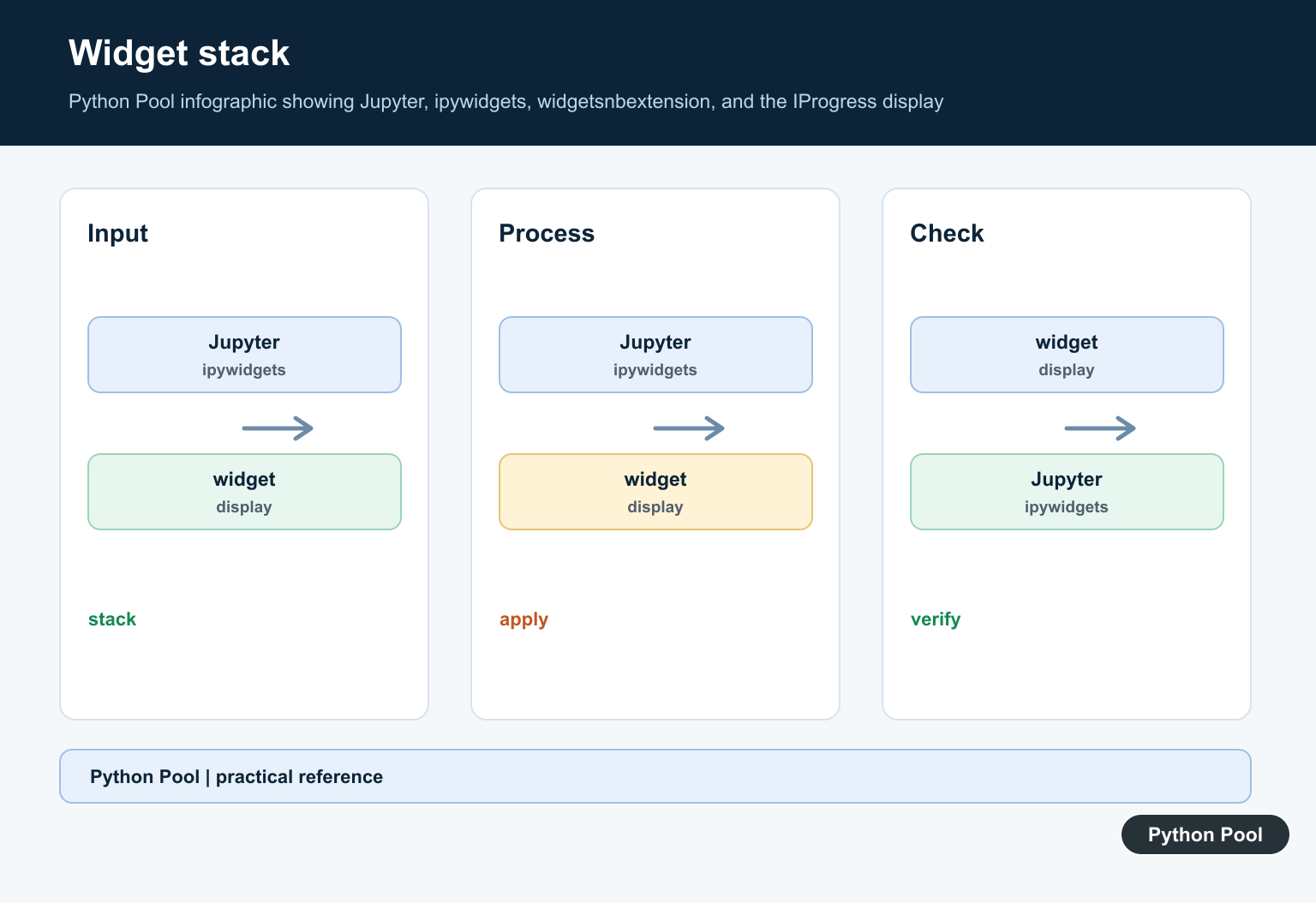
Classic Notebook often relies on widgetsnbextension. JupyterLab uses jupyterlab_widgets. Current installs may include the right package automatically, but checking removes guesswork.
The exact packages can vary by Jupyter version, but the principle is the same: the backend Python package and the frontend widget support must both be available. Missing either side can produce the same visible error.
Install Widget Packages In The Active Python
Install or upgrade widget packages with sys.executable -m pip so the command targets the same interpreter that is running the notebook. If the notebook kernel cannot be installed for the active interpreter, Fix No Matching Distribution Found for ipykernel checks Python version, package indexes, platform wheels, and environment selection.
import sys

command = [
    sys.executable,
    "-m",
    "pip",
    "install",
    "--upgrade",
    "ipywidgets",
    "widgetsnbextension",
    "jupyterlab_widgets",
]

print(command[:4])
print(command[-3:])
Restart the kernel after installation. If the Jupyter server was already running, a full server restart may also be needed so frontend assets are reloaded.
If your notebook runs on a remote server, make sure the install command targets the remote kernel environment, not your local laptop environment. Local installs do not repair packages on a hosted notebook server.
Test A Basic Widget
Before testing progress bars, confirm that a simple widget can render in the notebook.
import ipywidgets as widgets
from IPython.display import display

slider = widgets.IntSlider(
    value=3,
    min=0,
    max=10,
    description="Test",
)

display(slider)
If this slider does not appear, the problem is widget support rather than tqdm specifically. Focus on ipywidgets, notebook frontend support, and the active kernel.
A simple widget test is useful because it removes progress-bar logic from the diagnosis. If the slider renders, widget support is working and the remaining issue is more likely tied to tqdm usage or package versions.
Test tqdm Notebook Progress
After widgets work, test tqdm.notebook with a short loop.
from threading import Event
from tqdm.notebook import tqdm

for index in tqdm(range(5), desc="Testing"):
    Event().wait(0.1)
    print(index)
If the loop runs but no visual progress bar appears, the Python package is present but frontend widget rendering still needs attention. When notebook widgets are unavailable, Python tqdm Progress Bar Guide explains terminal and notebook tqdm modes, iterable wrapping, manual updates, and nested bars.
After changing widget packages, refresh the browser tab or reopen the notebook. Some frontends keep old JavaScript assets loaded until the page is refreshed.
Use A Text Fallback
For scripts, terminals, or environments where notebook widgets are not required, use standard tqdm as a fallback.
from threading import Event
from tqdm import tqdm

for index in tqdm(range(5), desc="Text progress"):
    Event().wait(0.1)
    print(index)
This fallback avoids widget rendering entirely. It is a practical choice for command-line scripts and automation jobs.
Fallback progress is also useful in documentation and shared notebooks where readers may use different frontends. It keeps the example functional even when interactive widgets are unavailable.
Practical Checklist
Check the notebook kernel path, verify ipywidgets, install widget packages into the active interpreter, restart the kernel, and test a simple widget before testing tqdm.notebook. If the widget test fails, solve Jupyter widget support first.
Also check whether you are using classic Notebook, JupyterLab, VS Code notebooks, or another frontend. Each frontend can handle widgets differently, so package installation and restart steps may not be identical.
When team members see different behavior, compare the kernel path, Jupyter frontend, browser refresh state, and package versions. Those details usually explain why the same notebook works for one person and fails for another.
The reliable pattern is to repair the environment that the notebook actually runs, not a random terminal environment. Once the kernel, widget packages, and frontend support match, the iprogress error usually disappears.
Frequently Asked Questions
Why does IProgress not appear in Jupyter?
The notebook frontend cannot load the widget support required by the progress bar, or the packages were installed into a different Python environment than the active kernel.
What should I run first?
Run import sys; print(sys.executable) inside the failing notebook. Use that interpreter with -m pip so the installation targets the active kernel.
Do I need to reinstall Jupyter?
Usually no. First align ipywidgets, widgetsnbextension or jupyterlab_widgets, the notebook frontend, and the active kernel. Reinstalling everything can hide the real environment mismatch.
Can I use tqdm without widgets?
Yes. Use tqdm.tqdm instead of tqdm.notebook.tqdm when the code runs in a terminal, automation job, or frontend where interactive widgets are not required.