Quick answer: The browser error means a global named IPython is not available in the current page or output context. Identify the notebook front end and API version, then replace legacy calls with the documented integration for that environment instead of defining a fake global.
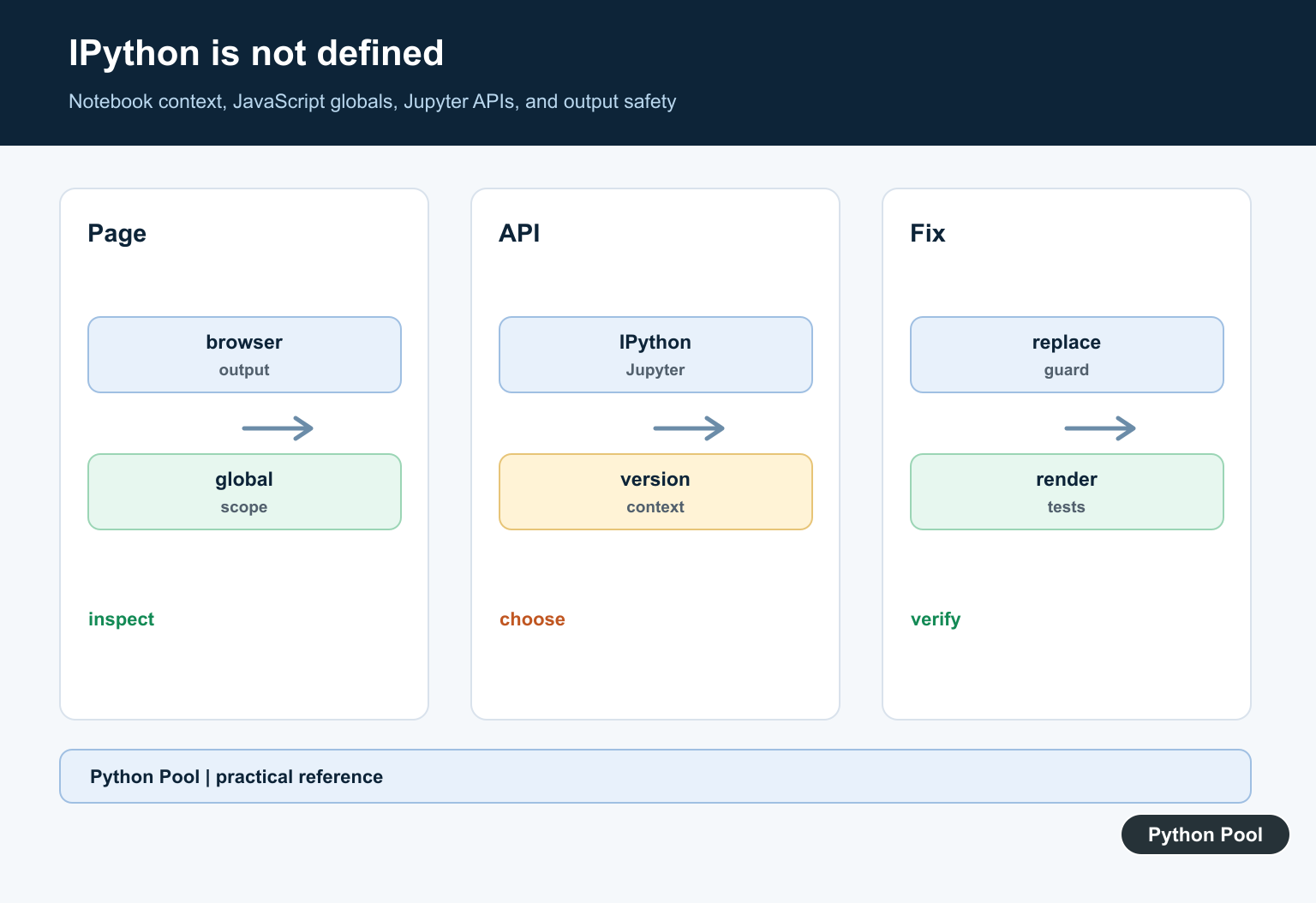
The message JavaScript error: IPython is not defined usually means a notebook page or custom script expected the old browser-side IPython object, but the current frontend does not expose it. This is common after moving code from classic Notebook to JupyterLab, opening exported notebook HTML, running old widget examples, or copying a JavaScript snippet that was written for a different notebook frontend.
The important distinction is that IPython itself is a Python project and kernel experience, while IPython in this error refers to a JavaScript object in the browser. Updating Python packages may help when the widget stack is broken, but the durable fix is to remove frontend assumptions and use supported display or extension paths.
Official references worth checking are the IPython display documentation, ipywidgets installation guide, JupyterLab extensions guide, JupyterLab notebook guide, Jupyter Notebook configuration overview, and Jupyter running guide.
Check The Notebook Stack
Start by recording the packages that control the notebook kernel, widgets, and frontend. This separates a browser-side JavaScript issue from a missing Python package.
import importlib.metadata as metadata

packages = ["ipython", "ipykernel", "ipywidgets", "notebook", "jupyterlab"]

for package in packages:
    try:
        version = metadata.version(package)
    except metadata.PackageNotFoundError:
        version = "not installed"
    print(f"{package}: {version}")
If ipywidgets is missing, install it in the same environment as the kernel. If JupyterLab or Notebook is much older than the environment used by the kernel, update the frontend stack as well.
Use IPython Display Helpers
For normal notebook output, prefer IPython display helpers over browser globals. They work through the notebook display system instead of assuming a specific JavaScript object exists.
from IPython.display import HTML, display

message = "<strong>Notebook output is working.</strong>"
display(HTML(message))
This is useful when old examples use custom frontend calls only to show HTML, markdown, tables, or status text. Keep the display value small so the notebook remains responsive.
Run JavaScript Without Relying On IPython
If JavaScript is truly needed, write it so it uses browser APIs directly and does not call IPython.notebook. Some frontends restrict JavaScript display output, so treat this as a narrow tool rather than the main application layer.
from IPython.display import Javascript, display

script = """
const target = document.createElement("div");
target.textContent = "JavaScript ran without the IPython global";
document.body.appendChild(target);
"""

display(Javascript(script))
Old snippets that call IPython.notebook.kernel.execute(...) are fragile. Move Python work into Python cells, functions, or widgets instead of asking JavaScript to control the kernel.
Test Widget Support
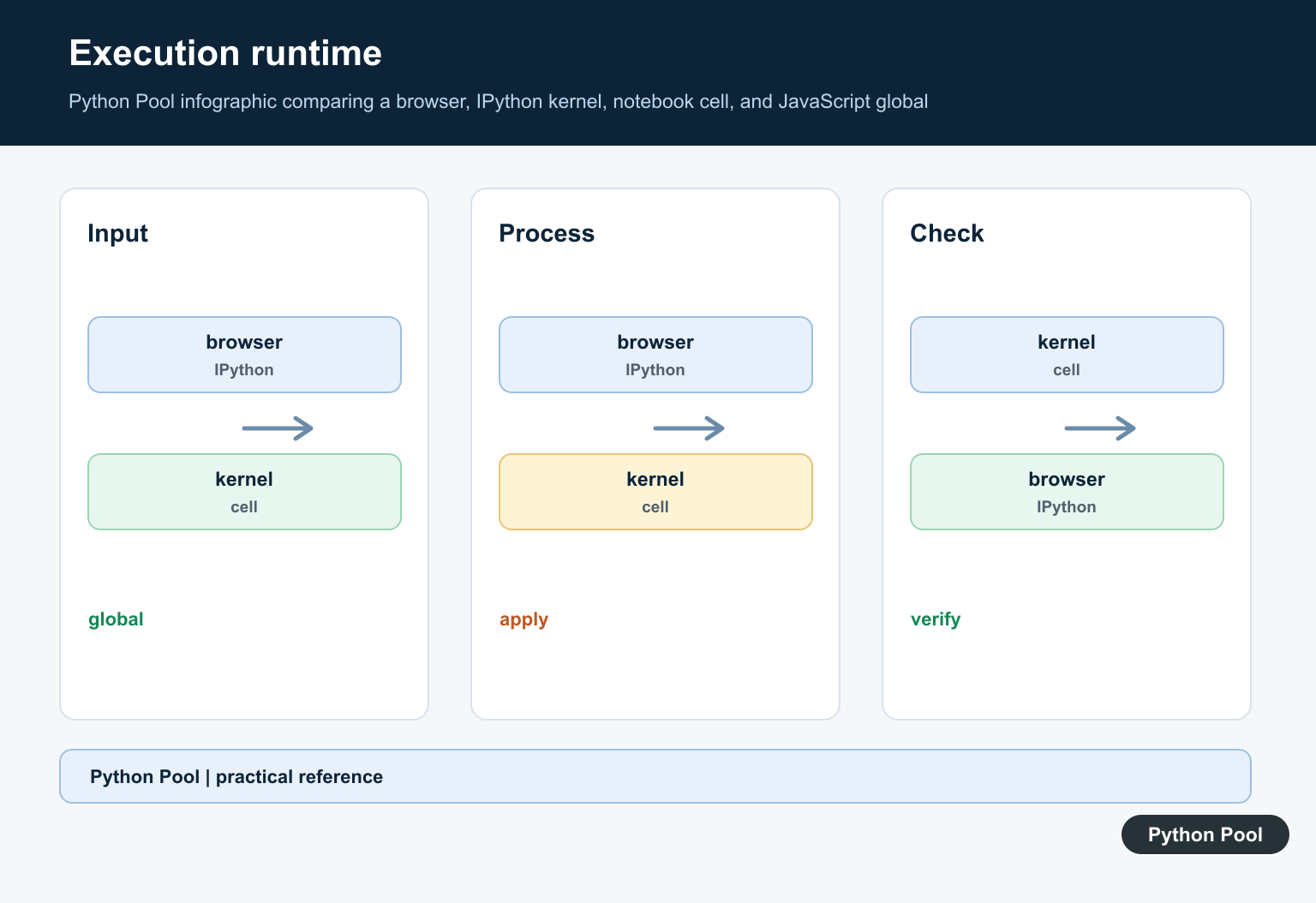
Many reports of this error come from widgets that were installed for the kernel but not enabled for the frontend. A tiny widget test confirms whether the display channel and widget manager are working together.
import ipywidgets as widgets
from IPython.display import display

slider = widgets.IntSlider(value=3, min=0, max=10, description="Count")
display(slider)
If the slider does not render, focus on widget installation and extension support. If it renders but one old notebook fails, the failing notebook probably contains outdated custom JavaScript.
Keep Python State In Python
A common source of this error is using JavaScript to push values back into the kernel. That approach depends on frontend internals. Put the state change in Python and display the result from Python instead.
from IPython.display import Markdown, display

def show_status(label, count):
    display(Markdown(f"**{label}:** {count}"))

show_status("Rows checked", 25)
This is easier to test, works in more notebook frontends, and avoids hidden browser-to-kernel coupling. For reusable notebooks, plain Python functions are usually more maintainable than injected JavaScript.
Clear Stale Output
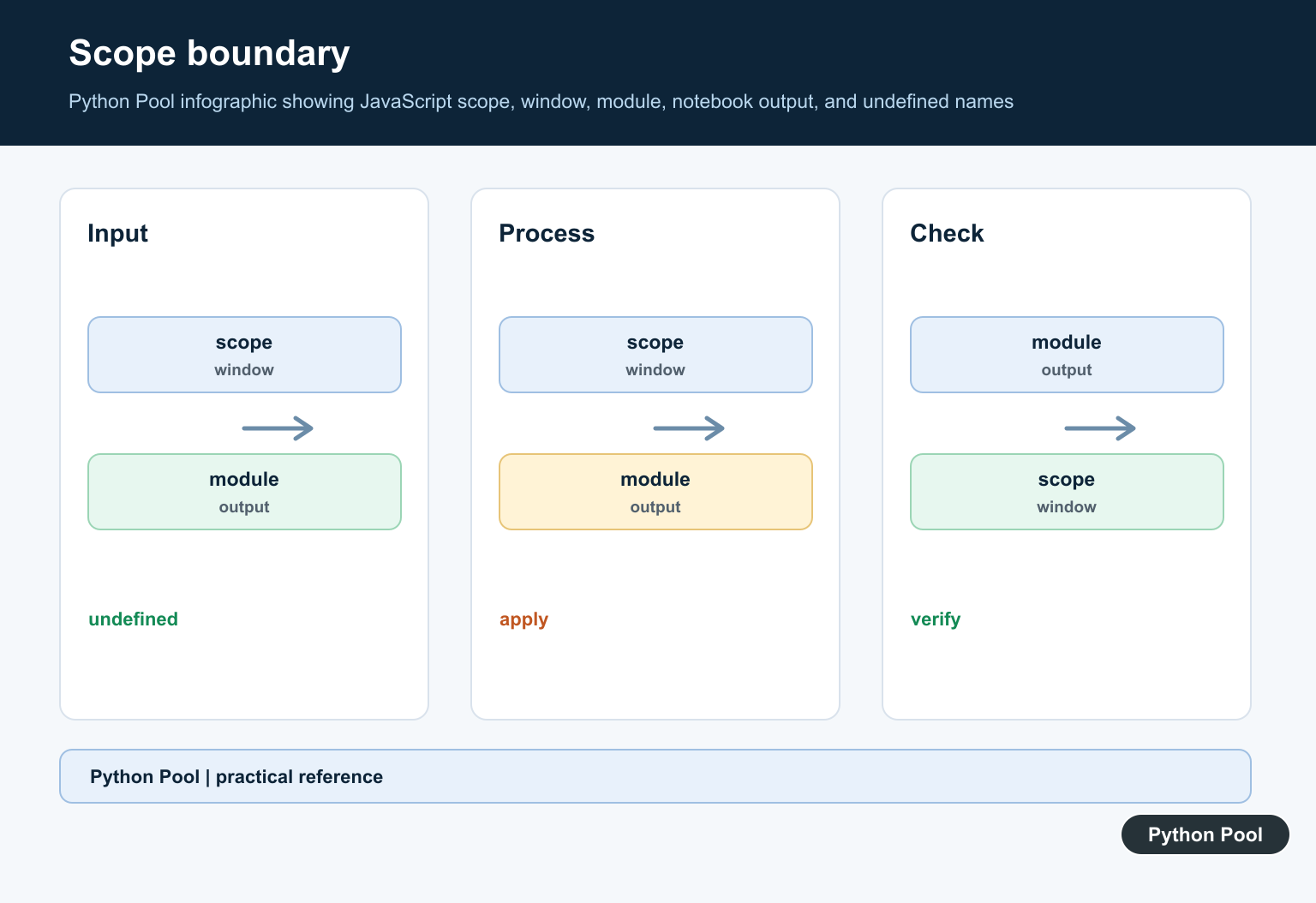
After changing packages or replacing a custom script, clear old output and restart the kernel. Stale output can keep showing an error that no longer matches the current code.
from IPython.display import clear_output

for step in range(3):
    clear_output(wait=True)
    print(f"checking notebook setup {step + 1}/3")
Then rerun the notebook from the top. A clean run proves the fix is in the saved cells and environment, not only in temporary browser state.
Fix Checklist
First, identify where the JavaScript came from. If it is copied from an old classic Notebook example, replace it with IPython display helpers, widgets, or Python code. If it is part of a third-party widget, verify that the widget package and frontend extension are installed for the environment you are actually using.
Next, compare the frontend. Classic Notebook, JupyterLab, hosted notebooks, and exported HTML do not expose the same browser objects. Code that worked in one page can fail in another even when the Python kernel is healthy.
Finally, restart the kernel, clear output, and rerun the notebook. If the error disappears, keep the notebook on supported display APIs and remove the old script so the problem does not return during the next environment update.
Identify The Execution Context
JavaScript in a classic notebook, JupyterLab output, a converted HTML file, a dashboard, and a normal browser page may run with different globals. Reproduce the error in the exact context that users load.
Treat Globals As Optional
A global object can be missing because a script was not loaded, output was sanitized, or the front end intentionally isolates code. Guard optional integrations and provide a useful fallback when the feature is not available.
Replace Legacy APIs
Search the code for IPython-specific calls and map each one to the current Jupyter or front-end API. Do not assume a similarly named object has the same methods or security behavior.
Check Load Order And Trust
If a supported script is required, verify its URL, load order, content policy, notebook trust, and bundler behavior. Avoid copying an arbitrary CDN snippet into a production page just to silence the exception.
Separate Python And Browser Code
A Python object in the kernel is not automatically a browser JavaScript global. Use the notebook’s supported communication mechanism or a documented widget integration for cross-boundary behavior.
Test Outputs And Versions
Test fresh and existing outputs, notebook and lab front ends, exported HTML, missing APIs, blocked scripts, and version upgrades. Assert a graceful message or fallback instead of an uncaught ReferenceError.
Use the official Jupyter documentation for front-end-specific APIs and migration guidance. Related Python Pool references include tests and diagnostics.
For related notebook debugging, compare context tests, safe diagnostics, and configuration mappings before replacing a JavaScript global.
Frequently Asked Questions
What does IPython is not defined mean?
The browser JavaScript runtime cannot find a global named IPython in the current page or output context.
Why does IPython work in one notebook but not another?
Notebook front ends, versions, output types, and trusted JavaScript execution contexts can expose different globals and APIs.
How should I fix old IPython JavaScript?
Identify the intended front end and replace legacy globals with the documented current Jupyter or notebook integration for that environment.
Can I define IPython manually to hide the error?
That may suppress the first exception but can leave the code calling unsupported methods; verify the API and context instead of creating a fake global.