ModuleNotFoundError: No module named google means the Python interpreter that is running your code cannot import the google namespace or the Google client library you expect. The package may be missing, installed into a different environment, imported with the wrong name, or hidden by a local file conflict.
Quick Answer
Do not install a random package named google. Identify the import you need, install the matching distribution such as google-auth or google-api-python-client with the active interpreter, then inspect sys.path and local filenames if the import still fails.
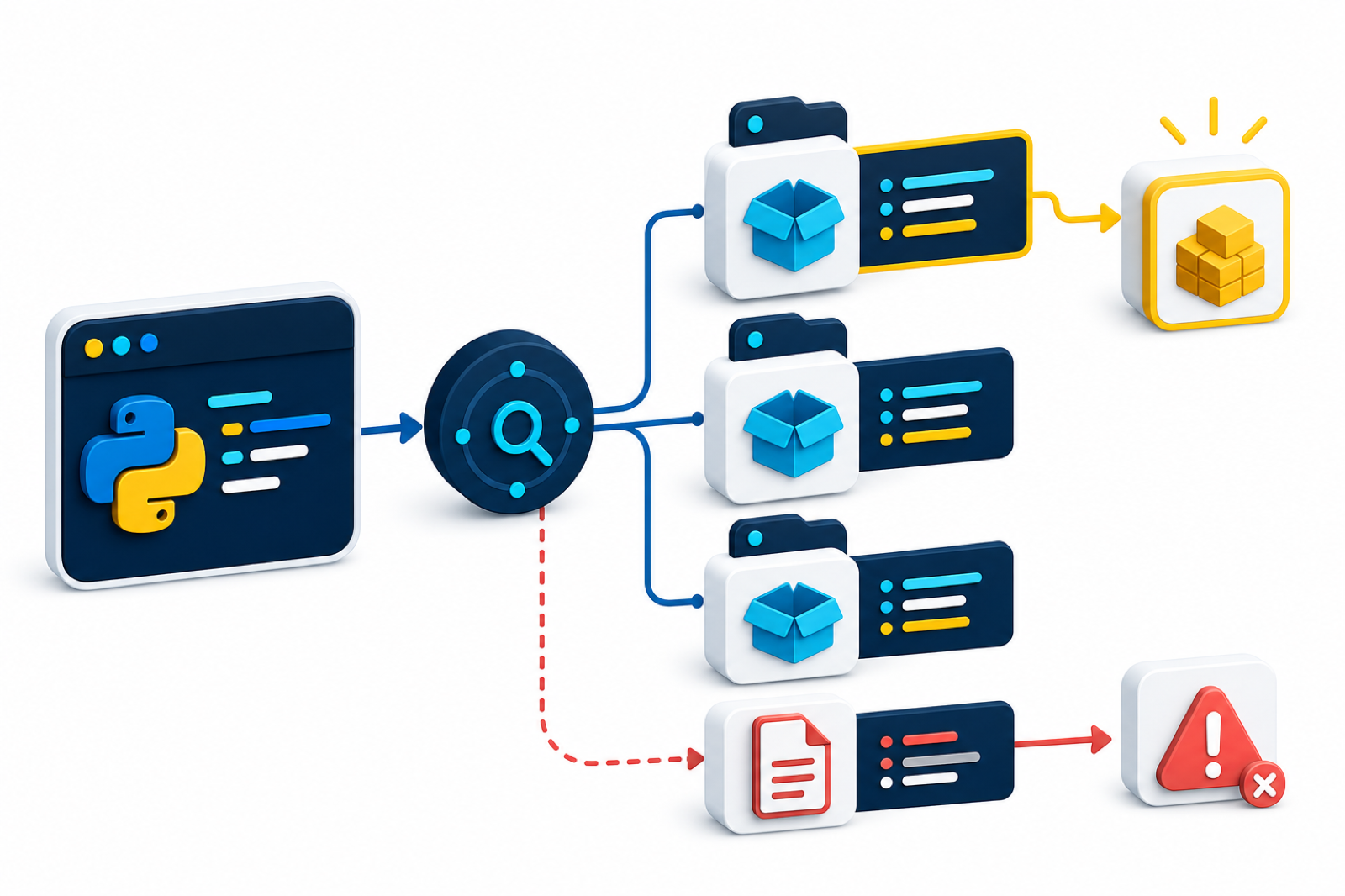
The important detail is that google is often a namespace used by several Google packages. You usually should not install a random package named google. Install the package that matches the API you are using, such as google-api-python-client, google-cloud-storage, google-auth, or another product-specific client library.
Fix the interpreter and package alignment first. If your terminal uses one Python installation and your editor, notebook, cron task, or server uses another, pip can report success while the running program still cannot import the package.
Also remember that Google libraries are split by product. A program that works with Drive, Sheets, Cloud Storage, OAuth, or generated API clients may need different packages even though their imports all begin with a Google-related name. Read the failing import line before choosing the install command.
The official importlib find_spec documentation, sys.executable documentation, Python Packaging virtual environment guide, Google Cloud Python client library reference, and Google API Python client guide are useful references.
Check Whether Python Can See google
Use importlib.util.find_spec() to check whether the running interpreter can locate a package before you try a larger import.
import importlib.util

spec = importlib.util.find_spec("google")

if spec is None:
    print("google namespace not found")
else:
    print("google namespace found")
    print(spec.origin)
If this returns None, install the correct Google package into the same interpreter that runs the application. If it finds a local project path, check for a file conflict before installing anything else.
Use The Active Interpreter For pip
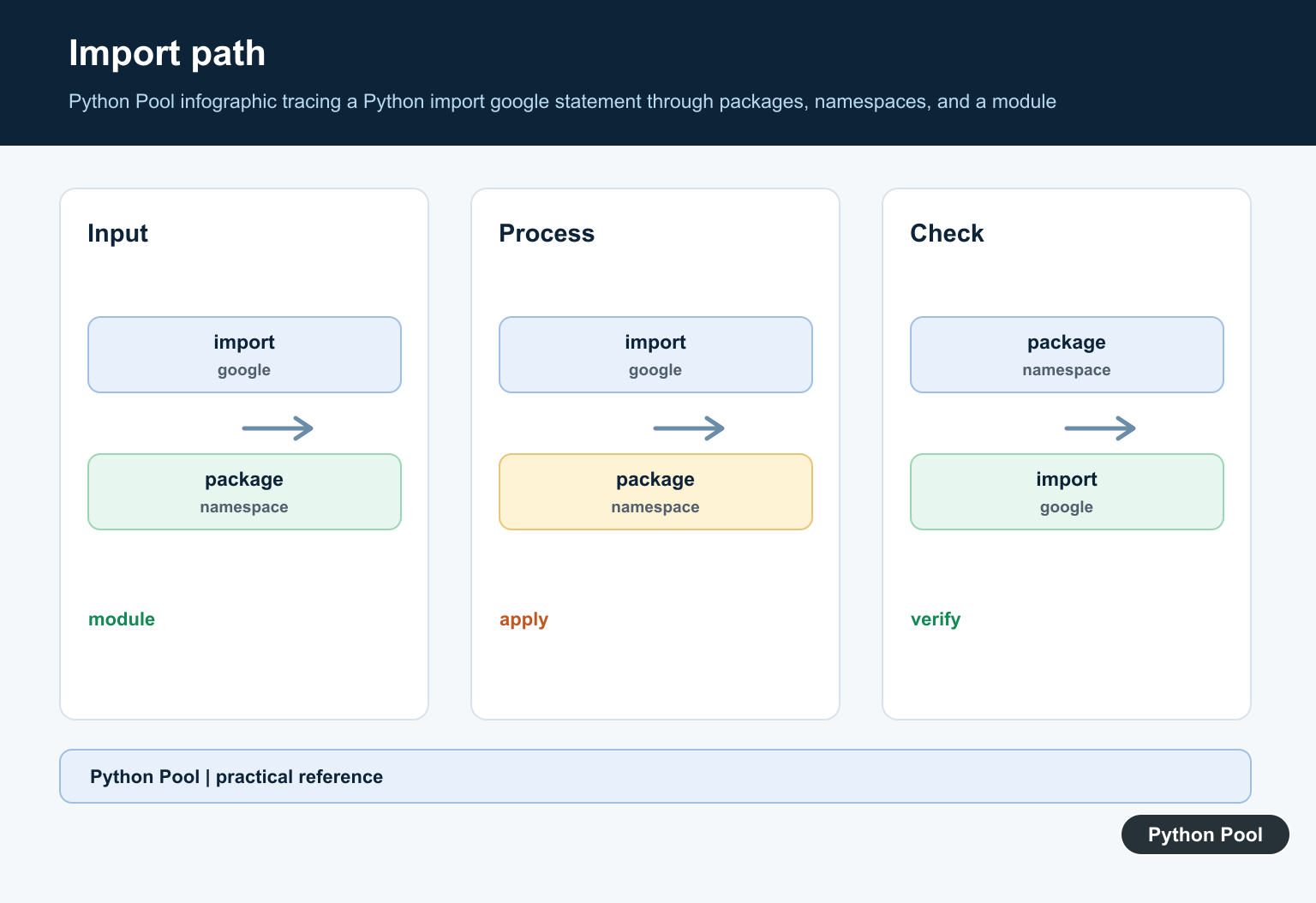
Run pip through sys.executable so package commands target the interpreter that is currently running your script.
import subprocess
import sys

result = subprocess.run(
    [sys.executable, "-m", "pip", "show", "google-api-python-client"],
    capture_output=True,
    text=True,
)

print(sys.executable)
print(result.returncode)
print(result.stdout[:200])
If returncode is not zero, that package is not installed for this interpreter. Install with the same sys.executable -m pip pattern from the environment where the application runs.
Install The Package That Matches The Import
Choose the package based on the import path you need. A generic import error can come from several different Google libraries.
package_by_import = {
    "googleapiclient.discovery": "google-api-python-client",
    "google.cloud.storage": "google-cloud-storage",
    "google.auth": "google-auth",
}

needed_import = "googleapiclient.discovery"
package_name = package_by_import[needed_import]
install_command = ["python", "-m", "pip", "install", package_name]

print("Install:", " ".join(install_command))
This mapping keeps the fix precise. If the code imports google.cloud.storage, install the Cloud Storage client. If it imports googleapiclient.discovery, install the Google API client package.
Verify The Real Import Name
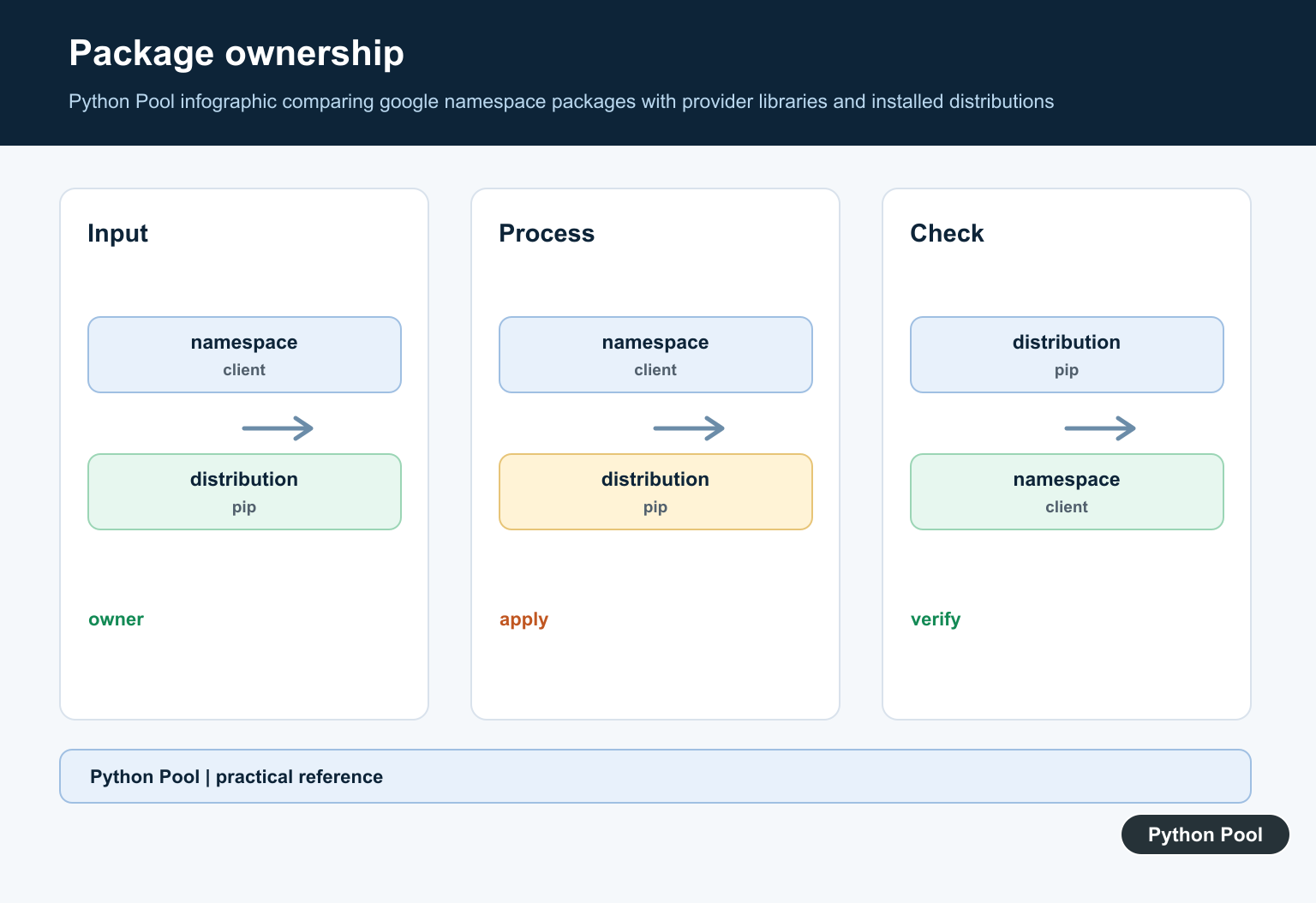
The pip package name and Python import name are not always identical. For example, google-api-python-client is commonly imported through googleapiclient.
import importlib.util

imports_to_check = [
    "google",
    "googleapiclient.discovery",
    "google.auth",
]

for name in imports_to_check:
    print(name, importlib.util.find_spec(name) is not None)
Checking the exact import path helps you avoid installing the wrong package. It also confirms whether only the top-level namespace exists or the specific client library is available too.
Look For Local File Conflicts
A file or folder in your project can shadow an installed package. Check for local names that collide with google imports.
from pathlib import Path

project_root = Path.cwd()
conflicts = [
    project_root / "google.py",
    project_root / "google",
]

for path in conflicts:
    if path.exists():
        print("possible conflict:", path)
If your project contains google.py or a google folder, rename it to something project-specific and remove any stale __pycache__ files before rerunning the program.
Check The Python Search Path
When the package is installed but imports still fail, inspect the search path used by the active interpreter. This often reveals an unexpected environment or project directory order.
import sys

print("executable:", sys.executable)

for item in sys.path[:6]:
    print(item)
The first entries usually include the script directory and environment site-packages paths. If the expected environment path is missing, activate the environment or configure the runtime so it uses the correct interpreter.
Fix Checklist
First, identify the exact import that fails. Then install the package that provides that import into the interpreter shown by sys.executable. Use python -m pip from that interpreter instead of relying on a separate pip command that may point elsewhere.
Next, check for local files named google.py or folders named google. Rename local conflicts, clear stale caches if needed, and restart the editor, notebook kernel, server worker, or terminal session that runs the code.
Finally, rerun a small import check before starting the full application. A short find_spec() check gives quick feedback and separates package installation problems from later authentication, network, or API permission errors.
When the same error appears after installation, restart the runtime before changing more code. Long-running shells, notebooks, application workers, and background processes can keep using an older interpreter session until they are restarted.
Identify the Distribution Behind the Import
Python distribution names and import names are not guaranteed to match. The correct install command depends on the API your code imports.
import sys
from importlib.util import find_spec

print(sys.executable)
print(find_spec("google"))
Install with the interpreter shown by sys.executable. If find_spec() points into your project, rename a local google.py file or google directory that is shadowing the installed namespace.
For related import and environment checks, see conditional imports in Python and the Google API client guide.
Frequently Asked Questions
Should I install the package named google?
Usually no. Identify the product-specific distribution required by the import, such as google-auth, google-api-python-client, or a Google Cloud client library.
Why can pip install succeed while import fails?
pip may be attached to a different interpreter, the distribution may expose a different import name, or a local file may be shadowing the installed namespace.
How can I find the active Python?
Print sys.executable and use that interpreter with -m pip for installation and package inspection.
How do I detect a local import conflict?
Use importlib.util.find_spec() and inspect the returned origin or search path. Rename local google.py files or directories that take precedence.