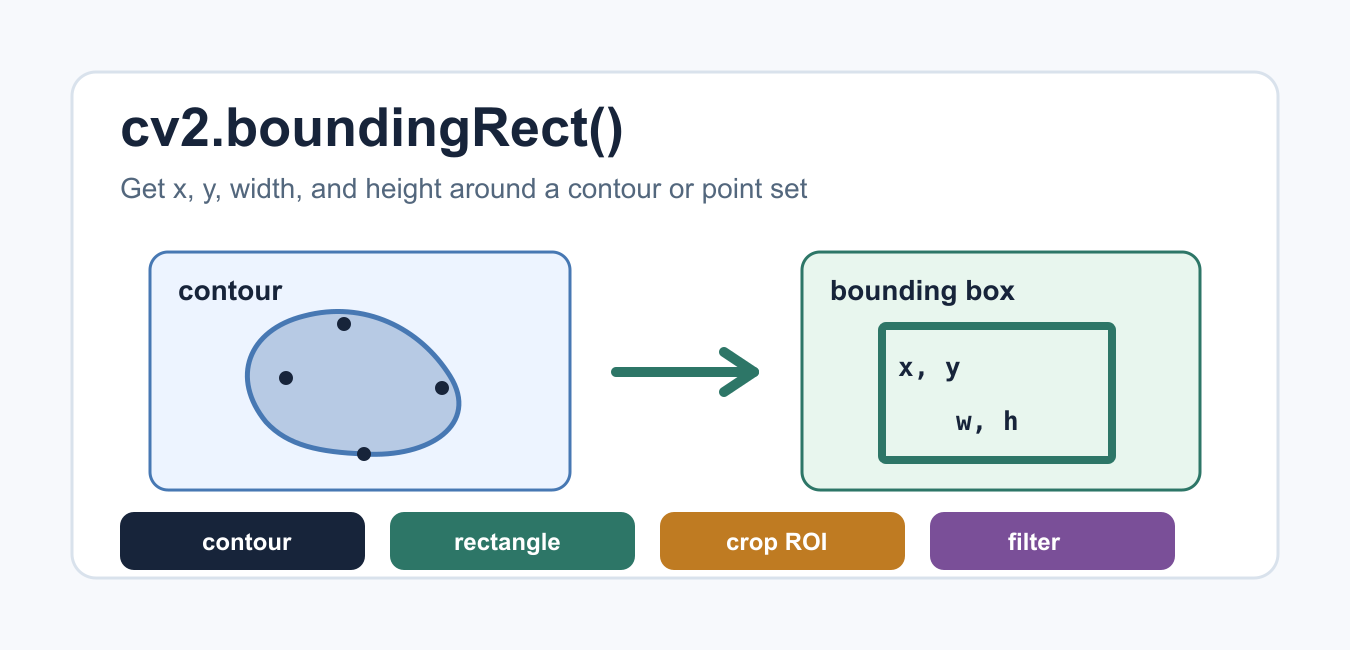
cv2.boundingRect() returns the upright rectangle that surrounds a contour or a set of points. In Python, the return value is x, y, w, h: the top-left corner, width, and height. You can use those values to draw a box, crop a region of interest, filter detections, or measure simple object location.
Quick Answer
cv2.boundingRect() wraps a contour or set of non-zero points with the smallest upright rectangle. Unpack its result as x, y, w, h, then use x and y as the top-left corner and x + w and y + h as the lower-right corner.
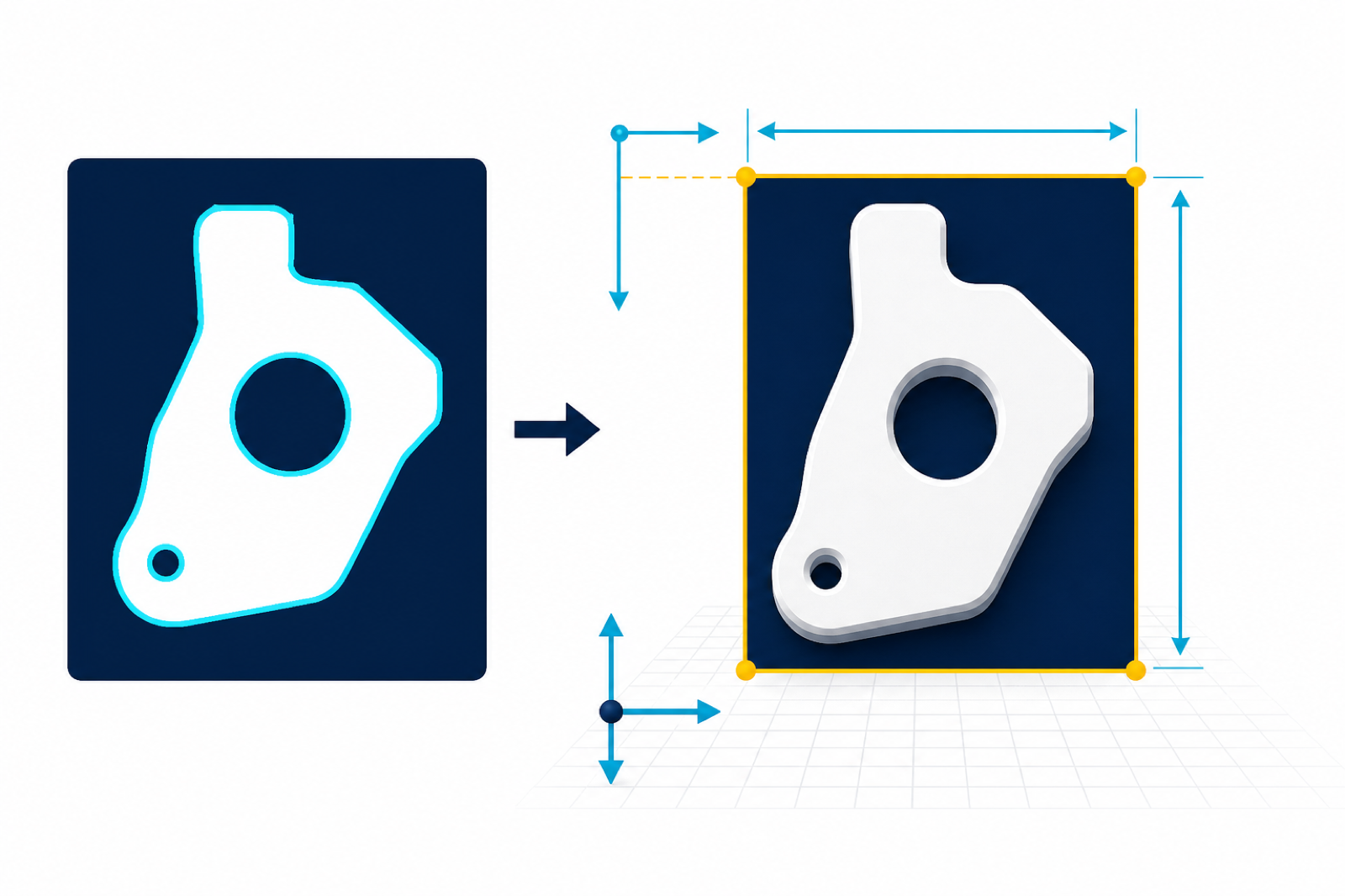
The official OpenCV documentation lists boundingRect in the structural analysis and shape descriptors API. The OpenCV contour tutorial also explains the normal flow: threshold an image, find contours, then work with the contour points.
A bounding rectangle is not an object detector by itself. It only wraps points you already found. Good results depend on the mask or contour quality, so spend time on grayscale conversion, threshold values, morphology, and filtering before trusting the final boxes.
Get a rectangle from contour points
The function can work directly with a contour-like NumPy array. It returns the smallest upright rectangle that contains all points.
import cv2
import numpy as np

contour = np.array([
    [[10, 20]],
    [[80, 25]],
    [[90, 70]],
    [[20, 90]],
], dtype=np.int32)

x, y, w, h = cv2.boundingRect(contour)
print(x, y, w, h)
The rectangle is upright, not rotated. If the object is tilted, boundingRect() still returns a horizontal box. That is often what you want for quick cropping and annotation.
Find contours before bounding boxes
In real image work, you usually create a binary mask and call cv2.findContours(). Each contour can then be passed to cv2.boundingRect().
import cv2

image = cv2.imread("shapes.png", cv2.IMREAD_GRAYSCALE)
_, mask = cv2.threshold(image, 127, 255, cv2.THRESH_BINARY)

contours, _ = cv2.findContours(
    mask,
    cv2.RETR_EXTERNAL,
    cv2.CHAIN_APPROX_SIMPLE,
)

for contour in contours:
    x, y, w, h = cv2.boundingRect(contour)
    print((x, y, w, h))
RETR_EXTERNAL keeps only outer contours. That is a good starting point when you want one box per visible object. For array scaling before thresholding, see the cv2.normalize() guide.
If contours are missing, inspect the mask before inspecting the rectangle code. A bad threshold, inverted foreground, or noisy image can produce no contours or too many tiny contours. The rectangle step can only reflect those earlier choices.
Draw the rectangle
Use the returned coordinates with cv2.rectangle(). The first point is (x, y). The opposite corner is (x + w, y + h).
import cv2

image = cv2.imread("shapes.png")
gray = cv2.cvtColor(image, cv2.COLOR_BGR2GRAY)
_, mask = cv2.threshold(gray, 127, 255, cv2.THRESH_BINARY)
contours, _ = cv2.findContours(mask, cv2.RETR_EXTERNAL, cv2.CHAIN_APPROX_SIMPLE)

for contour in contours:
    x, y, w, h = cv2.boundingRect(contour)
    cv2.rectangle(image, (x, y), (x + w, y + h), (0, 255, 0), 2)

cv2.imwrite("boxed.png", image)
This is the common detection-preview pattern. Draw boxes on a copy when you still need the original image for later processing. Use a visible color and enough line thickness for the image size.
Crop a region of interest
The same values can crop the detected object from the image. NumPy slicing uses rows first, so the slice is image[y:y+h, x:x+w].
import cv2

image = cv2.imread("shapes.png")
gray = cv2.cvtColor(image, cv2.COLOR_BGR2GRAY)
_, mask = cv2.threshold(gray, 127, 255, cv2.THRESH_BINARY)
contours, _ = cv2.findContours(mask, cv2.RETR_EXTERNAL, cv2.CHAIN_APPROX_SIMPLE)

for index, contour in enumerate(contours):
    x, y, w, h = cv2.boundingRect(contour)
    roi = image[y:y + h, x:x + w]
    cv2.imwrite(f"roi_{index}.png", roi)
Remember the order: rows are y, columns are x. Mixing those two is one of the most common cropping mistakes. If shape changes are confusing, the NumPy reshape guide gives useful array-shape context.
Check that w and h are positive before saving crops. Empty crops usually mean the contour input was empty or the wrong object was selected.
Filter small detections
Bounding boxes are also useful for filtering. Ignore boxes that are too small, too narrow, or too wide before drawing or cropping them.
import cv2

minimum_area = 500
accepted = []

for contour in contours:
    x, y, w, h = cv2.boundingRect(contour)
    area = w * h
    if area >= minimum_area and w >= 10 and h >= 10:
        accepted.append((x, y, w, h))

print(accepted)
This removes noise after thresholding. For masks where you only need to count selected pixels, the NumPy count_nonzero() guide is a related tool.
Filtering should match your scene. Text detection, document scanning, and object crops all need different width, height, and area limits. Start with broad limits, inspect rejected boxes, then tighten the thresholds.
Use non-zero mask points
You can also build a point set from mask pixels and pass those points to boundingRect(). This is useful when you already have a binary mask and want one box around all selected pixels.
import cv2
import numpy as np

mask = np.zeros((100, 120), dtype=np.uint8)
mask[30:70, 40:90] = 255

points = cv2.findNonZero(mask)
if points is not None:
    x, y, w, h = cv2.boundingRect(points)
    print(x, y, w, h)
This gives one rectangle for the entire mask. Use contours when you need separate boxes for separate objects, and use all non-zero points when one overall box is enough.
Common mistakes
The main mistakes are passing a color image instead of contour points, forgetting to threshold before finding contours, reversing x and y during slicing, and assuming the rectangle rotates with the object. cv2.boundingRect() returns an upright rectangle. Use a rotated rectangle function when rotation matters.
Before debugging later steps, print the tuple and confirm the coordinate meaning: x moves left to right, y moves top to bottom, w is width, and h is height. That small check prevents many drawing and crop bugs.
For web apps that display processed images, the Flask image not showing guide may help with the rendering side. For most OpenCV workflows, keep the pipeline simple: load image, convert or threshold, find contours, compute boxes, then draw or crop only after the boxes pass your filters.
Coordinate and Crop Sanity Checks
The returned rectangle uses image coordinates: x increases to the right, y increases downward, and width and height describe the rectangle size. Before cropping, clamp the coordinates to the image shape when points may touch an edge.
height, width = image.shape[:2]
x = max(0, min(x, width))
y = max(0, min(y, height))
w = max(0, min(w, width - x))
h = max(0, min(h, height - y))
roi = image[y:y + h, x:x + w]
A bounding rectangle is geometric output, not proof that the contour is a correct object detection. Validate the mask, contour area, aspect ratio, and crop bounds before using it in a production pipeline.
Frequently Asked Questions
What does cv2.boundingRect() return?
It returns four integers: x and y for the top-left corner, followed by width and height for the upright rectangle.
Does boundingRect() rotate the rectangle?
No. It returns an upright axis-aligned rectangle. Use a rotated-rectangle method when the object angle matters.
Can I pass a binary mask directly?
Yes, use the non-zero mask points or find contours first, then pass the relevant point set to cv2.boundingRect().
Why is my crop empty or off by one?
Check that x, y, width, and height are inside the image dimensions and remember that NumPy slices use image[y:y + h, x:x + w].
cv2 can compute contourArea of a contour, but could you simply use the boundingRect result for width and height to give a close approximation for the contour area?
If you need area, I’d suggest you stick with contourArea. BoundingRect area will always give you a result greater than or equal to contourArea.