
Quick answer: Blender Python output can appear in three different places: the Python Console editor, the operating-system console or terminal that launched Blender, and Blender reports or log files. If print() seems to do nothing, first identify how the script was executed and which output surface is visible.
Blender scripts often work correctly while their diagnostic output appears to be missing. The usual cause is not Python; it is a mismatch between the place where code runs and the place where Blender sends standard output. This guide explains the Blender Python output window on Windows, macOS, and Linux, then shows more reliable debugging patterns for scripts and add-ons.
For general terminal execution outside Blender, see Python Pool’s guide to running shell commands with Python. When the output contains an exception, the Python traceback guide explains how to read the call stack from the final error upward.
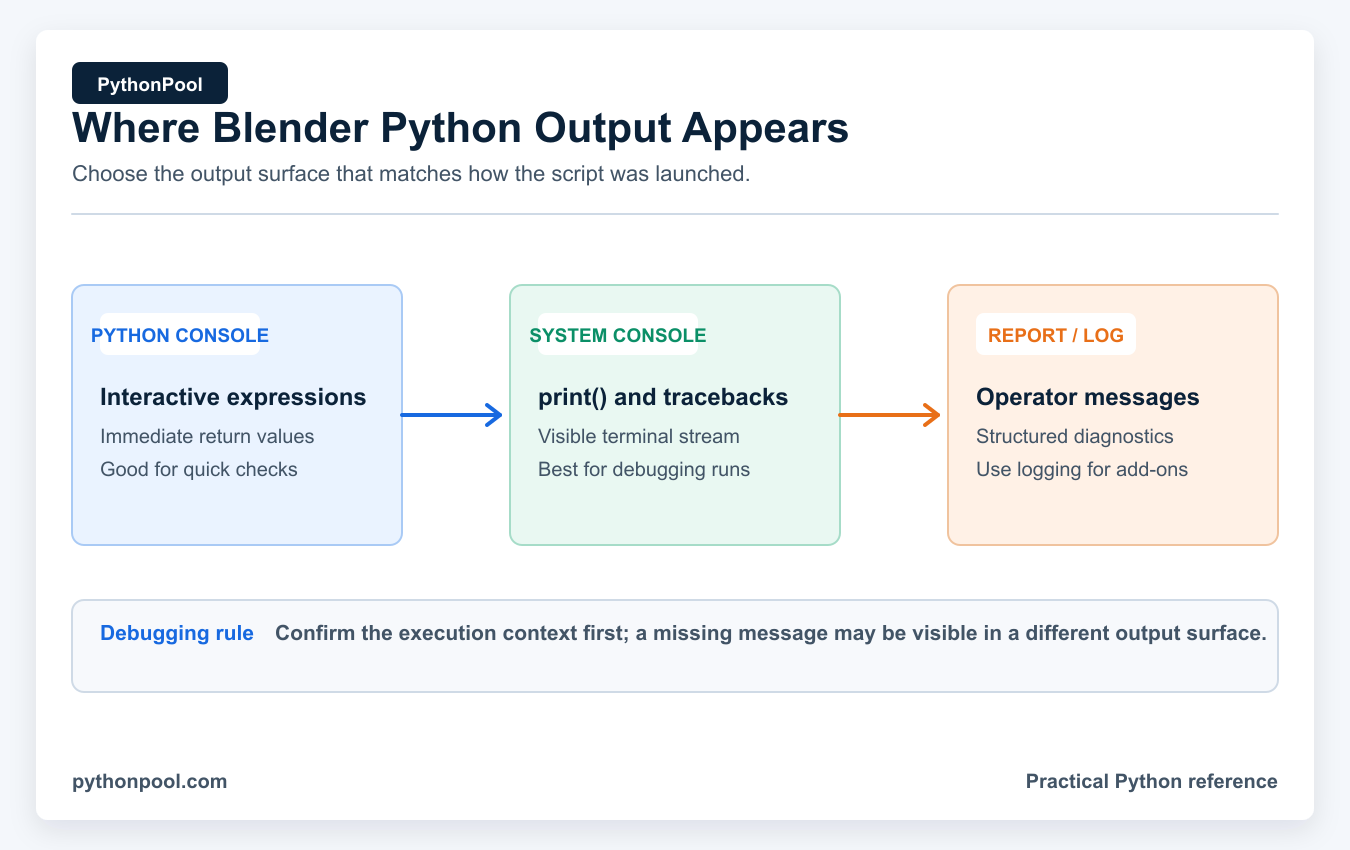
Choose the Blender output surface that matches the script execution context.
Python Console vs System Console
The Python Console editor is an interactive Blender editor. Change an area’s editor type to Python Console and enter expressions at the prompt. It is useful for inspecting bpy.context, testing one API call, and checking the type or value of an object.
The system console is the terminal attached to the Blender process. It receives normal print() output, tracebacks, and lower-level messages. On Windows, a graphical Blender launch can expose this window through Window → Toggle System Console. On macOS and Linux, launching Blender from Terminal is the most predictable way to keep this stream visible.
These surfaces are related but not interchangeable. Entering an expression in the Python Console displays its representation. Running the same expression from Blender’s Text Editor does not automatically display the return value; use print() or logging when you need a visible diagnostic.
Open Blender Output on Windows, macOS, and Linux
The exact Blender output window depends on the operating system and how Blender started:
- Windows: choose Window → Toggle System Console. A command-line launch can also use Blender’s Windows-only
--start-consoleoption. - macOS: launch
/Applications/from Terminal to keep standard output and errors visible.Blender.app/ Contents/ MacOS/ Blender - Linux: start
blenderfrom a terminal. A desktop-menu launch may have no attached terminal forstdoutandstderr.
The Scripting workspace does not automatically turn its Python Console area into the destination for every print() call. That distinction explains many searches for “Blender Python print not showing”: the script ran in the Text Editor, but its output went to the process console.
Print Script Output Clearly
Begin with small, labeled messages. Include enough context to distinguish one object or execution pass from another, but avoid printing entire meshes or large collections.
import bpy

active = bpy.context.active_object
if active is None:
    print("[scene-check] no active object")
else:
    print(
        f"[scene-check] name={active.name!r} "
        f"type={active.type} location={tuple(active.location)}"
    )
The !r conversion makes quotes and escape characters visible. Prefixes such as [scene-check] make a long output stream searchable. If this message does not appear, confirm that the script actually reached the line and inspect the system console.
Show Exceptions Instead of Hiding Them
A broad except Exception: pass makes Blender automation extremely hard to debug. Catch an exception only when you can add context, recover, or report it. During development, print the complete traceback.
import traceback
import bpy

def rename_active_object(new_name: str) -> None:
    try:
        obj = bpy.context.active_object
        if obj is None:
            message = "select an object before running the script"
            raise RuntimeError(message)
        obj.name = new_name
    except Exception:
        traceback.print_exc()
        raise

rename_active_object("HeroMesh")
Re-raising preserves failure semantics for callers and tests. While developing an add-on operator, you may instead convert an expected user error into a report and return {'CANCELLED'}.
Report Messages Inside Blender
Operators can display concise messages in Blender’s interface with self.report(). Reports are better for user-facing outcomes; the system console or a log file is better for detailed diagnostics.
import bpy

class OBJECT_OT_report_selection(bpy.types.Operator):
    bl_idname = "object.report_selection"
    bl_label = "Report Selection"

    def execute(self, context):
        obj = context.active_object
        if obj is None:
            self.report({'WARNING'}, "No active object")
            return {'CANCELLED'}

        self.report({'INFO'}, f"Active object: {obj.name}")
        return {'FINISHED'}
Keep reports short because they are part of the interface, not a scrolling debug console. Do not expose file paths, secrets, or large data structures in messages intended for end users.
Write Persistent Logs
Console text disappears when the process closes and can be noisy in production. Python’s logging module supports levels, timestamps, and persistent files. Python Pool’s logging basicConfig guide covers the underlying configuration options.
import logging
from pathlib import Path

log_path = Path.home() / "blender-script.log"
logging.basicConfig(
    filename=log_path,
    level=logging.INFO,
    format="%(asctime)s %(levelname)s %(name)s %(message)s",
)

logger = logging.getLogger("asset_pipeline")
logger.info("export started")
Choose a writable, documented location and rotate or replace logs before they grow indefinitely. Never write credentials, tokens, private project names, or personal data to a diagnostic log.
Avoid Duplicate Handlers When Reloading an Add-on
During Blender add-on development, re-registering a module can attach the same handler more than once. Give your handler a stable name and add it only when it is absent.
import logging

logger = logging.getLogger("my_addon")
logger.setLevel(logging.INFO)

if not any(
    getattr(item, "name", "") == "my_addon_console"
    for item in logger.handlers
):
    handler = logging.StreamHandler()
    handler.name = "my_addon_console"
    handler.setFormatter(
        logging.Formatter("%(levelname)s %(name)s: %(message)s")
    )
    logger.addHandler(handler)

logger.info("add-on registered")
This Blender add-on logging pattern prevents every reload from duplicating each message. Remove and close handlers deliberately during unregister() if the add-on owns resources such as an open file.
Capture Output for a Focused Test
When a helper function prints useful information but you need to test or transform it, redirect standard output temporarily. This captures only Python output written through sys.stdout; native application messages may still use the process console.
from contextlib import redirect_stdout
from io import StringIO

def inspect_asset(name: str) -> None:
    print(f"checking {name}")
    print("status: ready")

buffer = StringIO()
with redirect_stdout(buffer):
    inspect_asset("HeroMesh")

captured = buffer.getvalue()
print(captured)
Always keep the redirection scoped with a context manager. Replacing sys.stdout globally can interfere with Blender, other add-ons, or libraries that expect the original stream.
Capture Output from a Background Blender Script
Rendering farms, CI jobs, and batch asset pipelines often run Blender without its interface. In background mode, route both standard output and standard error to a log and make Python exceptions produce a failing process status.
blender --background project.blend \
  --python-exit-code 1 --python script.py \
  > blender.log 2>&1
Set --python-exit-code before the --python argument because Blender processes command-line arguments in order. On PowerShell, use its native redirection syntax instead of the POSIX 2>&1 form. The resulting Blender log captures print(), tracebacks, and process messages in one place.
For long-running jobs, print(message, flush=True) makes an important progress message available immediately. It does not replace structured logging, but it helps when a log collector streams Blender stdout while a job is still running.
Fix Missing or Delayed Output
- No output at all: add a message at the first line, confirm the script ran, then check the system console.
- Output appears late: use
flush=Truefor a critical print. Buffered streams may delay writes; the Python unbuffered output guide explains the wider behavior. - Only the final error is visible: scroll upward to the first relevant traceback frame and reproduce with a smaller input.
- Add-on messages vanish: use a logger with an explicit handler instead of relying exclusively on
print(). - Too much output: log summaries and identifiers, not every vertex, pixel, or dependency-graph update.
A Practical Debugging Order
First prove that the script started. Next log the important input values and Blender context. Then isolate the smallest API call that fails. Finally, preserve the traceback and verify the postcondition—for example, that an object was renamed or a file exists—rather than assuming the absence of an error means success.
The official Blender Python Console manual describes the interactive editor, while the Blender Python API tips cover development and debugging practices.
Frequently Asked Questions
Where does print output go in Blender?
It normally goes to the system console or terminal attached to the Blender process. It does not necessarily appear in the Python Console editor.
How do I open Blender’s Python Console?
Change any Blender area’s editor type to Python Console. Use it for interactive expressions and inspecting the current Blender context.
Why does a Blender script run without showing output?
The script may have been launched from the Text Editor while the system console is hidden, or the output may be buffered. Add an early labeled print, expose the system console, and preserve tracebacks.
Should Blender add-ons use print or logging?
Use reports for brief user-facing messages and structured logging for diagnostics that need levels, timestamps, or persistence. Print is fine for small development checks.
How do I save Blender Python output to a file?
Launch Blender from a terminal and redirect its standard output and standard error to a log file. For a background Python job, set --python-exit-code before --python so an uncaught exception also fails the process.
Why is there no Toggle System Console option on macOS?
The menu option is specific to Windows. On macOS, start the Blender executable inside the application bundle from Terminal to see the attached process output.