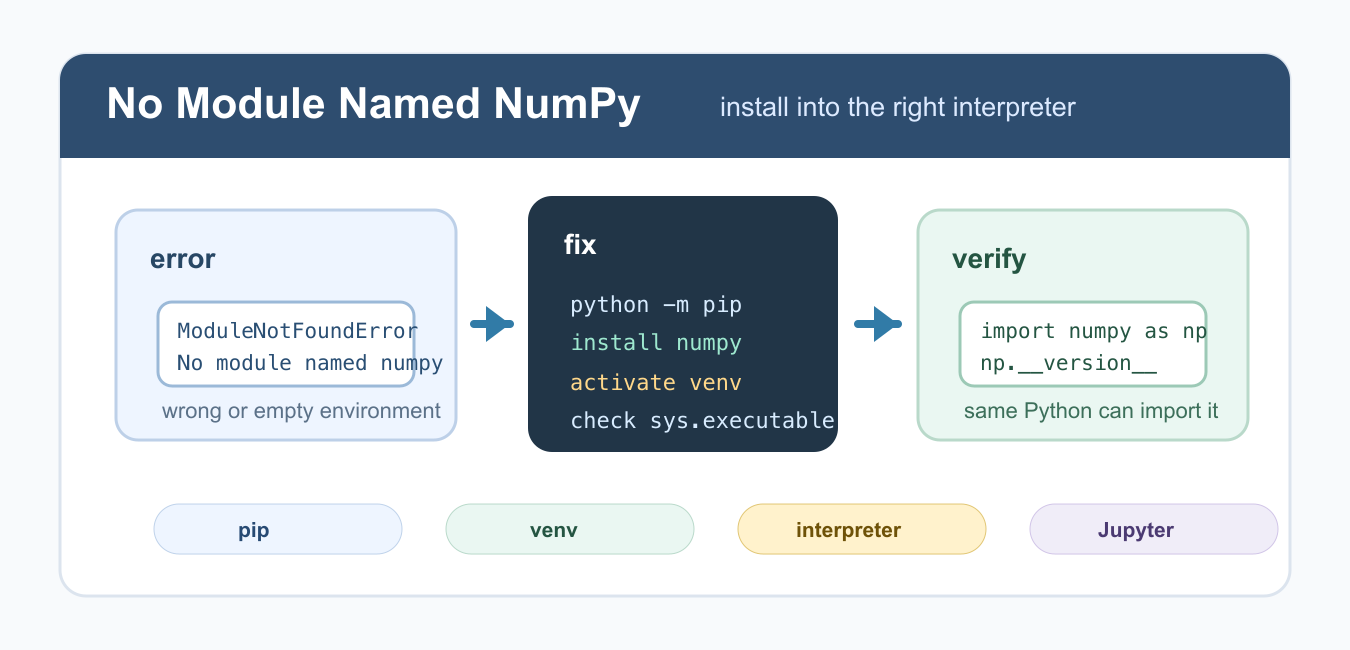
Quick answer: ModuleNotFoundError: No module named ‘numpy’ means the interpreter running the code cannot import NumPy. Install NumPy into that exact interpreter, verify with an import and version check, then inspect virtual environments, IDE or Jupyter kernel selection, and local files named numpy.py before repeating installation commands.
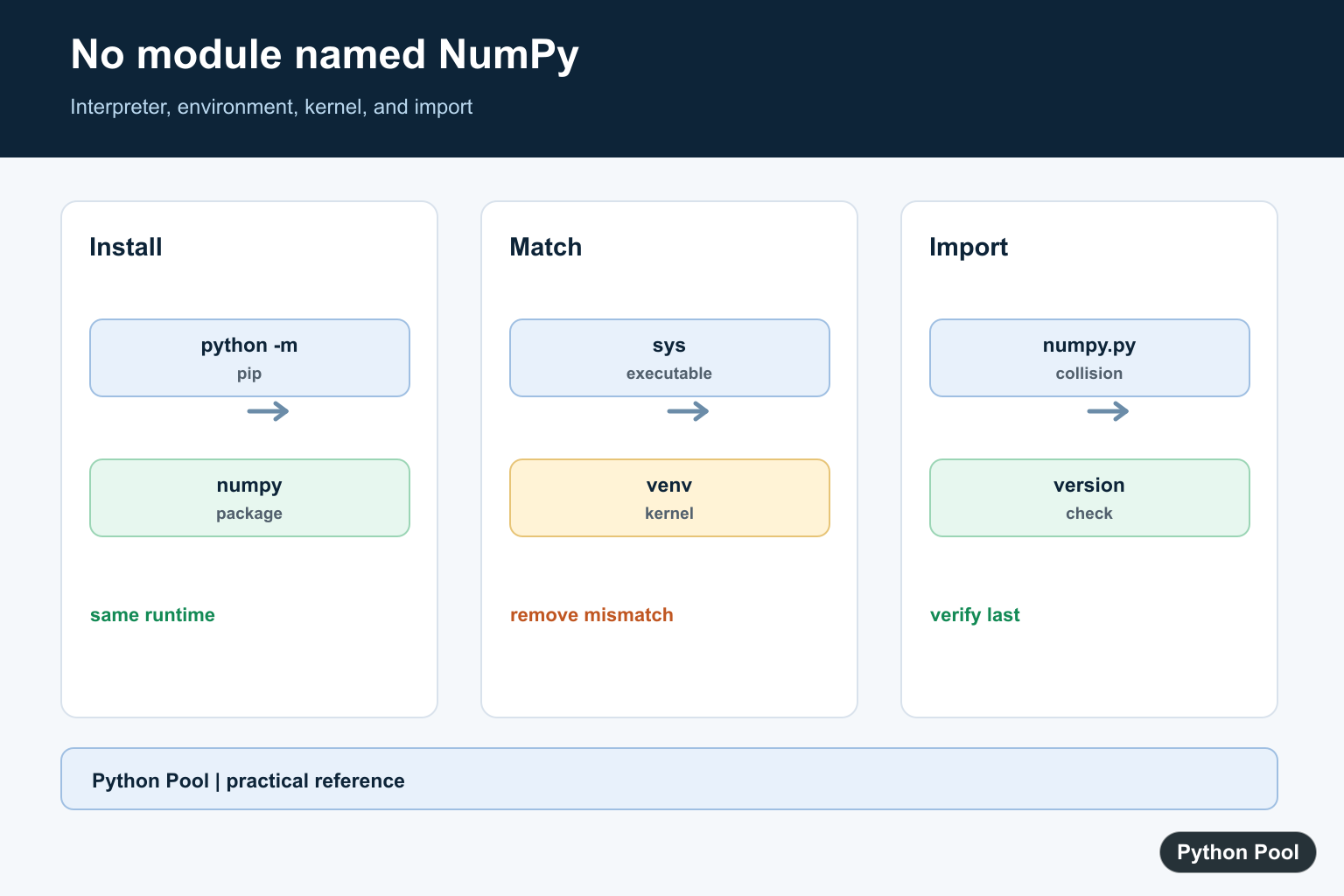
ModuleNotFoundError: No module named 'numpy' means the Python interpreter running your script cannot import NumPy. Usually NumPy is not installed in that environment, or it was installed into a different Python installation than the one running your code.
The safest fix is to install NumPy through the same interpreter that will run the script: python -m pip install numpy. Using python -m pip avoids many problems caused by multiple Python versions, virtual environments, IDE interpreters, and Jupyter kernels.
Do not start by reinstalling Python. First identify the interpreter that fails, install NumPy into that interpreter, and verify the import from that same place. This keeps the fix small and avoids creating yet another Python installation. If NumPy is installed but its compiled core still cannot load, Fix numpy.core.multiarray Failed to Import covers ABI, environment, and binary compatibility checks.
Install NumPy With the Same Python
Run pip as a Python module. This ties pip to the interpreter selected by the python command. In your terminal, run python -m pip install numpy.
# Terminal command:
# python -m pip install numpy
After installation, verify the import with the same command. If this works in the terminal but fails in an IDE, the IDE is probably using a different interpreter.
# Terminal verification:
# python -c "import numpy as np; print(np.__version__)"
For NumPy usage after the install succeeds, see Python vector operations with NumPy and NumPy views.
Check Which Python Is Running
When multiple Python versions are installed, print the executable path from inside the failing environment. That tells you exactly which interpreter needs NumPy.
import sys

print(sys.executable)
print(sys.version)
Use the printed executable path to install NumPy for that interpreter. On some systems, the command may be python3 -m pip install numpy instead of python -m pip install numpy. The important part is using -m pip with the interpreter that actually runs your script.
Fix It Inside a Virtual Environment
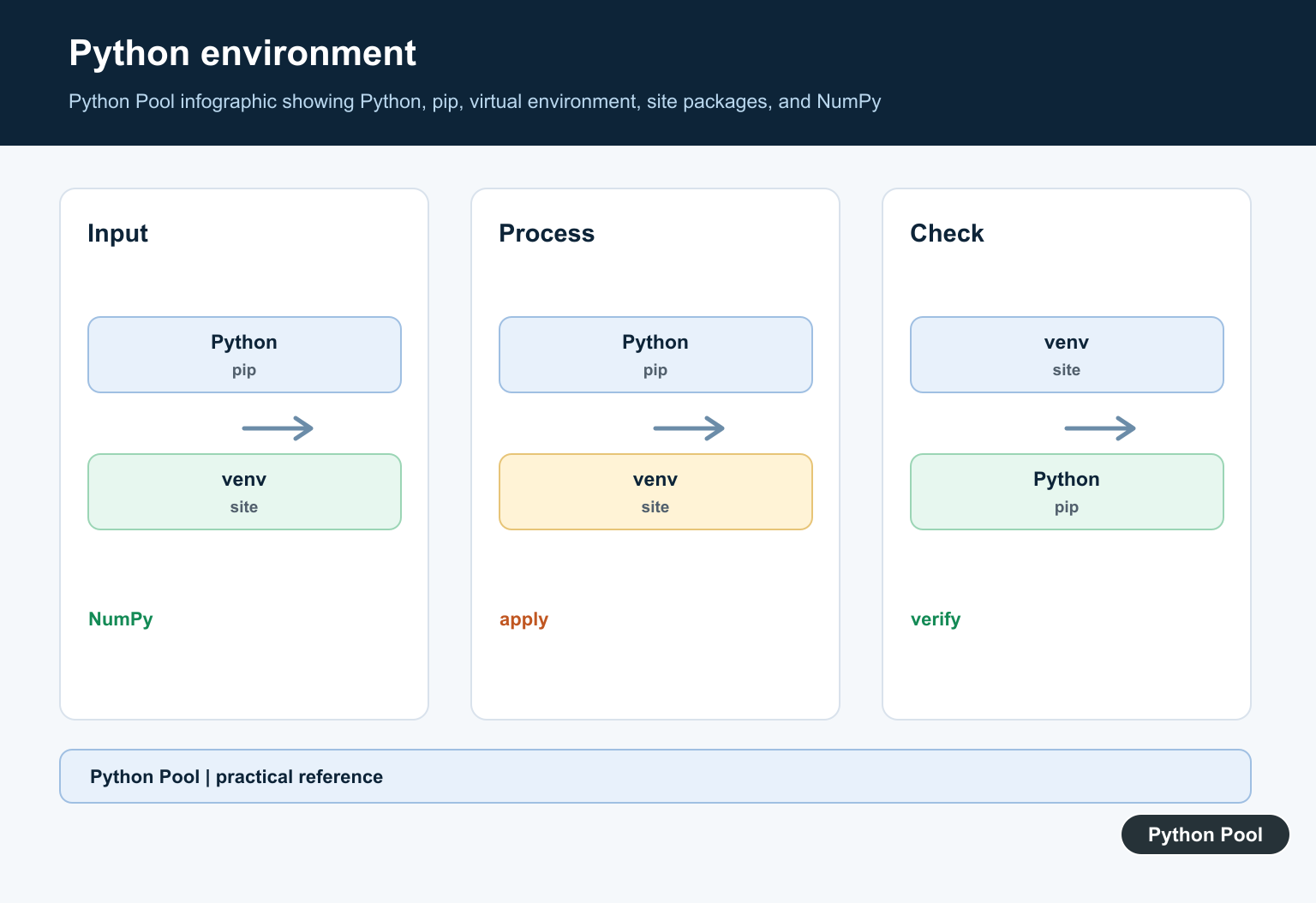
If your project uses a virtual environment, activate it first, then install NumPy. Installing globally will not help if your script runs inside an isolated environment.
# macOS/Linux terminal:
# python -m venv .venv
# source .venv/bin/activate
# python -m pip install numpy
# python -c "import numpy; print(numpy.__version__)"
On Windows, activation usually uses .venvScriptsactivate. The key rule is the same: install packages after activating the environment that runs the project. If you open a new terminal later, activate the environment again before running the script.
Fix IDE Interpreter Mismatch
Editors such as VS Code, PyCharm, and notebook tools can use a different interpreter than your terminal. Open the interpreter selector in the IDE and choose the same virtual environment or Python executable where NumPy was installed. Then restart the run configuration or terminal inside the IDE.
If the IDE shows several Python versions, compare them with the sys.executable output. The path must match, not just the Python version number.
Fix Jupyter Notebook Imports
Jupyter can run a different Python kernel than your terminal. Check the notebook kernel’s executable and install NumPy into that interpreter.
import sys

print(sys.executable)
# In a notebook cell, install into this exact interpreter:
# !{sys.executable} -m pip install numpy
Restart the notebook kernel after installation. If imports still fail, confirm that the selected kernel is the same environment where NumPy was installed. Kernel mismatch is one of the most common reasons this error persists after a successful terminal install.
Do Not Name Your File numpy.py
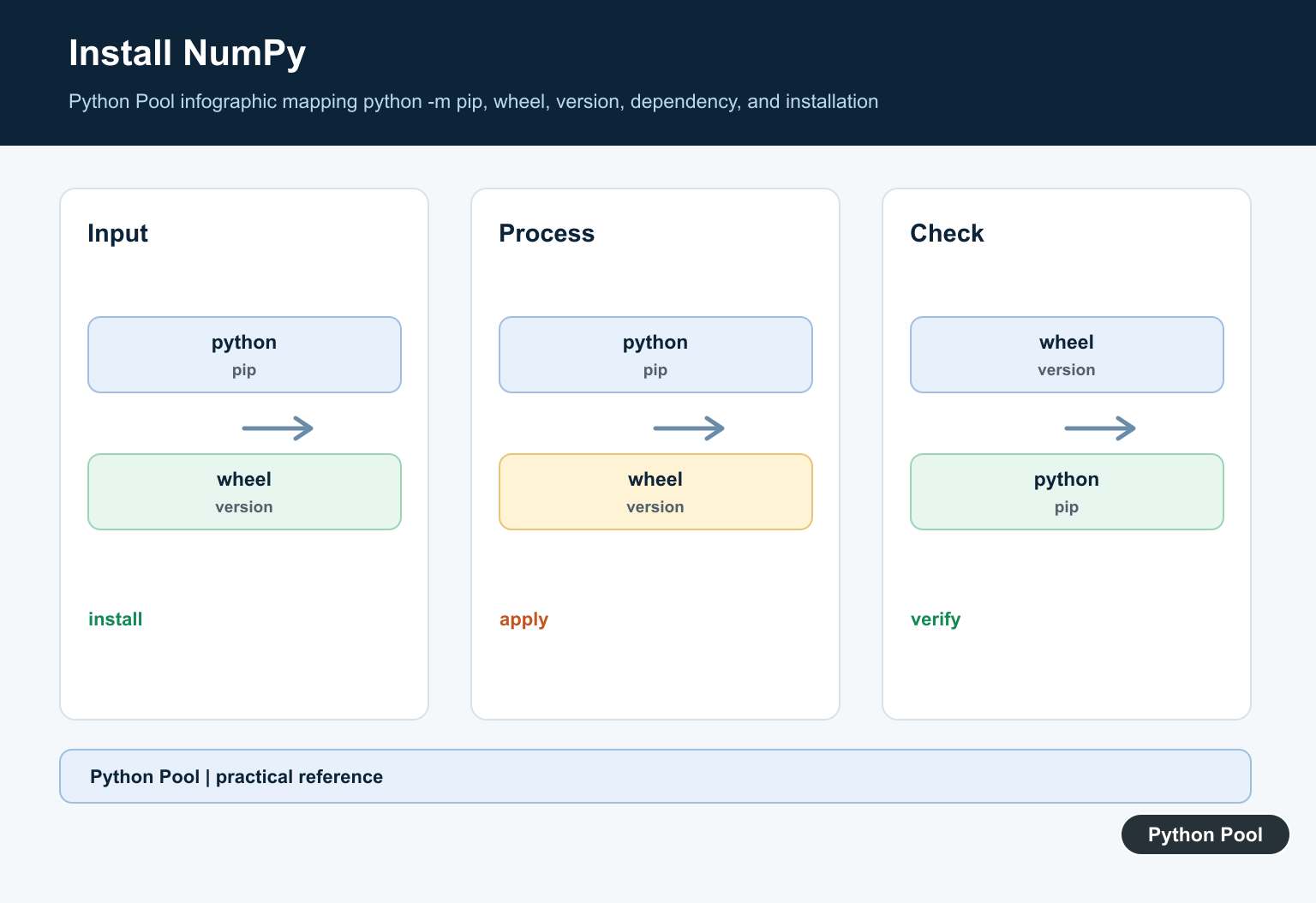
A local file named numpy.py or a folder named numpy can shadow the real package. Check the current directory if installation appears correct but import still fails.
from pathlib import Path

for name in ["numpy.py", "numpy"]:
    path = Path(name)
    if path.exists():
        print(f"Rename local file or folder: {path}")
If you rename a shadowing file, also delete any generated __pycache__ files for the old name. For path checks, see checking whether a file exists in Python.
Upgrade pip When Installation Fails
If pip itself is outdated or broken, upgrade pip first and then install NumPy again. In a terminal, use python -m pip install --upgrade pip, then run python -m pip install numpy.
If the install command still fails, read the full pip error. Build errors, permission errors, and network errors are different problems from No module named numpy. Do not use sudo pip as a first fix; it often installs packages into a different place and can damage system Python setups.
Common Causes
The most common cause is installing NumPy with one Python and running code with another. The second is forgetting to activate a virtual environment. The third is using a Jupyter kernel that does not match the terminal. A fourth is shadowing the package with a local file named numpy.py.
Use python -m pip install numpy, verify with python -c, and check sys.executable when the problem persists. Once NumPy imports correctly, the error is fixed for that interpreter.
References
- NumPy installation documentation
- pip install documentation
- pip user guide
- Python venv documentation
- Python -m command-line option
Install Into The Active Interpreter
python -m pip binds pip to the Python executable named by python. Activate the project environment first, then install and verify without switching interpreters between commands.
python -m pip install --upgrade pip
python -m pip install numpy
python -c "import numpy as np; print(np.__version__)"
Print The Runtime Path
If installation appears successful but import still fails, print sys.executable from the failing script or notebook. Compare it with the interpreter used for the install rather than trusting a global pip command.
import sys

print(sys.executable)
print(sys.version)
Check A Virtual Environment And Kernel
A virtual environment, IDE interpreter, and Jupyter kernel can each point to different Python installations. Install into the one that executes the code, or select the intended kernel and restart it after changing packages.
import sys

print("kernel interpreter:", sys.executable)
print("prefix:", sys.prefix)
Avoid Local Name Collisions
A script or folder named numpy.py or numpy can shadow the package or make imports behave unexpectedly. Rename the local path, remove stale __pycache__ files when appropriate, and run the check from the project root again.
from pathlib import Path

for name in ["numpy.py", "numpy"]:
    path = Path(name)
    print(path, path.exists())
Follow the current official NumPy installation guide, which recommends matching the package manager to the environment and verifying with an import. Related Python Pool references include installing packages in Python and virtual environments.
For related environment troubleshooting, compare package installation with the active interpreter, virtual environments, and checking Python versions before reinstalling into an unknown environment.
Frequently Asked Questions
Why does Python say No module named NumPy?
The interpreter running the code cannot import NumPy, usually because it is not installed in that environment or the code is using a different interpreter.
How should I install NumPy?
Use the active interpreter, such as python -m pip install numpy, inside the intended virtual environment, then verify with an import and version check.
Why does NumPy work in a terminal but not in Jupyter?
The Jupyter kernel may point to a different Python environment; install NumPy into that kernel’s interpreter or select the correct kernel.
Can a local file cause the import error?
Yes. A file or folder named numpy.py or numpy can shadow the real package; rename it and remove stale bytecode before testing again.
nice
This entire article could have been “pip install numpy”
Yes, but this article is dedicated to users who are unable to install using “pip install”. Most of the time, users forget that they are in different virtual environments making it unable to install correctly.