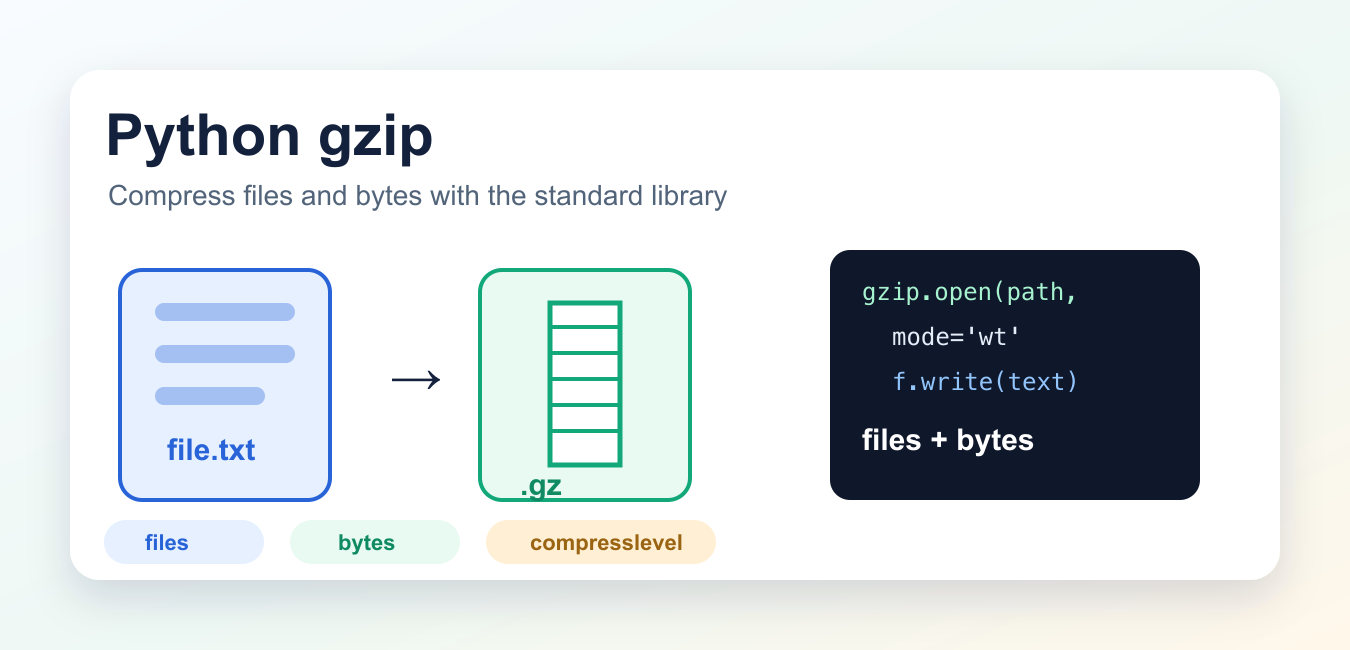
Quick answer: Python’s gzip module handles gzip-compressed files and bytes without an extra package. Use gzip.open for a file-like stream, gzip.compress or decompress for in-memory bytes, choose text or binary mode deliberately, and treat corrupt input as an error rather than valid output.
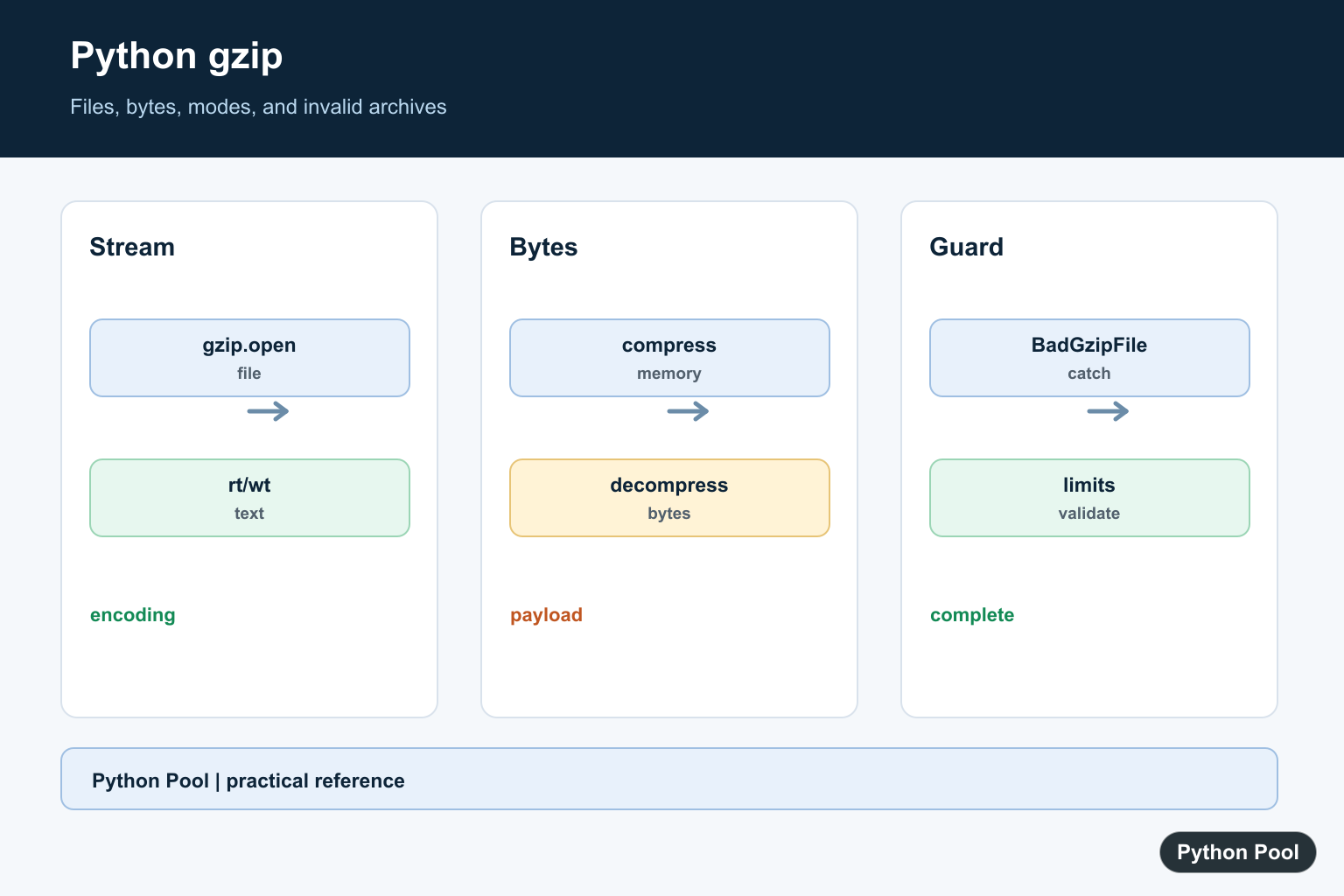
Python’s gzip module reads and writes files in the gzip format. It is part of the standard library, so you can compress files, decompress files, and work with gzip-compressed bytes without installing another package. gzip and bz2 are different compression backends; if the standard-library bz2 import is missing, Fix No module named ‘_bz2’ in Python explains the interpreter build dependency.
Use gzip.open() when you want a file-like object for a .gz file. Use gzip.compress() and gzip.decompress() when the data is already in memory as bytes.
Python gzip Quick Reference
| Function | Use it for |
|---|---|
gzip.open() |
Read or write gzip files in binary or text mode. |
gzip.compress() |
Compress a bytes object and return gzip-compressed bytes. |
gzip.decompress() |
Decompress gzip-compressed bytes. |
gzip.GzipFile |
Lower-level file object control, including file-like objects. |
gzip.BadGzipFile |
Handle invalid gzip data. |
Write a gzip File in Text Mode
Text mode is convenient when you are writing strings. Pass encoding the same way you would with normal open().
import gzip

with gzip.open("example.txt.gz", "wt", encoding="utf-8") as f:
    f.write("Python gzip example\n")
The wt mode means write text. Python compresses the text into example.txt.gz as it writes.
Read a gzip File in Text Mode
import gzip

with gzip.open("example.txt.gz", "rt", encoding="utf-8") as f:
    text = f.read()

print(text)
Use rt for read text. Use rb when you want raw bytes.
Compress an Existing File
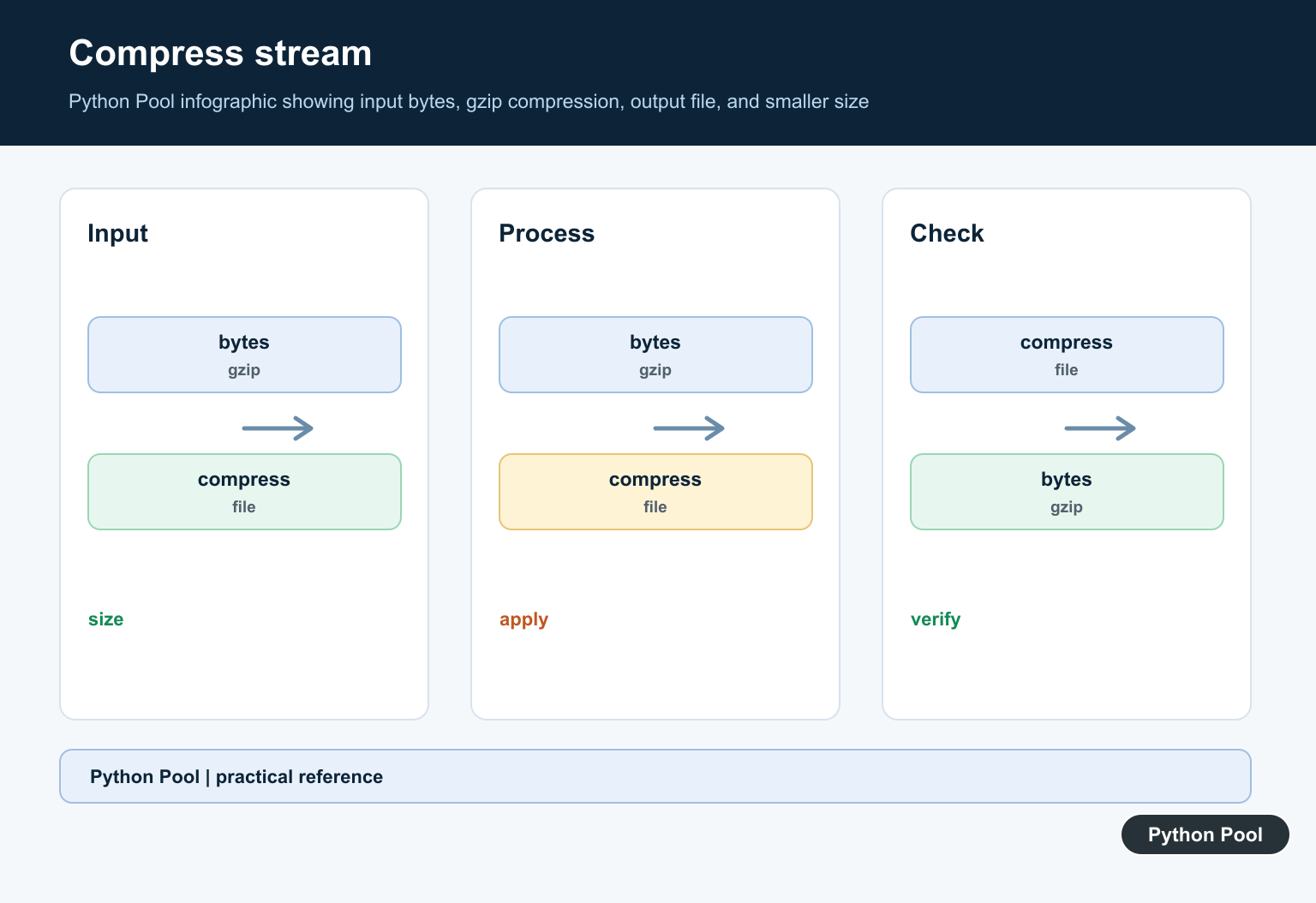
For existing files, stream data from the source file into the gzip output file. This avoids loading the whole file into memory. gzip handles one compressed stream, while Python Unzip Files With zipfile uses zipfile for multi-entry ZIP archives and safe extraction.
import gzip
import shutil

with open("data.log", "rb") as f_in:
    with gzip.open("data.log.gz", "wb", compresslevel=6) as f_out:
        shutil.copyfileobj(f_in, f_out)
compresslevel accepts an integer from 0 to 9. Level 1 is faster with less compression. Level 9 is slower with more compression. Level 0 stores data with no compression. The default for gzip file writing is 9, but 6 is often a practical balance.
Compress and Decompress Bytes
When data is already in memory, use gzip.compress() and gzip.decompress().
import gzip

raw = b"compress this text" * 10
compressed = gzip.compress(raw, compresslevel=6, mtime=0)
restored = gzip.decompress(compressed)

print(restored == raw)
mtime=0 is useful when you want reproducible gzip output. If the timestamp in the gzip header changes on every run, the compressed bytes can differ even when the original content is the same.
Handle Invalid gzip Data
Invalid gzip files can raise gzip.BadGzipFile. Depending on the broken input, EOFError or a zlib-related error can also appear, so catch expected failures around untrusted input.
import gzip

try:
    data = gzip.decompress(b"not gzip data")
except (gzip.BadGzipFile, EOFError, OSError):
    print("Invalid gzip data")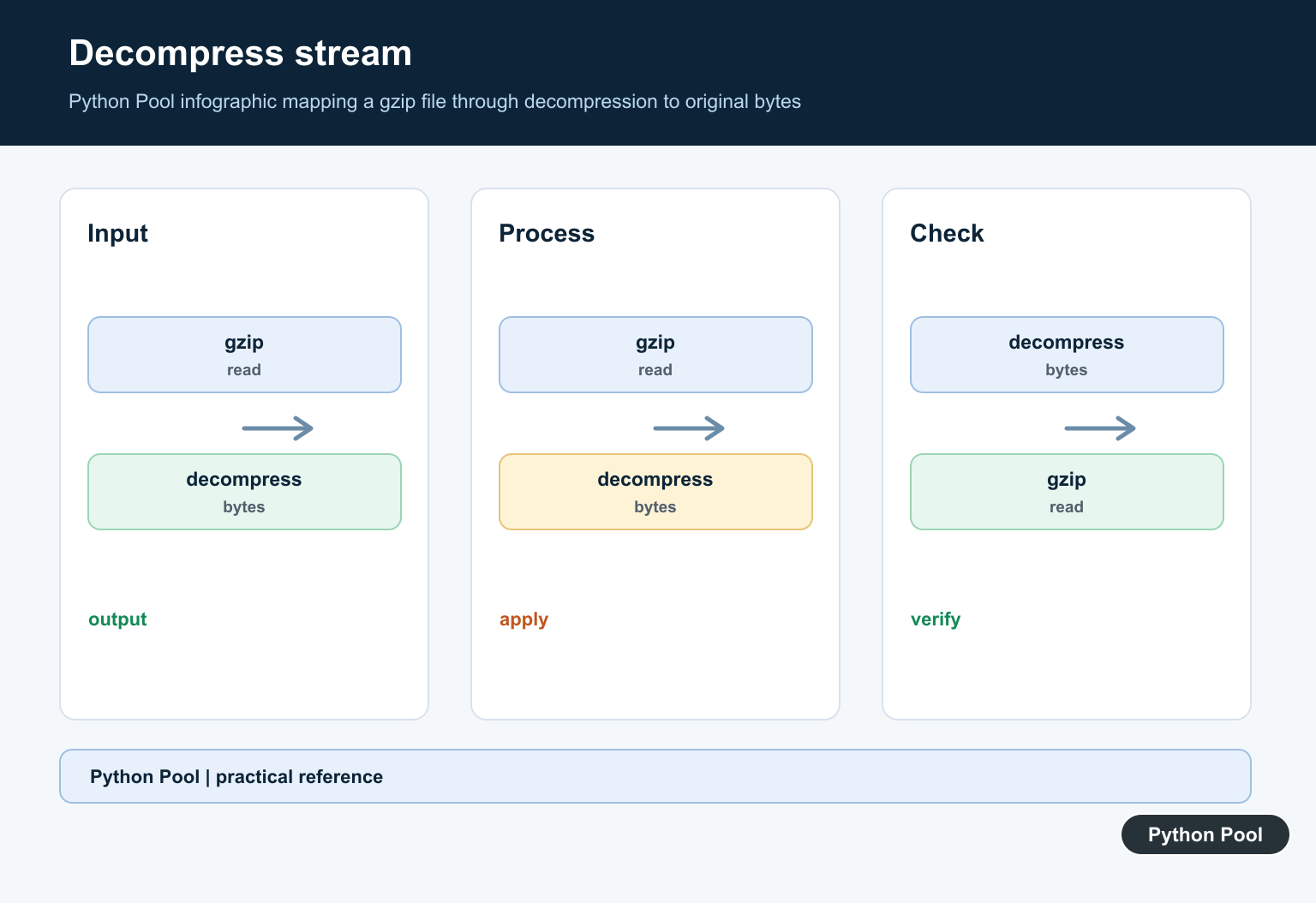
Python gzip Command Line
The module also has a command-line interface:
python -m gzip data.log
python -m gzip -d data.log.gz
python -m gzip --best data.log
python -m gzip --fast data.log
According to the current Python docs, the command-line interface keeps the input file. That differs from some system gzip commands that replace the original file by default.
Common Mistakes
- Mixing text and binary modes. Use
rt/wtfor strings andrb/wbfor bytes. - Reading huge files at once. Stream large files with
shutil.copyfileobj()instead of callingread()on the entire file. - Expecting gzip to archive directories. gzip compresses a stream. For many files or folders, use an archive format such as
tar.gz. - Ignoring invalid input. Catch
gzip.BadGzipFilewhen reading gzip data from users, downloads, or external systems.
Related Python Guides
Official References
Conclusion
The gzip module is the standard-library tool for gzip files and gzip-compressed bytes. Use gzip.open() for file workflows, gzip.compress() and gzip.decompress() for bytes, and streaming copy patterns for large files.
Choose File Or Bytes
gzip.open returns a file-like object and is appropriate for streaming a .gz file. gzip.compress and gzip.decompress operate on bytes already in memory, so they are convenient for small payloads or network boundaries.
Separate Text And Binary Modes
Use rb or wb for bytes and rt or wt with an explicit encoding for text. The gzip container stores bytes; text mode adds the normal encoding and decoding layer around that binary stream.
Control Compression Deliberately
compresslevel trades CPU time for file size. Choose it from the workload rather than assuming the highest level is always better, and benchmark representative data when compression is on a hot path.
Handle Invalid Archives
Catch gzip.BadGzipFile along with relevant EOFError or OSError cases when reading data that may be truncated or mislabeled. Report the source and do not continue with partial output as if it were complete.
Use Safe File Boundaries
Write to a temporary path and replace the destination only after a successful close when producing important archives. Validate filenames, limits, and decompressed size when input is not fully trusted. Keep archive paths separate from user-controlled paths, and log the uncompressed byte count so a decompression bomb cannot consume unlimited memory or disk. For large files, stream instead of loading the entire payload into memory, and test truncated archives and non-UTF-8 text explicitly.
Python’s gzip documentation covers open, compress, decompress, modes, and BadGzipFile. Related references include bytes handling, file reading, and archive tests.
For related file workflows, compare bytes handling, environment dependencies, and archive tests when compressing data.
Frequently Asked Questions
How do I open a gzip file in Python?
Use gzip.open with a .gz path and choose binary or text mode, adding an encoding when reading or writing text.
When should I use gzip.compress?
Use gzip.compress and gzip.decompress when the data is already in memory as bytes rather than a file stream.
How do I handle an invalid gzip file?
Catch gzip.BadGzipFile and related I/O or EOF errors, then report the source file and avoid treating partial data as valid output.
Does gzip compress text or bytes?
The gzip file API ultimately stores bytes; text mode performs encoding and decoding around the binary stream.