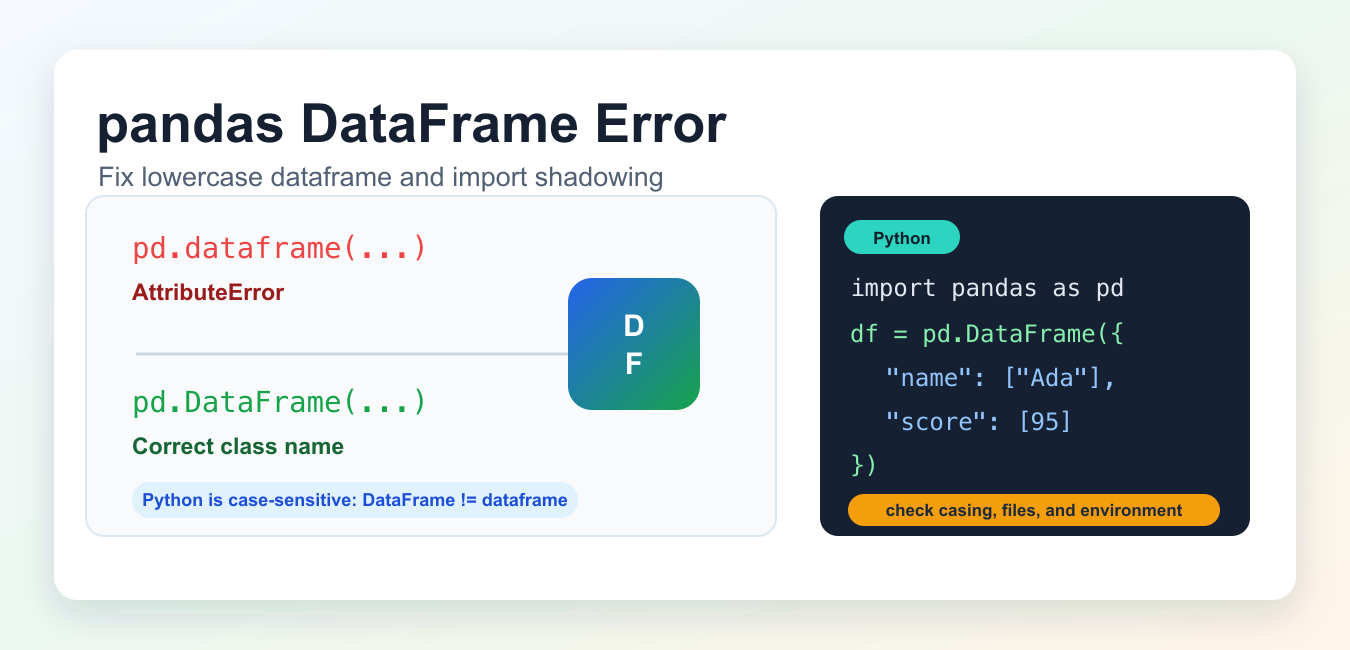
Quick answer: pandas does expose the DataFrame constructor. When code reports that the module has no attribute DataFrame, inspect what was imported before reinstalling anything: a local pandas.py or pandas directory may shadow the real package, the name may be misspelled, or the program may be using a different interpreter than the one where pandas was installed.
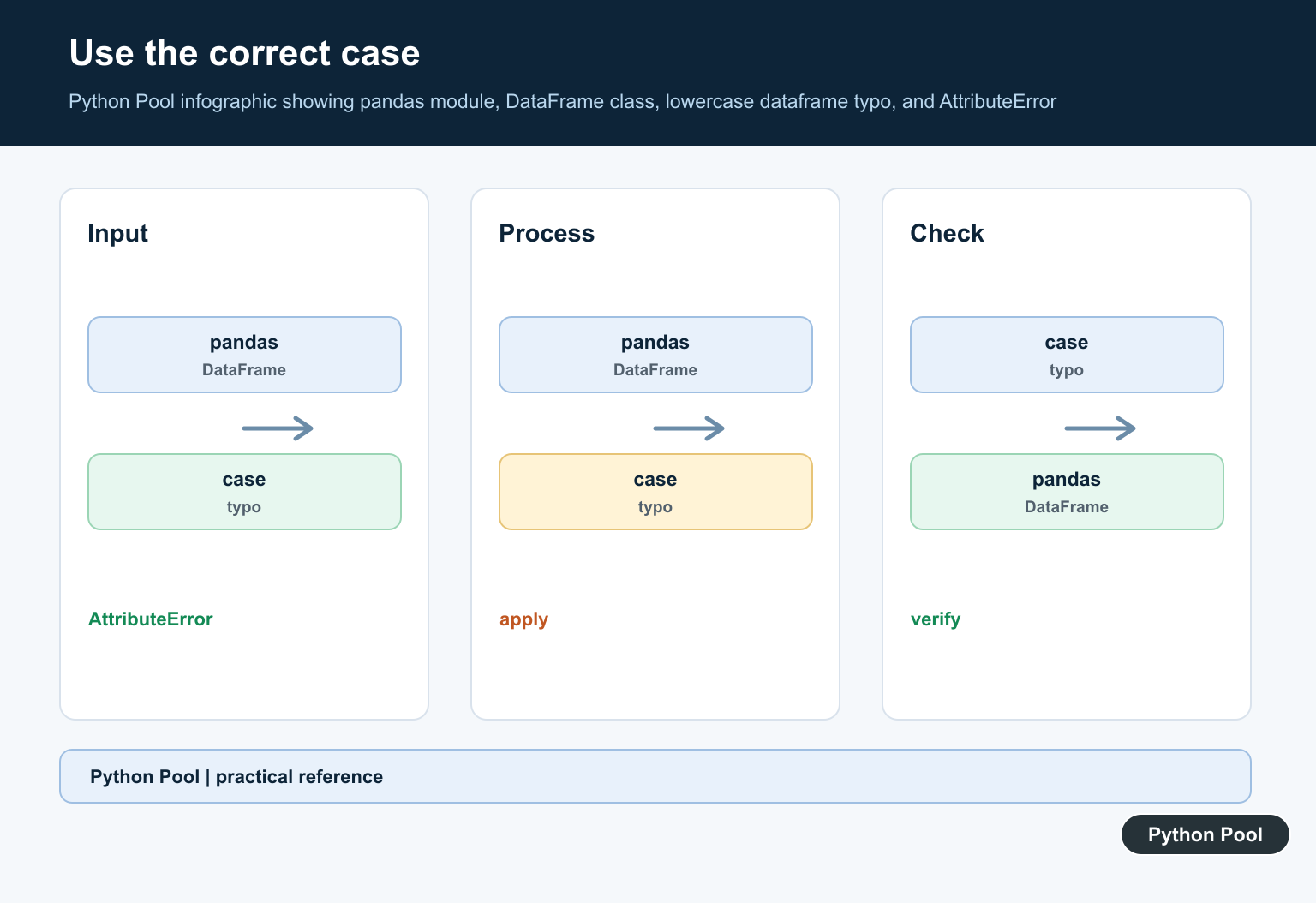
AttributeError: module 'pandas' has no attribute 'dataframe' almost always means the code used the wrong capitalization. The pandas class is DataFrame with a capital D and capital F. Python attribute names are case-sensitive, so pd.dataframe and pd.DataFrame are different names.
Quick fix
Use pd.DataFrame(), not pd.dataframe().
import pandas as pd

# Wrong
# df = pd.dataframe({"name": ["Ada"], "score": [95]})

# Correct
df = pd.DataFrame({"name": ["Ada"], "score": [95]})
print(df)
The official pandas API documents pandas.DataFrame as the primary two-dimensional tabular data structure. There is no lowercase pandas.dataframe constructor.
Why this error happens
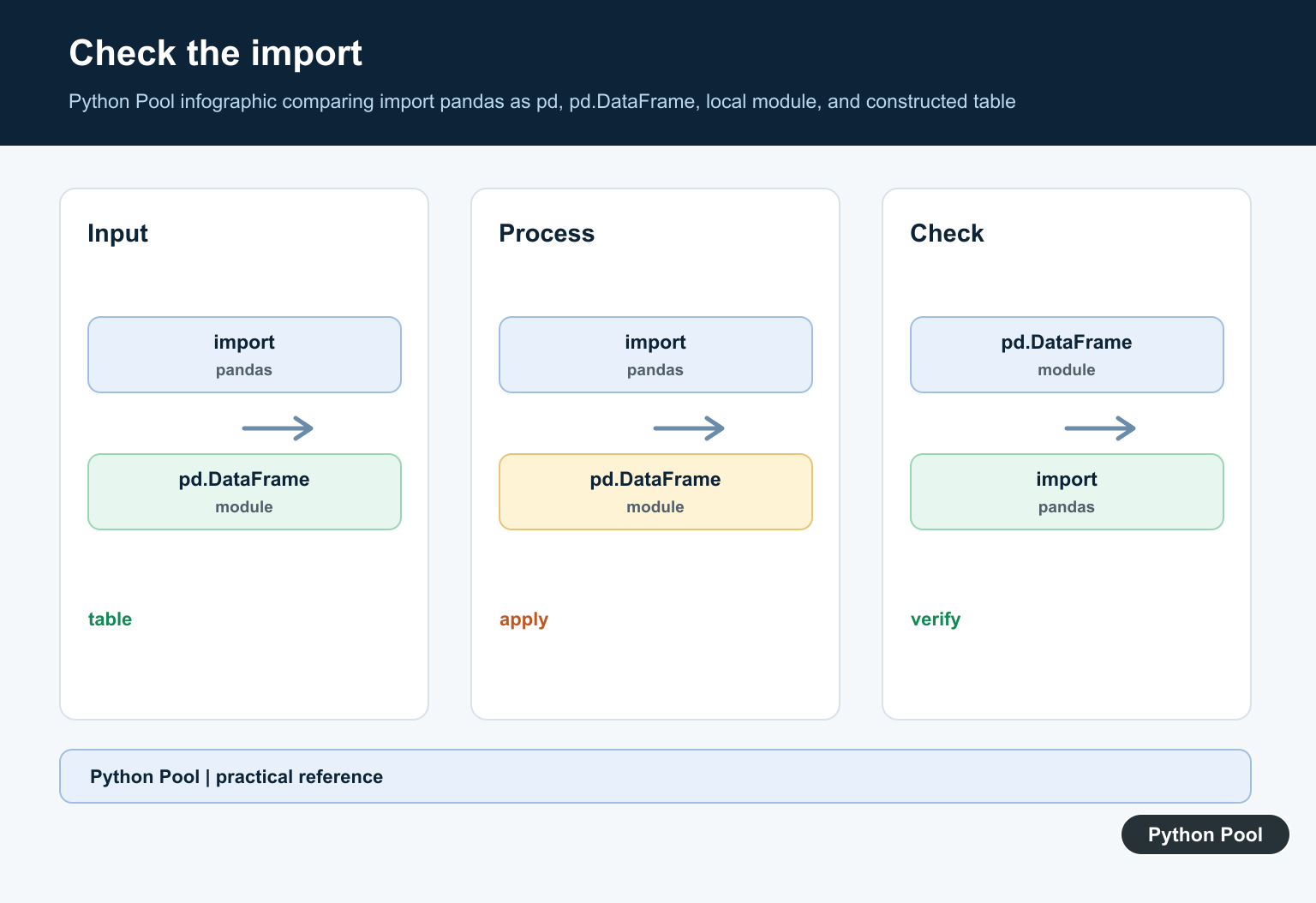
When you write import pandas as pd, pd points to the pandas module. Python then looks for the exact attribute name after the dot. If the code asks for pd.dataframe, pandas cannot find that lowercase attribute and raises the error.
import pandas as pd

print(hasattr(pd, "DataFrame"))   # True
print(hasattr(pd, "dataframe"))   # False
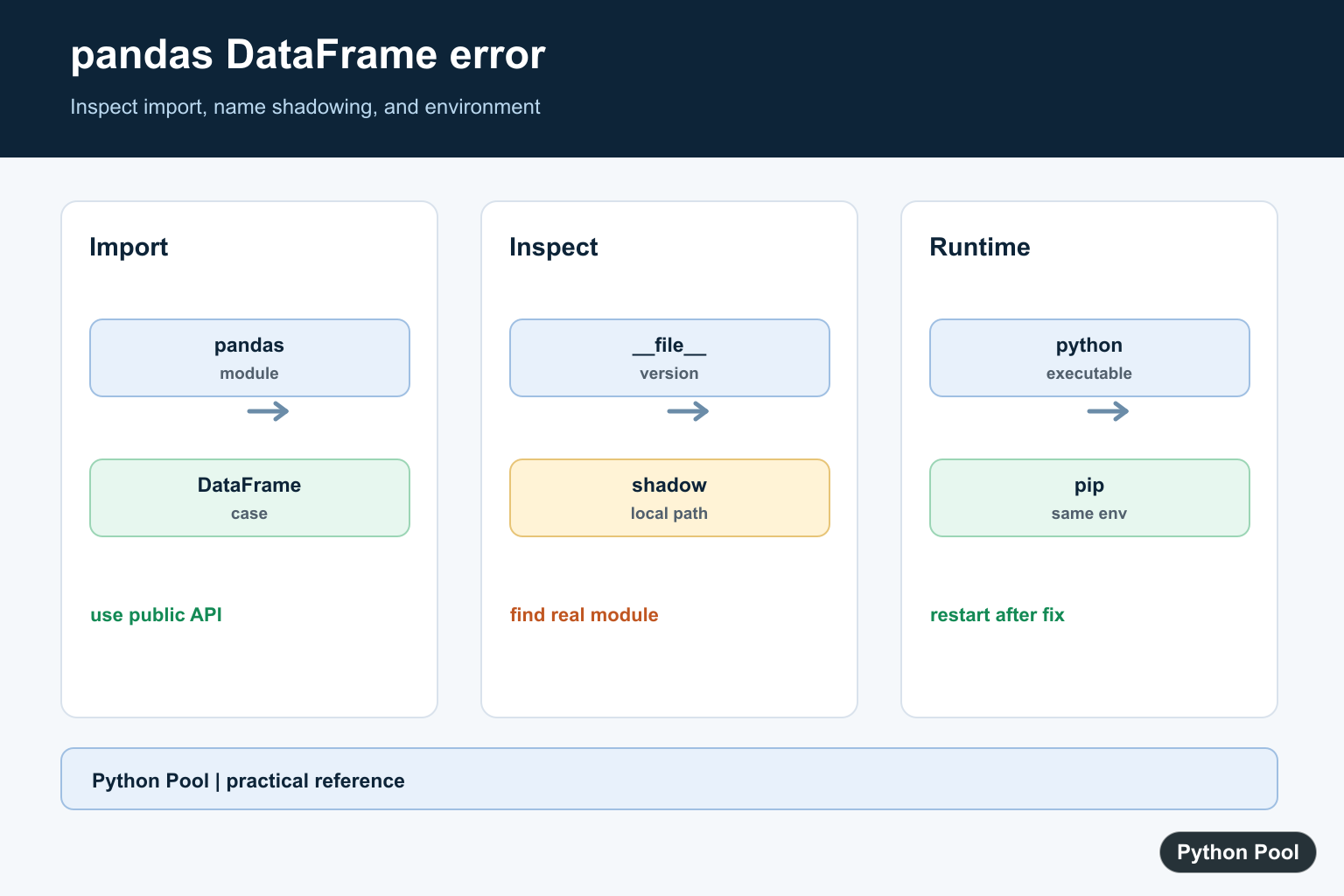
Check for a local pandas.py file
If the capitalization is already correct but the error still looks strange, check whether your project contains a file named pandas.py or a folder named pandas. That local file can shadow the real pandas package.
import pandas as pd
print(pd.__file__)
If the printed path points to your project folder instead of the installed package location, rename the local file, delete any related __pycache__ files, and restart Python.
Make sure pandas is installed in the active environment
Another common cause is running code in a different interpreter, virtual environment, or Jupyter kernel from the one where pandas was installed. Install pandas with the same Python executable that runs your code.
python -m pip install pandas
In conda environments, use:
conda install -c conda-forge pandas
If you are using Jupyter Notebook, restart the kernel after installing pandas. For related environment checks, see our guides on checking the Python version and fixing python is not recognized.
Fast troubleshooting flow
Start with the smallest check first. If changing pd.dataframe to pd.DataFrame fixes the error, you do not need to reinstall pandas. Reinstall only after confirming the name is correct and pandas is imported from the expected location.
- Search the file for
dataframeand replace only constructor calls withDataFrame. - Run
import pandas as pdin the same script, shell, or notebook cell. - Print
pd.__file__to confirm Python imported the real package. - Check
python -m pip show pandasin the same environment. - Restart the IDE or Jupyter kernel after changes.
This order avoids a common mistake: reinstalling pandas when the real issue is only a lowercase class name or a local file shadowing the package.
Jupyter Notebook checklist
- Run
import sys; print(sys.executable)inside the notebook. - Install pandas with that executable:
python -m pip install pandas. - Restart the kernel after installation.
- Check that you did not name the notebook or a nearby file
pandas.py.
Do not confuse DataFrame with to_numpy()
If you are converting a DataFrame to a NumPy array, use df.to_numpy(). Do not call a DataFrame object like a function, and do not replace the constructor with lowercase dataframe.
import pandas as pd

df = pd.DataFrame({"score": [95, 88]})
array = df.to_numpy()
print(array)
For conversion-focused examples, read our guide on converting a NumPy array to a pandas DataFrame.
Common fixes
- Change
pd.dataframe(...)topd.DataFrame(...). - Confirm the import is
import pandas as pd. - Rename any local
pandas.pyfile that shadows the real package. - Install pandas in the active environment with
python -m pip install pandas. - Restart your terminal, IDE, or Jupyter kernel after changing the environment.
Related pandas and NumPy fixes
Official references
- pandas documentation for DataFrame
- pandas installation documentation
- pandas documentation for DataFrame.to_numpy()
Use The Public Constructor And Check Case
The supported spelling is pandas.DataFrame, commonly written as pd.DataFrame after import pandas as pd. Python attribute lookup is case-sensitive, so Dataframe and dataframe are not equivalent. Keep the import near the top of a small reproduction and remove unrelated notebook state.
import pandas as pd

frame = pd.DataFrame({"value": [1, 2, 3]})
print(frame)
print(type(frame).__name__)
Inspect The Module That Was Imported
Print the module’s file and version in the same process that fails. If __file__ points into your project, a file or directory is shadowing the dependency. Rename the local path, remove stale bytecode if appropriate, and restart the interpreter so its import cache is rebuilt.
import pandas as pd
import sys

print("python:", sys.executable)
print("pandas:", pd.__file__)
print("version:", getattr(pd, "__version__", "unknown"))
print("has DataFrame:", hasattr(pd, "DataFrame"))
Compare Installation And Runtime
An editor, notebook kernel, shell, and production process can use different interpreters. Run the package inspection through the same executable that runs the code. Do not mix a system pip install with a virtual environment and then infer that pandas itself is missing.
import subprocess
import sys

subprocess.run([sys.executable, "-m", "pip", "show", "pandas"], check=False)
print(sys.executable)
Avoid Accidental Name Replacement
A later assignment such as pandas = {} or pd = [] can replace the imported module in a notebook or function scope. Search for assignments to the module name, restart the kernel, and prefer descriptive local names so a dependency cannot be mistaken for a data object. The same issue can come from a function parameter, a loop variable, or a test fixture that reuses the short alias. A clean process and a minimal reproduction make the real import contract visible, while a large notebook can preserve a stale object long after the source cell has been corrected.
import pandas as pd

data = pd.DataFrame({"value": [10, 20]})
# Do not reuse pd or pandas for a list, dictionary, or DataFrame.
print(data["value"].sum())
Use the official pandas.DataFrame documentation as the API reference. When the attribute is absent, environment and name resolution are more useful first checks than changing capitalization at random.
For related pandas failures, compare modern DataFrame combination, boolean-mask validation, and the Python visualizer workflow when isolating an environment or API mismatch.
Frequently Asked Questions
Does pandas have a DataFrame constructor?
Yes. The public constructor is pandas.DataFrame, so this error usually points to a shadowed import, wrong package, or incorrect capitalization.
Why does import pandas as pd still fail?
Check that pd is the real pandas module, that no local pandas.py or pandas directory shadows it, and that the active interpreter has pandas installed.
Is DataFrame case-sensitive?
Yes. Python attribute names are case-sensitive, so Dataframe, dataframe, and DataFrame are different names.
How do I verify which pandas Python imported?
Print pandas.__file__, pandas.__version__, and sys.executable in the failing environment, then remove shadowing files or repair that environment.