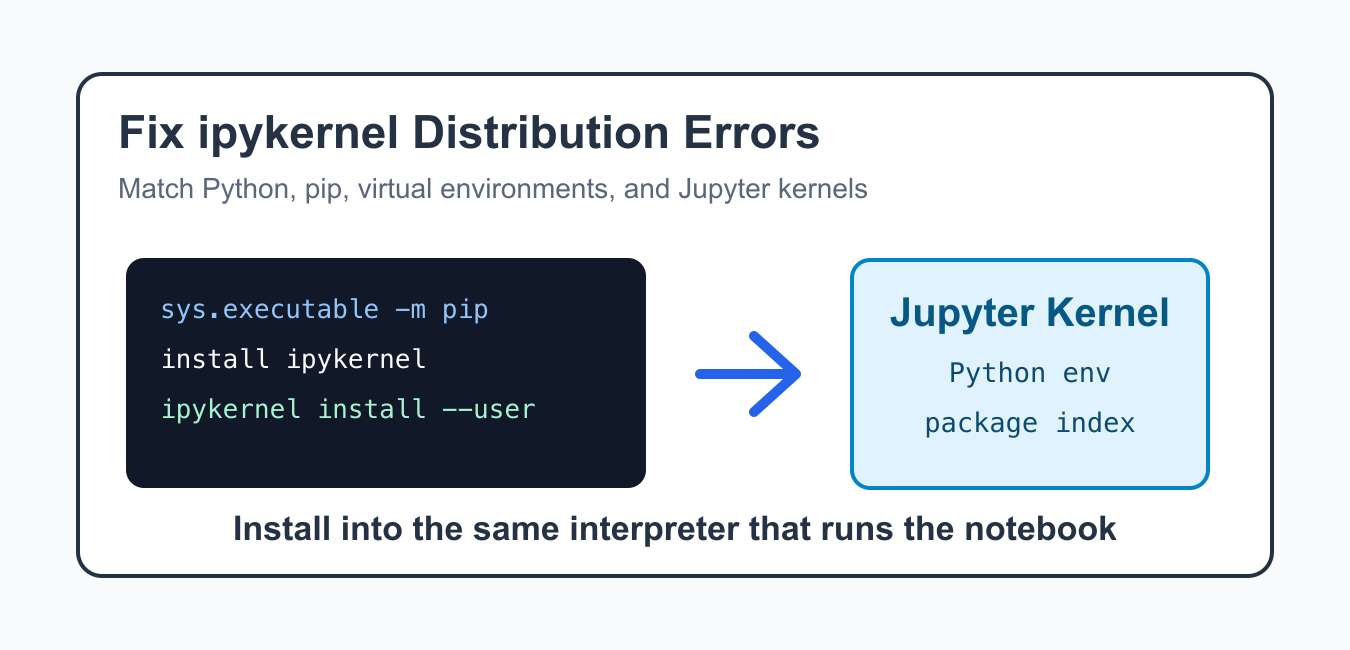
The error No matching distribution found for ipykernel means pip could not find an installable ipykernel package for the Python environment that ran the install command. The usual causes are an unsupported Python version, an old pip, a restricted package index, or installing into a different environment than the notebook uses.
Quick Answer
The error means pip cannot find a compatible ipykernel distribution for the interpreter and package index it is using. Check python –version, upgrade pip in that same interpreter, inspect indexes and proxies, then install and register the kernel from that environment.
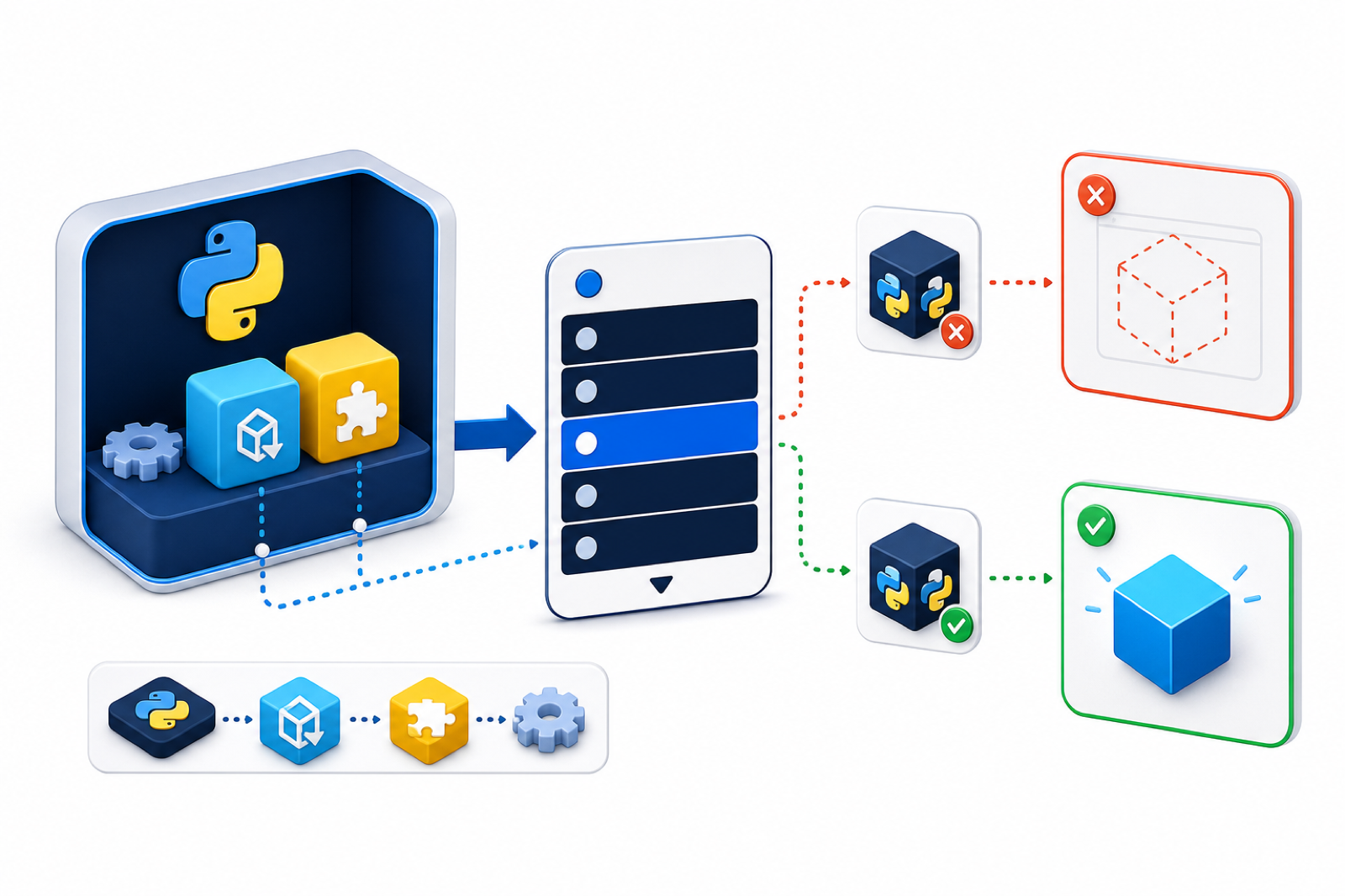
ipykernel is the package that lets a Python environment appear as a Jupyter kernel. Installing it into the wrong environment may succeed but still leave Jupyter unable to use that Python interpreter. The fix is to inspect the exact interpreter, update packaging tools, then register the kernel from that same interpreter.
The wording can be misleading because it sounds like the package does not exist. In most real cases, the package exists, but pip cannot use the package source or cannot find a compatible release for the current interpreter. That is why version, pip, and index checks should come before reinstalling Jupyter repeatedly.
Use the official ipykernel documentation, ipykernel PyPI page, Python packaging install guide, venv documentation, and Jupyter kernels documentation as primary references.
Check The Python Interpreter
First confirm which Python executable is running. The environment shown here is the one pip should install into.
import sys

print(sys.executable)
print(sys.version)
print(sys.prefix)
If this path is not the environment used by Jupyter, installing packages here will not fix the notebook kernel. Match the interpreter before changing packages.
Notebook tools often launch from one environment while a notebook kernel runs another. The path printed by sys.executable is the evidence that matters. Use that path for installation commands when the kernel is the environment you want to repair.
Upgrade pip And Install ipykernel
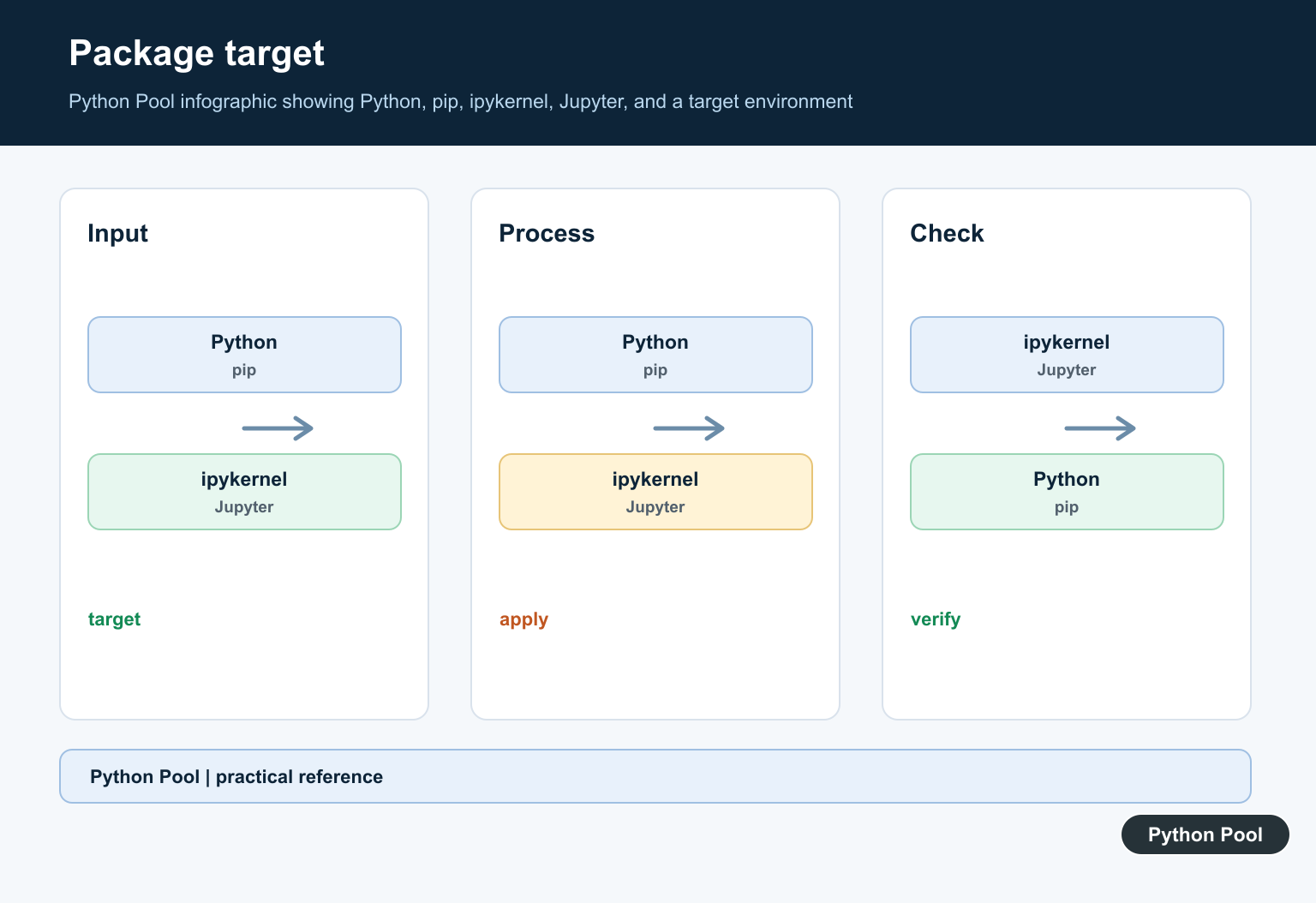
An old pip release may not understand current package metadata. Upgrade pip, setuptools, and wheel, then install ipykernel with the same Python executable.
import subprocess
import sys

subprocess.check_call([
    sys.executable,
    "-m",
    "pip",
    "install",
    "--upgrade",
    "pip",
    "setuptools",
    "wheel",
])

subprocess.check_call([
    sys.executable,
    "-m",
    "pip",
    "install",
    "ipykernel",
])
Using sys.executable -m pip avoids confusion between pip, pip3, and multiple Python installs on the same machine.
If the upgrade step fails first, fix that before installing ipykernel. A broken packaging toolchain can make every later package look unavailable, even when the actual package is fine.
Inspect pip Configuration
If pip uses a private package index or an environment setting that hides PyPI, it may not see ipykernel. Print the active pip configuration from Python.
import subprocess
import sys

result = subprocess.run(
    [sys.executable, "-m", "pip", "config", "list"],
    check=False,
    text=True,
    capture_output=True,
)

print(result.stdout or "No pip config entries found")
print(result.stderr)
If a custom index is required at your organization, make sure that index mirrors ipykernel and its dependencies for your Python version.
Also check whether environment settings override pip configuration. A terminal, notebook server, scheduled job, or IDE may set different package index options. Comparing the active configuration from the failing environment is more reliable than checking a different shell.
Create A Fresh Virtual Environment
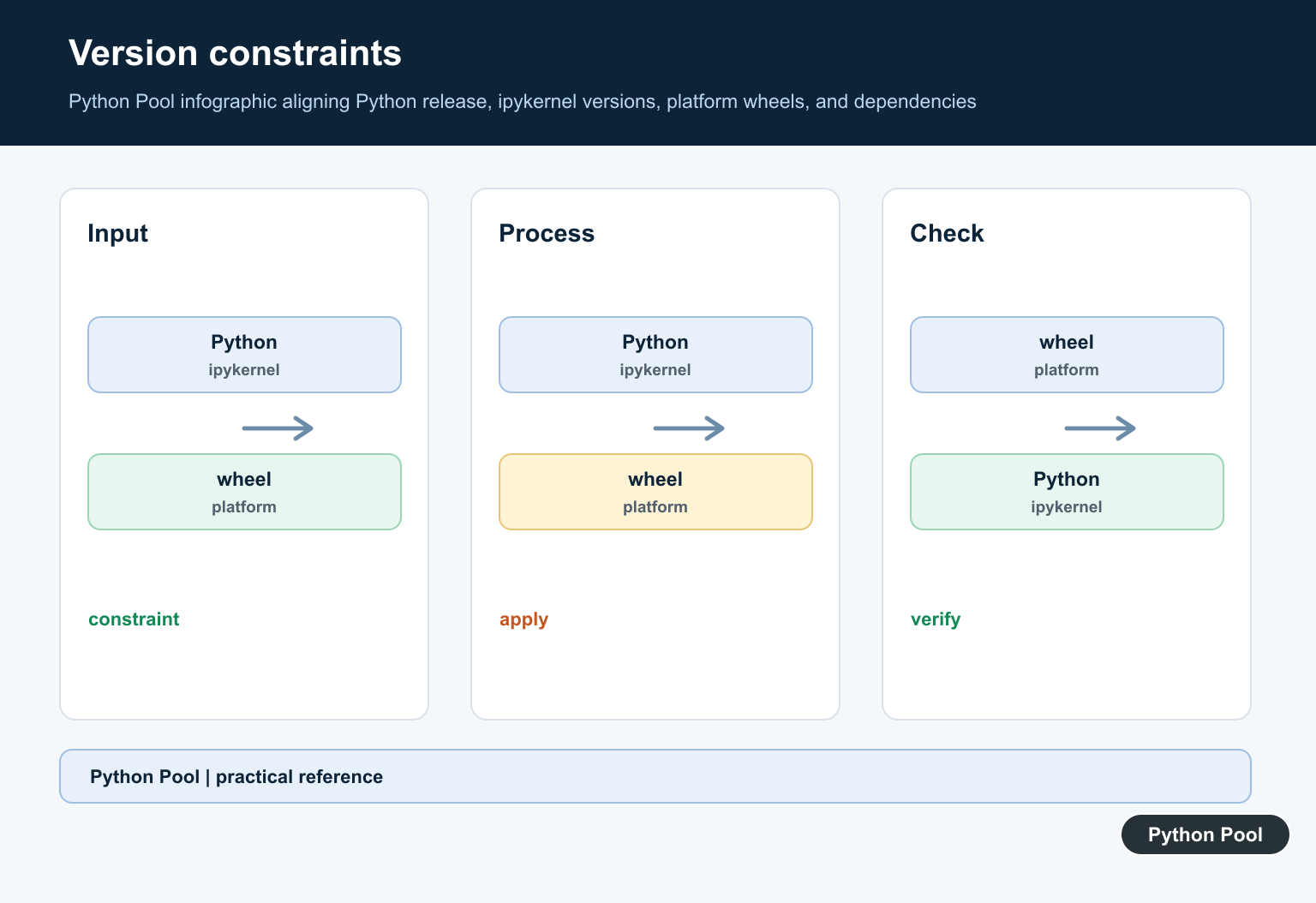
A fresh virtual environment is often faster than repairing a heavily modified one. The venv module creates an isolated environment with its own pip.
import subprocess
import sys
import venv
from pathlib import Path

env_dir = Path("notebook-env")
venv.create(env_dir, with_pip=True)

python_path = env_dir / "bin" / "python"
if sys.platform == "win32":
    python_path = env_dir / "Scripts" / "python.exe"

subprocess.check_call([
    str(python_path),
    "-m",
    "pip",
    "install",
    "ipykernel",
])
After this works, install the rest of the notebook dependencies into the same environment. Keep the environment path documented so future installs go to the right place.
A fresh environment also helps separate package-resolution problems from old dependency conflicts. If ipykernel installs cleanly in the new environment, the original environment likely needs cleanup rather than more repeated install attempts.
Register The Jupyter Kernel
Installing ipykernel is not always enough. Register the environment as a Jupyter kernel so it appears in notebook menus.
import subprocess
import sys

subprocess.check_call([
    sys.executable,
    "-m",
    "ipykernel",
    "install",
    "--user",
    "--name",
    "notebook-env",
    "--display-name",
    "Python (notebook-env)",
])
Run this command from the environment you want Jupyter to use. The display name is what you select in the notebook interface.
Registering the kernel does not copy all packages into Jupyter. It creates a kernel spec that points Jupyter to the environment. When you install new packages later, install them into that same environment so imports work inside notebooks.
Verify The Import And Kernel Tooling
Finally, check that ipykernel can be imported and that the kernel installation command is available from the same interpreter.
import importlib.util
import subprocess
import sys

spec = importlib.util.find_spec("ipykernel")
print(spec.origin if spec else "ipykernel not found")

result = subprocess.run(
    [sys.executable, "-m", "ipykernel", "--version"],
    text=True,
    capture_output=True,
)

print(result.stdout.strip())
print(result.stderr.strip())
If the import works but Jupyter still shows the wrong interpreter, remove the old kernel entry or select the newly registered display name. The package and the Jupyter kernel spec must point to the same environment.
When the version command fails, read stderr carefully. It often shows whether Python cannot import ipykernel, whether the wrong interpreter is being used, or whether another dependency is missing.
Practical Checklist
Use a supported Python version, upgrade pip, install with sys.executable -m pip, check package index settings, and register the kernel from the target environment. These steps fix most No matching distribution found for ipykernel cases without guessing.
If the error remains, compare the Python version against the current package requirements on PyPI and check whether the package index being used actually contains ipykernel. The message is about package resolution, so the answer is usually in version support, index configuration, or environment selection.
Separate Package Compatibility from Kernel Registration
First make the package install succeed, then register that environment as a kernel. These are related but separate operations, and mixing them makes diagnosis harder.
python -m pip --version
python --version
python -m pip install --upgrade pip
python -m pip install ipykernel
python -m ipykernel install --user --name project-env --display-name "Python (project-env)"
If the install fails, inspect the Python version, platform, configured index, network restrictions, and available package releases. If it succeeds but the kernel is missing, inspect the kernelspec path and the Jupyter environment.
If the kernel uses the wrong interpreter, compare the environment checks in our Python venv guide and the notebook workflow in our Jupyter multiple-cells guide.
Frequently Asked Questions
Why does pip say no matching distribution for ipykernel?
The selected package index has no compatible release for the Python version, platform, architecture, or constraints used by the current interpreter.
Should I run pip or python -m pip?
Use python -m pip so pip is attached to the interpreter you intend to repair. Use the full interpreter path when multiple environments exist.
Does installing ipykernel automatically add a Jupyter kernel?
Installing the package makes the backend available, but you may still need python -m ipykernel install to register the environment as a selectable kernel.
What if the package index is private?
Check the configured index URL, authentication, proxy, certificates, and whether that index mirrors a compatible ipykernel release.