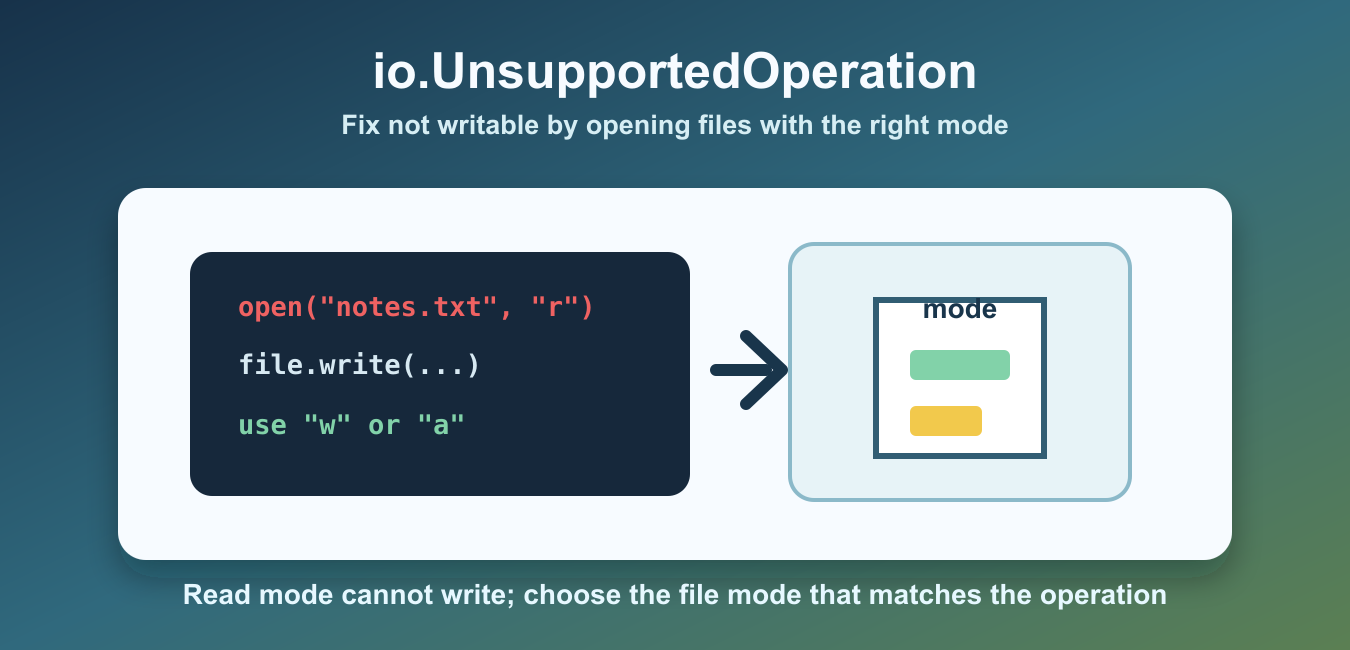
io.UnsupportedOperation: not writable happens when Python code calls write() on a file object that was opened without write support. The most common cause is opening a file in read mode and then trying to write text into it.
Quick Answer
The file object was opened without write support. Use w to overwrite, a to append, or r+ to read and write without truncating immediately, then call write() only on a stream whose writable() method is true.

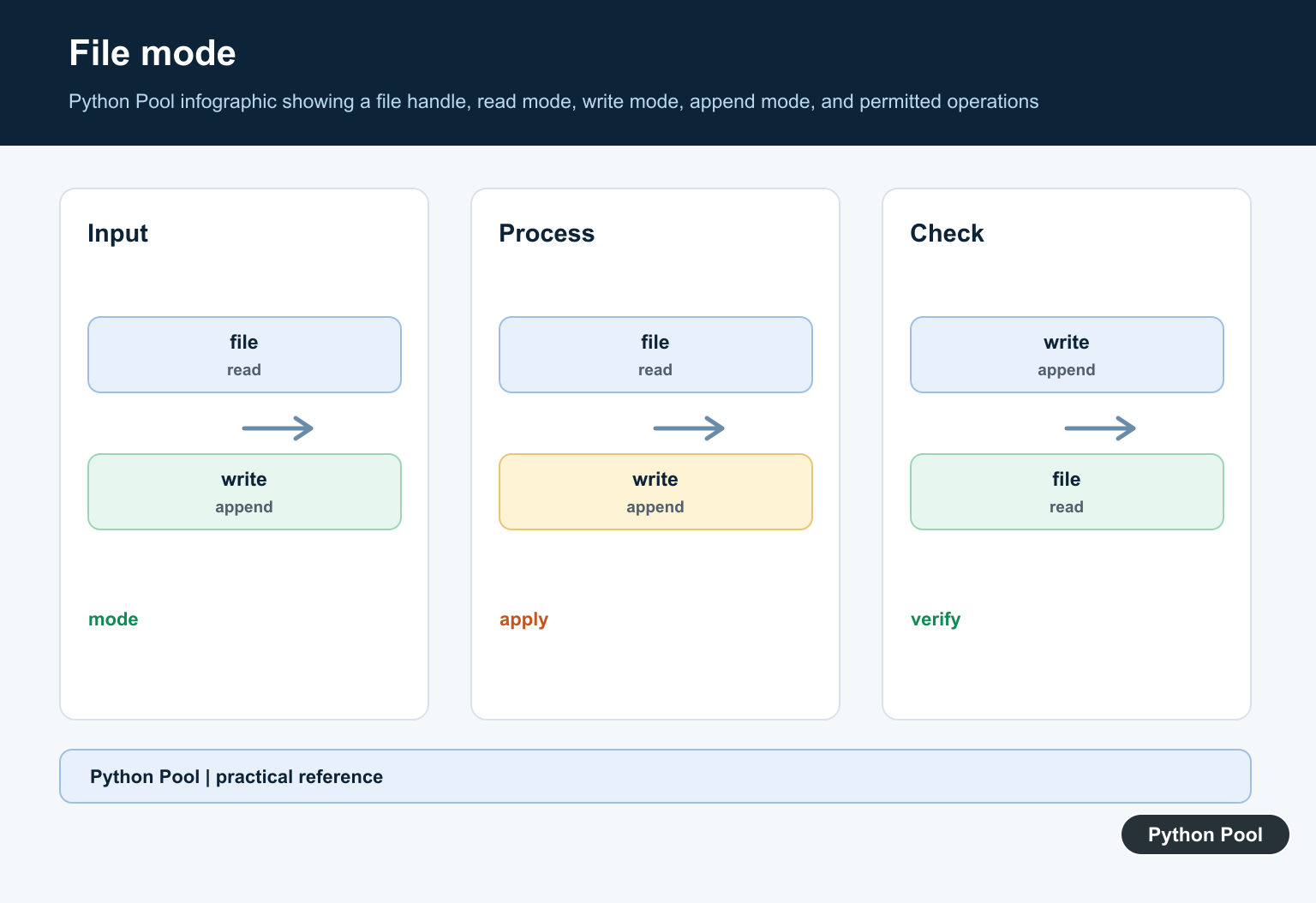
Python file modes decide what operations are allowed. Mode "r" reads only, "w" writes and truncates, "a" appends, and "r+" allows both reading and writing without truncating immediately.
The error is about the file object, not the text you are writing. If the object was opened in a read-only mode, Python refuses the write before it can change the file contents. Pick the mode first, then call the method that matches that mode.
The official Python open documentation covers file modes. For related file-handling topics, see the open() in Python guide, the closed file operation guide, and the not readable error guide.
Why The Error Happens
This example opens the file in read mode. Calling write() fails because the file object is readable but not writable.
with open("notes.txt", "r", encoding="utf-8") as file:
    file.write("new line\n")
The code is valid Python syntax, but it uses the wrong file mode for the operation. Use a write-capable mode before calling write().
This differs from a missing file or permission issue. A missing file in read mode usually raises FileNotFoundError. A blocked filesystem path usually raises PermissionError. UnsupportedOperation points to an object that does not support the requested operation.
Use w Mode To Write A File
Use "w" when you want to create a new file or replace the full contents of an existing file.
with open("notes.txt", "w", encoding="utf-8") as file:
    file.write("first line\n")
    file.write("second line\n")
Be careful: "w" truncates an existing file as soon as it opens successfully. Use it only when replacing the file is intended.
If you need to preserve old content, read it first, write to a separate output path, or use append mode. Do not switch to "w" blindly just to silence the error.
Use a Mode To Append
Use "a" when you want to add content to the end of a file without deleting what is already there.
with open("notes.txt", "a", encoding="utf-8") as file:
    file.write("added later\n")
Append mode creates the file if it does not exist. It is useful for logs, simple reports, and scripts that add rows over time.
In append mode, writes go to the end of the file. That makes it a good fit for accumulating lines, but it is not the right mode for editing text in the middle of a file.
Use r+ For Read And Write
Use "r+" when the file must already exist and you need both reading and writing.
with open("notes.txt", "r+", encoding="utf-8") as file:
    old_text = file.read()
    file.seek(0)
    file.write("updated\n" + old_text)
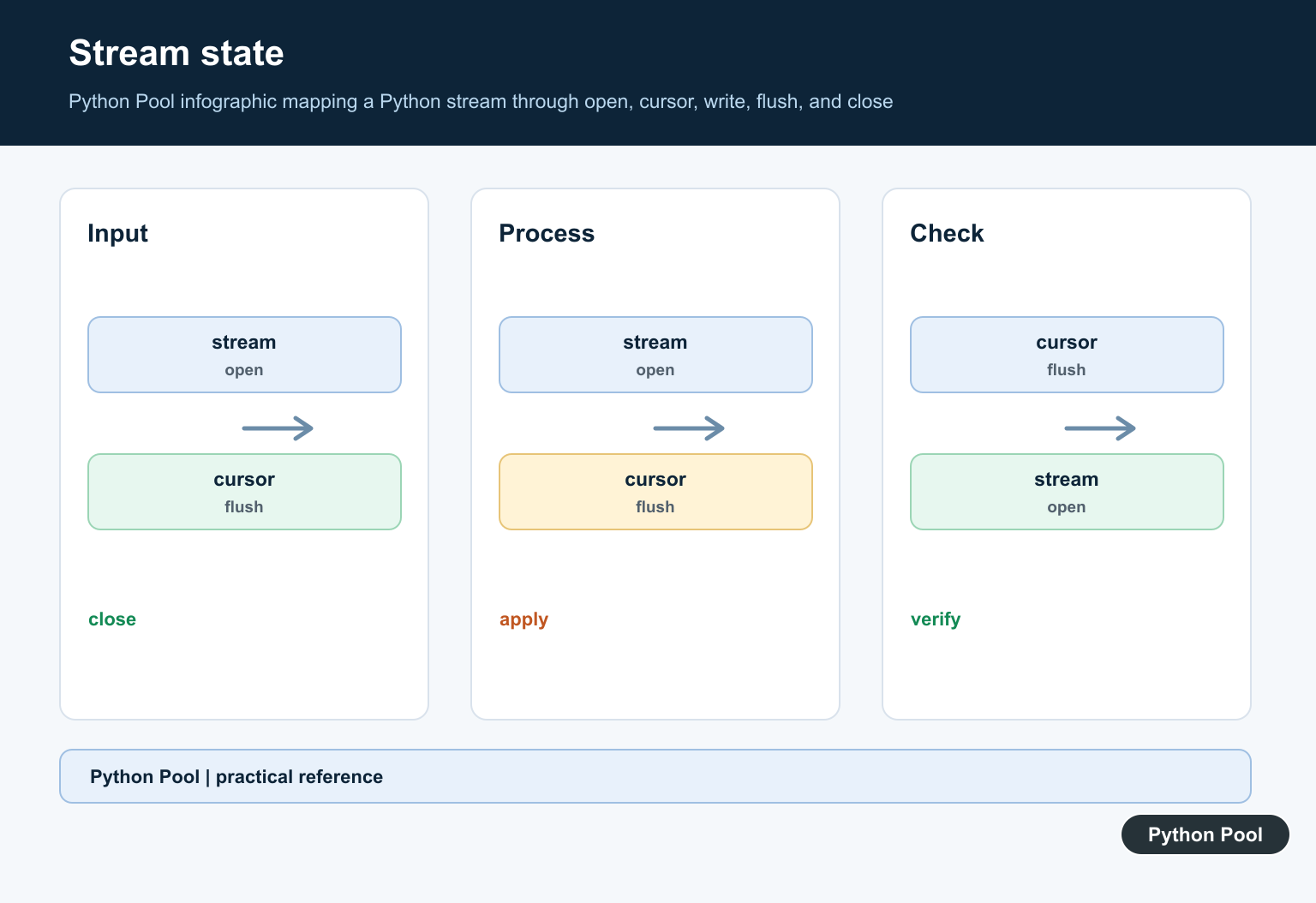
Read-and-write modes require care because the file pointer moves as you read and write. Use seek() when you need to move to a specific position before writing.
If the replacement text is shorter than the old content, leftover bytes can remain after the new text. In that case, call truncate() after writing or rebuild the file contents separately.
Check writable() Before Writing
If a function receives a file object from somewhere else, check writable() before calling write().
def write_message(file, message):
    if not file.writable():
        raise ValueError("file object is not writable")
    file.write(message)


with open("notes.txt", "w", encoding="utf-8") as output:
    write_message(output, "saved\n")
This produces a clearer error in your own code and makes the expected file object behavior explicit.
This is useful in helper functions, test utilities, and code that accepts file-like objects. A file-like object can come from disk, memory, compression libraries, or another API, so checking capability is often better than assuming it.
Use pathlib For Simple Text Writes
For simple whole-file writes, pathlib.Path.write_text() is concise and avoids manual file object handling.
from pathlib import Path

path = Path("notes.txt")
path.write_text("hello from pathlib\n", encoding="utf-8")

print(path.read_text(encoding="utf-8"))
write_text() replaces the target file contents. Use explicit open modes when you need append behavior, partial edits, or streaming writes.
Common Fix Checklist
First, check the mode passed to open(). If it is missing, Python uses read mode by default. That means open("notes.txt") behaves like open("notes.txt", "r"), which cannot write.
Second, choose the mode based on intent. Use "w" to replace, "a" to append, "x" to create only when missing, and "r+" when an existing file must be read and written.
Third, separate this error from permission problems. io.UnsupportedOperation usually means the file object mode does not support writing. Permission errors usually raise PermissionError and require filesystem permission or path changes.
The reliable fix is simple: open the file with a write-capable mode before calling write(), use with so the file closes automatically, and choose pathlib helpers for short whole-file operations.
When debugging, print or inspect the file mode if the object exposes one. Seeing r, w, a, or r+ usually explains why a read or write call is allowed or rejected.
Inspect the File Object Before Writing
When the mode is hidden inside a helper, inspect the stream before the failing call. This quickly distinguishes a mode problem from a path or permission problem.
with open("notes.txt", "a", encoding="utf-8") as handle:
    print(handle.mode)
    print(handle.writable())
    handle.write("another line\n")
Use binary modes such as wb or ab for bytes, and text modes for strings. A stream can be writable while still rejecting the data type you pass to it.
Frequently Asked Questions
Why does Python say the file is not writable?
The file was opened in a mode that does not allow writes, commonly r or a read-only stream returned by another API.
What is the difference between w and a?
w writes from a fresh file position and truncates an existing file, while a keeps existing content and appends new data at the end.
When should I use r+?
Use r+ when you need both reading and writing without truncating the file when it is opened. Manage the cursor deliberately.
How can I check write support?
Call handle.writable() before writing. It returns a boolean that makes the stream capability explicit.