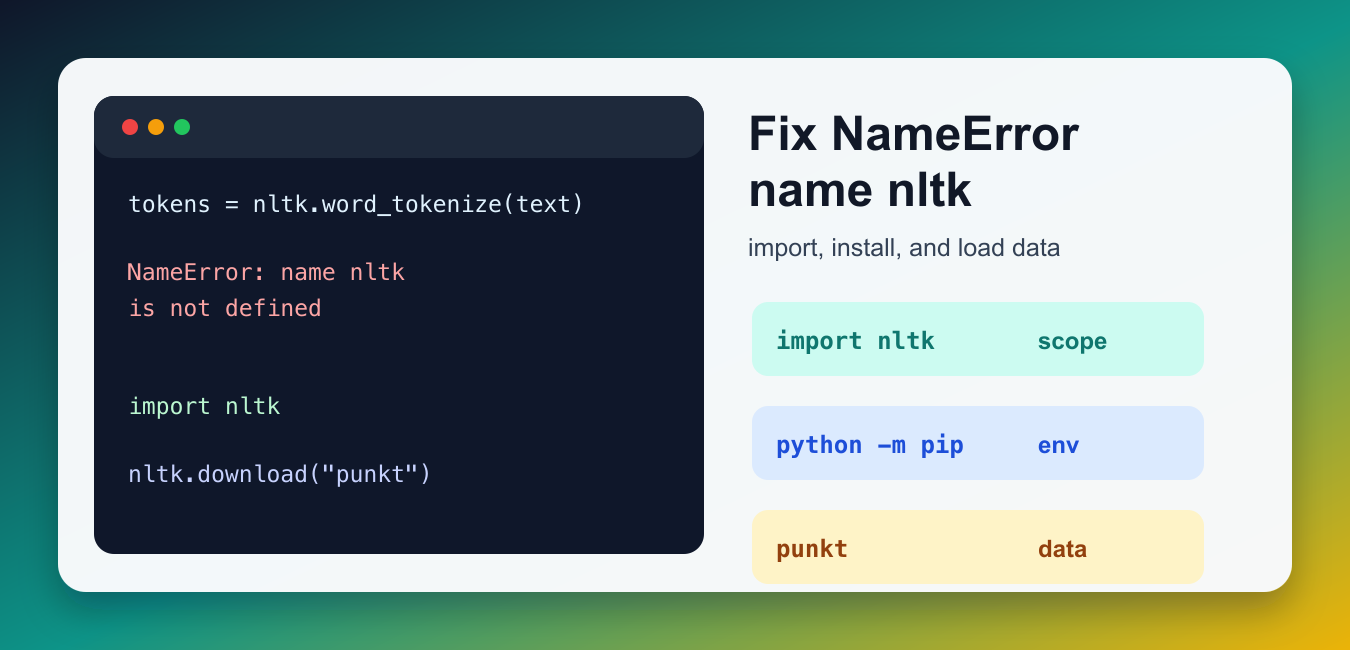
Quick answer: NameError: name ‘nltk’ is not defined means the current Python process has no name called nltk at the failing line. Install NLTK only if the import is missing; then check import order, notebook kernels, tokenizer data, and local files that shadow the package.
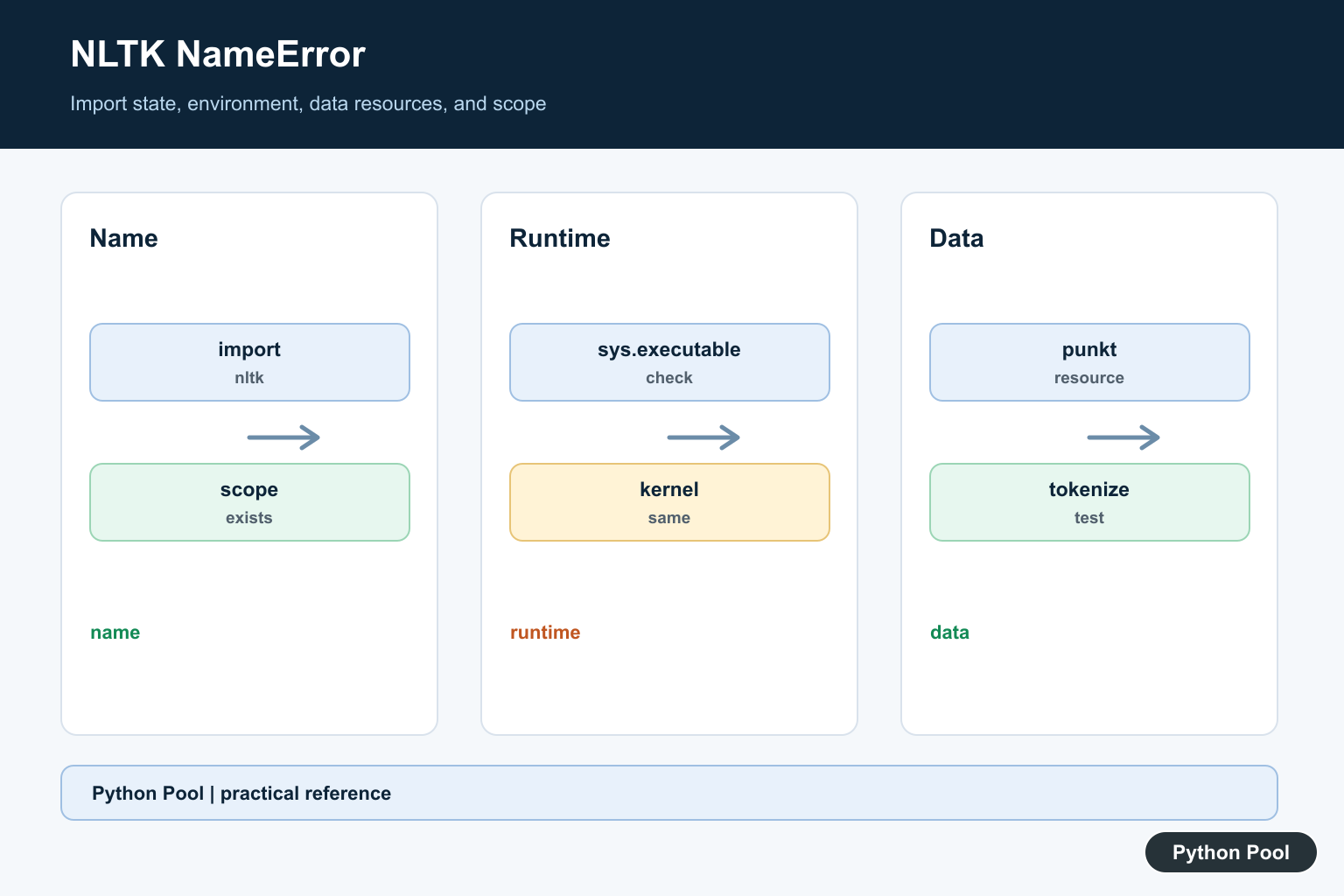
The error NameError: name ‘nltk’ is not defined means Python reached a line that uses the name nltk, but that name does not exist in the current scope. Installing the package is not enough by itself. The script, notebook cell, or function must also run import nltk before calling nltk.word_tokenize(), nltk.download(), or any other NLTK function.
This is different from ModuleNotFoundError: No module named 'nltk'. A NameError usually means NLTK was never imported in this process, the import cell did not run, the import is inside a different function scope, or a notebook kernel restarted and lost earlier variables.
The fix depends on where the name is missing. In a single script, put the import near the top. In a function, either import before the function runs or pass the needed tokenizer into the function. In a notebook, rerun the import cell after restarting the kernel and before running cells that tokenize text.
Reproduce the NameError
The following code uses nltk without defining it first. Python does not know whether nltk is supposed to be a package, variable, function, or class, so it raises a NameError.
text = "Python Pool explains NLTK."

tokens = nltk.word_tokenize(text)
print(tokens)
If your traceback points to a similar line, fix the import order before changing tokenizer code. The name must exist before Python evaluates the expression.
Import NLTK Before Using It
Add the import near the top of your script or in an earlier notebook cell. Then use the package through the imported name. This is the simplest fix when NLTK is already installed in the active Python environment.
import nltk

text = "Python Pool explains NLTK."
tokens = nltk.word_tokenize(text)

print(tokens)
In a notebook, run the import cell after every kernel restart. If you run later cells out of order, the variable can disappear even though the code looked correct earlier. This guide to running multiple Jupyter cells helps with notebook execution order.
Install NLTK in the Active Environment
If importing NLTK raises ModuleNotFoundError, install it with the same Python executable that runs your script. Using sys.executable -m pip avoids installing into one environment while running code from another.
import subprocess
import sys

subprocess.check_call([
    sys.executable,
    "-m",
    "pip",
    "install",
    "nltk",
])
After installing, restart your terminal session, Python process, or notebook kernel if it had already imported packages. If you are unsure which Python is active, check it with this Python version guide. This matters when an IDE, notebook, and terminal each use a different interpreter.
Download Required NLTK Data
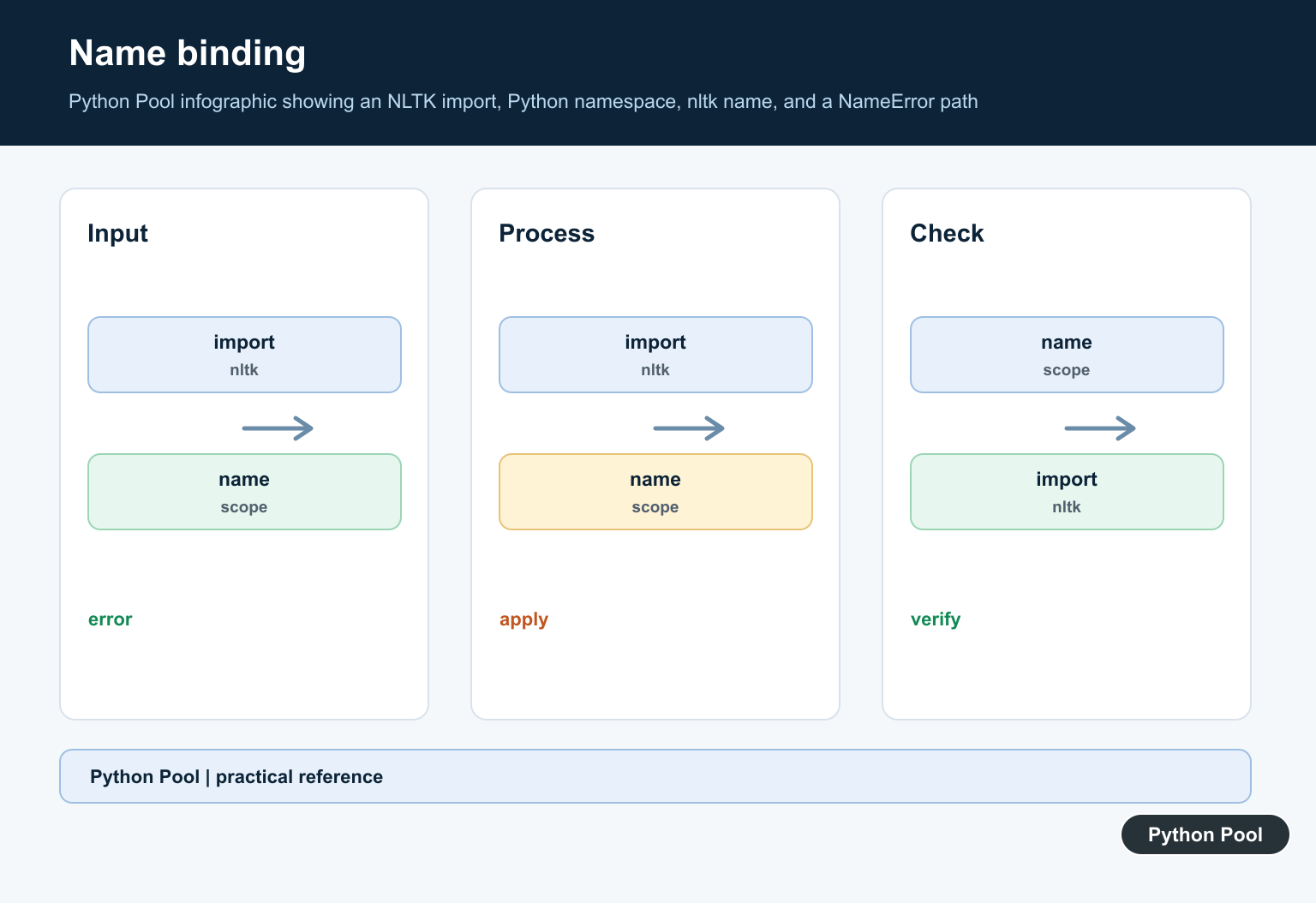
Once the name exists, tokenizers can still need data files. For word tokenization, install the Punkt data package. Some newer environments may also ask for punkt_tab. These lookup failures are separate from NameError, but they often appear immediately after the import is fixed.
import nltk

for package in ["punkt", "punkt_tab"]:
    try:
        nltk.data.find(f"tokenizers/{package}")
    except LookupError:
        nltk.download(package)

print(nltk.word_tokenize("NLTK needs tokenizer data."))
The official NLTK data documentation explains how corpora and tokenizer resources are installed, and the Punkt tokenizer docs cover the tokenizer family used in many examples. Store data in a location your runtime can read, especially inside containers or hosted notebooks.
Check Notebook and Import State
When the code works in one file but not another, check whether the package is importable in that exact runtime. This is useful in notebooks, IDE terminals, Docker containers, and virtual environments.
import importlib.util

spec = importlib.util.find_spec("nltk")

if spec is None:
    print("NLTK is not importable in this environment")
else:
    print("NLTK import path:", spec.origin)
If the path points to a different environment than expected, install NLTK in the correct venv or select the correct notebook kernel. If the environment is broken, recreating it can be cleaner; this guide to removing a Python venv covers the cleanup step.
Check for Local File Shadowing
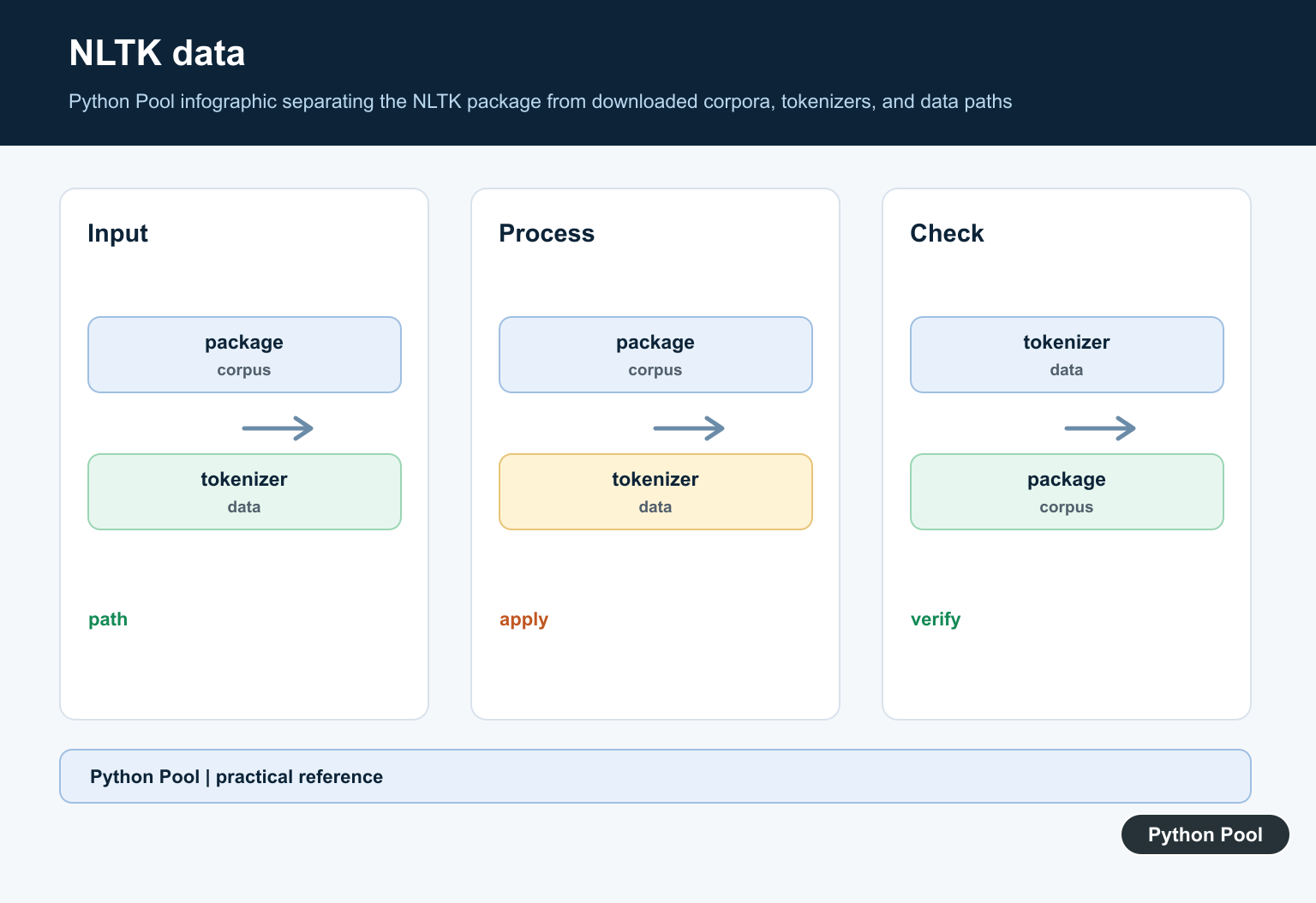
A local file named nltk.py or a folder named nltk can confuse imports. It usually causes an import error rather than a plain NameError, but it is worth checking when the environment seems correct and NLTK still behaves oddly.
from pathlib import Path

for name in ["nltk.py", "nltk"]:
    candidate = Path.cwd() / name
    if candidate.exists():
        print(f"Rename local path that shadows NLTK: {candidate.resolve()}")
    else:
        print(f"No local {name} found")
If you find a shadowing file, rename it and clear any related __pycache__ files. This Python rename file guide shows safe file-renaming patterns.
Quick Fix Checklist
- Add
import nltkbefore usingnltk. - Run notebook cells in order after a kernel restart.
- Install with the same Python executable that runs the code.
- Download required NLTK data such as
punkt. - Check for local
nltk.pyfiles that shadow the package. - Keep install, import, and tokenizer-data checks separate so you know which failure you are fixing.
- Use the official NLTK site for package documentation, and use conditional imports in Python when NLTK is optional in your project.
Separate NameError From Import Errors
If import nltk itself raises ModuleNotFoundError, the active interpreter cannot find the distribution. If import succeeds but nltk is later undefined, the problem is scope, execution order, a deleted variable, or a different runtime. Fix the failure named by the traceback first.
Verify The Active Interpreter
Compare sys.executable in the failing script, terminal, IDE, notebook, and test runner. Install with that executable’s python -m pip command so a successful installation is attached to the process that actually runs the code.
Treat Notebook Order As State
A notebook keeps names in a kernel rather than in visual cell order. Restarting the kernel removes imported modules and variables. Run the import cell, then the tokenizer-data setup cell, then the code that uses nltk.
Install Tokenizer Resources Separately
After the name resolves, NLTK may raise LookupError because a tokenizer resource is not available. Keep package installation, Python import, and data download as separate checks so an environment report tells you which boundary failed.
Check Shadowing And Scope
A file named nltk.py or a directory named nltk can interfere with imports. An import inside one function or conditional block can also leave another scope without the expected name. Print the resolved module path and simplify the import while diagnosing.
Make NLTK Setup Reproducible
Pin the supported package set, document where data is stored, and run one small tokenization test in a clean environment. This prevents a local notebook state from hiding a deployment or CI failure.
Use the official NLTK data guide and tokenizer API reference for supported resources. Python’s find_spec() helps inspect import resolution. Related guidance includes package setup and environment tests.
For related runtime checks, compare Jupyter execution order, interpreter checks, and conditional imports when diagnosing an NLTK environment.
Frequently Asked Questions
Why does name ‘nltk’ is not defined happen?
The code uses nltk before importing it in the current Python process, or the import ran in a different scope, cell, kernel, or environment.
How do I fix the NLTK NameError?
Install NLTK in the active interpreter if needed, add import nltk before use, and restart or rerun the correct notebook kernel and import cell.
Is NameError the same as ModuleNotFoundError for NLTK?
No. NameError means the name is absent from the current scope; ModuleNotFoundError means Python could not find the requested package during import.
Why does NLTK still fail after the import works?
Tokenizer resources such as punkt may be missing, the runtime may use a different environment, or a local nltk.py file may shadow the real package.