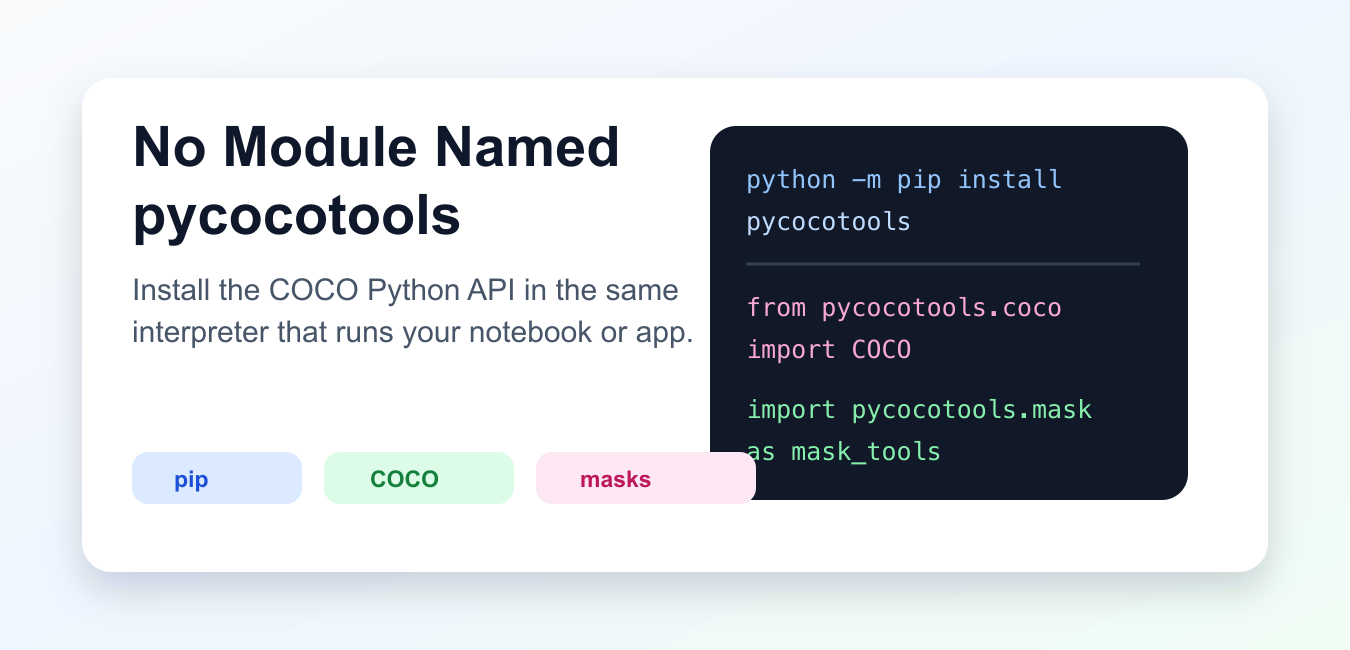
Quick answer: This error means the exact Python interpreter running the program cannot import a module named pycocotools. The package name, import name, virtual environment, Python version, operating-system architecture, and build result all need to line up. Diagnose those facts first instead of repeatedly changing the import statement.
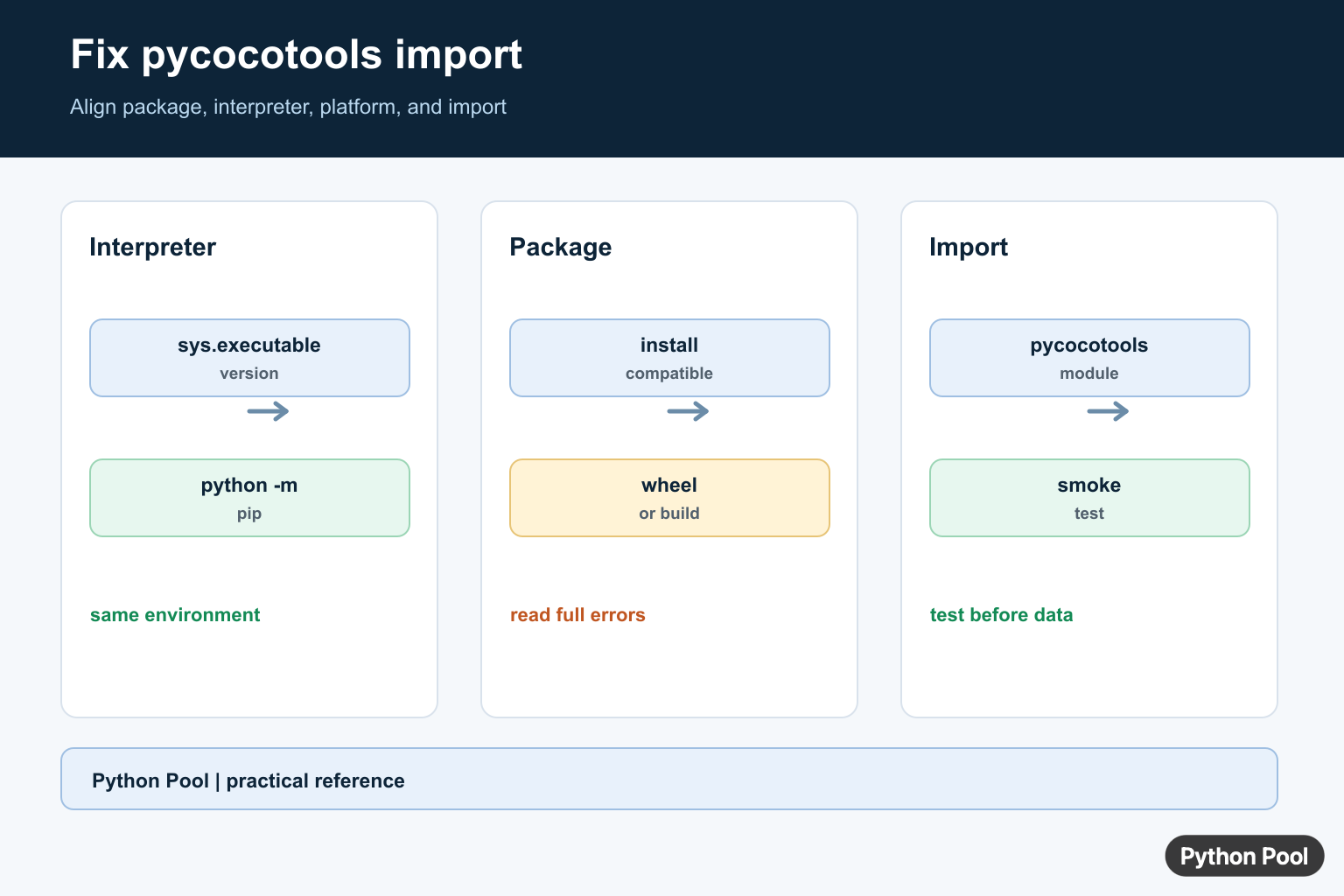
ModuleNotFoundError: No module named pycocotools means the interpreter that runs your script, notebook, or training job cannot import the COCO Python API package. The package may be missing, installed under a different Python executable, or present in a different virtual environment than the one your project is using.
The practical fix is to install pycocotools with the same interpreter that launches your code. Use python -m pip instead of a bare pip command because it ties installation to a specific Python executable. This matters in VS Code, Jupyter, Conda, Docker, and CI runners where several interpreters can exist on one machine.
At the time of this refresh, the pycocotools PyPI page lists modern wheels and a Python requirement of 3.9 or newer. The package repository notes that this PyPI package is a maintained fork of the original COCO API with packaging fixes and Windows support. Primary references include the pycocotools package repository, the original COCO API repository, the Python Packaging User Guide, and the Python venv documentation.
Check The Interpreter
Start by printing the executable path for the Python process that raises the error. This path tells you where the package needs to be installed.
import sys
import subprocess

print("Python executable:", sys.executable)

subprocess.run(
    [sys.executable, "-m", "pip", "--version"],
    check=True,
)
If the displayed path is not the interpreter you expected, switch the interpreter in your editor, activate the right virtual environment, or install the package into the displayed path. Guessing at the correct pip command often repeats the same failure.
Install pycocotools With python -m pip
Install the package through the same executable. This is the safest command for regular virtual environments and many notebook kernels.
import sys
import subprocess

subprocess.check_call([
    sys.executable,
    "-m",
    "pip",
    "install",
    "pycocotools",
])
For a terminal workflow, run the equivalent command from the activated environment. In a notebook, restart the kernel after installation so the import state is clean.
Verify The Import
After installation, verify both the package metadata and the actual imports used by COCO workflows.
from importlib.metadata import version

from pycocotools.coco import COCO
import pycocotools.mask as mask_tools

print("pycocotools", version("pycocotools"))
print("COCO class:", COCO.__name__)
print("mask module:", mask_tools.__name__)
If metadata is present but pycocotools.mask fails, the compiled extension did not load correctly. Reinstall in a clean environment, upgrade pip, and make sure your Python version has a compatible wheel for your platform.
Load COCO Annotations
Once the import works, test it with a real annotation file. Keep the file path explicit so path mistakes are easy to separate from installation problems.
from pathlib import Path
from pycocotools.coco import COCO

annotation_file = Path("annotations/instances_val2017.json")

if not annotation_file.exists():
    raise FileNotFoundError(annotation_file)

coco = COCO(str(annotation_file))
category_ids = coco.getCatIds()
print("categories:", len(category_ids))
A FileNotFoundError here is not a pycocotools installation issue. It means the annotation path does not match your project layout or the dataset was not unpacked where the code expects it.
Test Mask Tools
Many object detection projects import pycocotools.mask for segmentation masks. A small encode and decode check confirms that the compiled mask extension is usable.
import numpy as np
import pycocotools.mask as mask_tools

mask = np.zeros((6, 6), dtype=np.uint8)
mask[1:4, 2:5] = 1

encoded = mask_tools.encode(np.asfortranarray(mask))
decoded = mask_tools.decode(encoded)

print(encoded["size"])
print(np.array_equal(mask, decoded))
Use a Fortran-contiguous array when encoding masks. That small detail prevents confusing shape and memory-layout issues in segmentation pipelines.
Check Jupyter And Editor Kernels
Notebook and editor kernels are common sources of this error. Compare the kernel executable against the interpreter where you installed the package.
import sys
from importlib.util import find_spec

print("kernel executable:", sys.executable)

spec = find_spec("pycocotools")
if spec is None:
    print("pycocotools is not importable in this kernel")
else:
    print("pycocotools path:", spec.origin)
If the package is not importable in the kernel, switch the notebook kernel or install with the kernel’s sys.executable. After the change, restart the kernel and run the import test again.
Troubleshooting Checklist
Use this order when the error persists. First, confirm the Python executable. Second, upgrade packaging tools with the same executable. Third, install pycocotools. Fourth, restart the runtime. Fifth, verify from pycocotools.coco import COCO and import pycocotools.mask.
On Linux containers, make sure your image has a supported Python version and current packaging tools. On macOS, avoid mixing Homebrew, system Python, Conda, and pyenv paths in the same shell session. On Windows, prefer the current PyPI package before trying old forks because the maintained package now documents Windows support.
In CI, pin the Python version and install dependencies in the job before running tests. If the project uses a requirements file, add pycocotools there so local and CI installs stay aligned.
Most failures come from installing into one interpreter and running another. Once installation and runtime use the same executable, the No module named pycocotools error should disappear. If a later error mentions annotation files, categories, or masks, treat that as a separate dataset or API usage issue rather than an import problem.
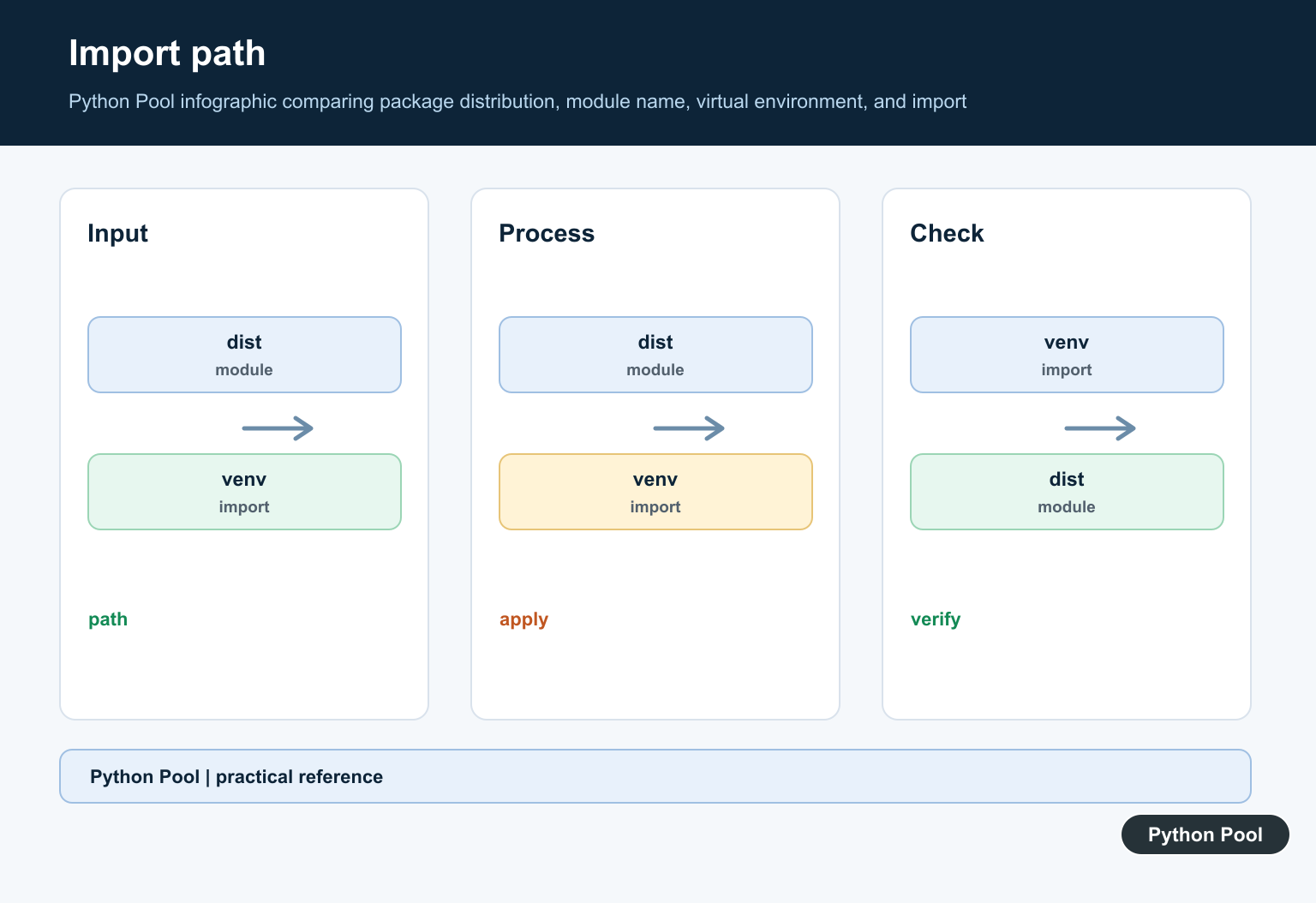
Confirm The Interpreter And Package
Run pip through the same interpreter that runs the program. Comparing python -m pip with sys.executable catches the common case where a package was installed globally, into another virtual environment, or for a different Python version.
import sys
import importlib.util

print(sys.executable)
print(sys.version)
print(importlib.util.find_spec("pycocotools"))
Install For The Active Environment
Choose a COCO API Python package and version compatible with the project and platform, then install it through the active interpreter. Keep the command and build output in the project setup notes. A successful pip command is not enough if a later compiler or wheel step failed.
import subprocess
import sys

subprocess.run(
    [sys.executable, "-m", "pip", "install", "pycocotools"],
    check=True,
)
Test The Import And A Small API
After installation, import the exact submodule used by the application in a clean process. Keep the smoke test small and separate from model or image data so an import problem is not hidden by a later file or annotation error.
from pycocotools.coco import COCO

print(COCO)
# Instantiate COCO with a real annotation file only after the import passes.
Check Platform And Build Failures
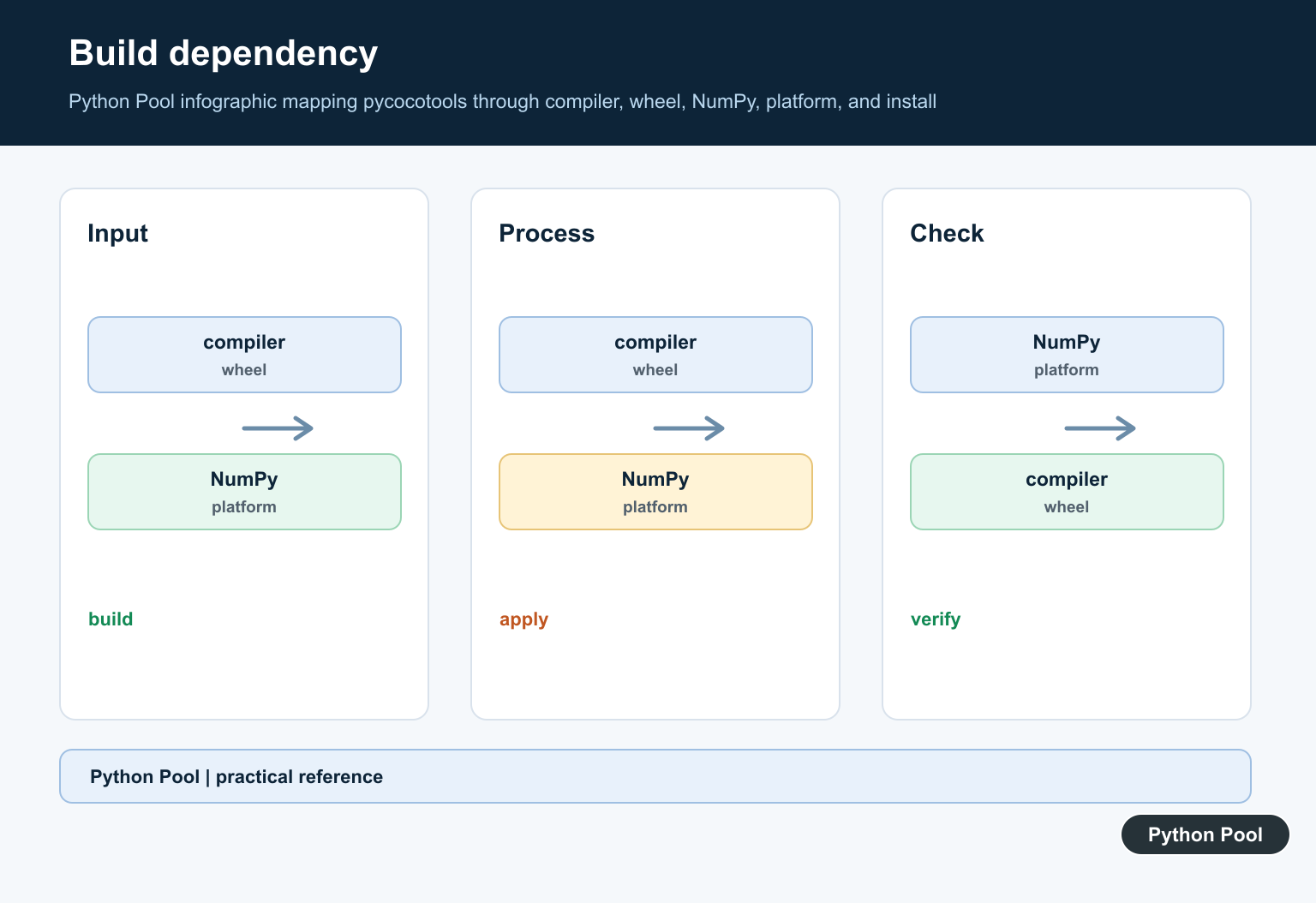
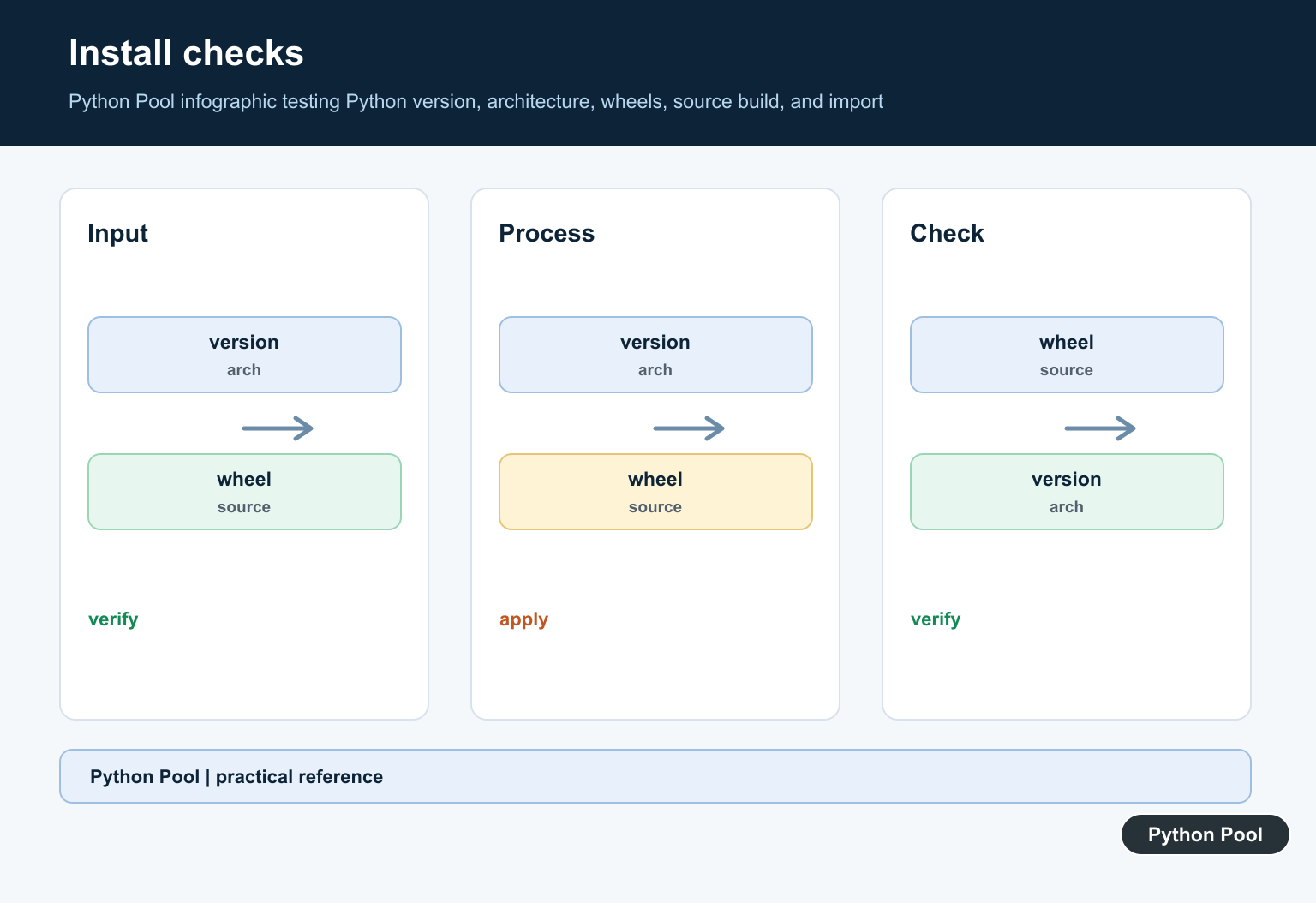
Native extensions can fail because of Python version support, compiler availability, architecture mismatches, missing headers, or an unavailable wheel. Read the complete installation error, check the package’s supported versions, and rebuild the environment reproducibly rather than copying a compiled module from another machine.
import platform

print(platform.system())
print(platform.machine())
print(platform.python_version())

# Record these values with the package version when reporting a build failure.)
The original COCO API PythonAPI source shows the pycocotools import layout. Use the package’s current installation guidance and your platform’s supported wheels or build tools; do not change a working import merely because the distribution name differs.
For related import and image-environment failures, compare PIL installation troubleshooting, Pillow and NumPy image handling, and another interpreter mismatch example before changing packages or build tools.
Frequently Asked Questions
Why does Python say no module named pycocotools?
The interpreter running the program cannot find an installed package that provides the pycocotools import, or the installation did not complete for that environment.
What package should I install for pycocotools?
Use a maintained COCO API Python package compatible with your project and platform, then verify the package and import in the same interpreter.
Why does pip install work but the import still fail?
The pip command may belong to a different Python interpreter or virtual environment; compare python -m pip and sys.executable before reinstalling.
How do I troubleshoot a Windows or macOS build error?
Check supported Python versions, compiler or wheel availability, architecture, and the complete build output rather than hiding the installation error.