Quick answer: Jupyter lets you run a selected range, cells above or below the current cell, or the entire notebook. The safest workflow depends on the goal: use selected cells for a quick local change, but use Restart and Run All or a clean programmatic execution to detect hidden state and verify that the notebook works from top to bottom.
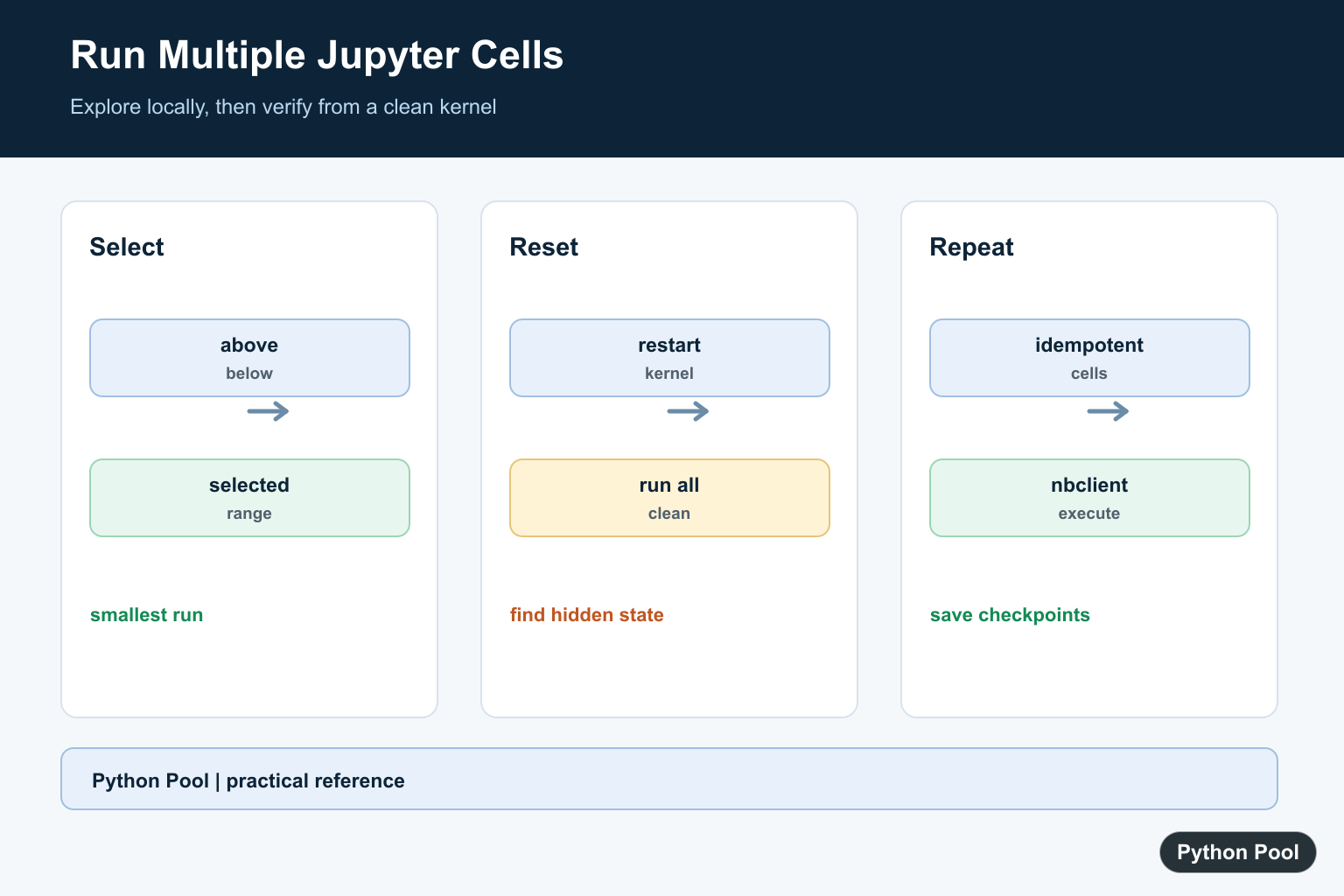
Jupyter notebooks are built from cells, and running more than one cell at a time is normal. You can run all cells, run all cells above or below the current cell, run a selected range, or restart the kernel and execute the notebook from the top. The right choice depends on whether you are exploring, debugging, or checking that the notebook is reproducible. Notebook JavaScript that assumes the old global IPython object can fail even while Python cells run; Fix JavaScript Error: IPython is Not Defined explains the front-end compatibility fix.
In classic Jupyter Notebook, the Cell menu includes options such as Run All, Run All Above, and Run All Below. In JupyterLab, similar commands are available from the Run menu and command palette. Keyboard shortcuts such as Shift + Enter, Ctrl + Enter, and Alt + Enter help with one-cell execution, while menu commands are better for longer notebook sections.
Useful references include the Jupyter Notebook running-code documentation, JupyterLab notebook guide, Jupyter running guide, IPython magics documentation, and nbconvert execution API.
Use Cell Markers In Scripts
If you move notebook logic into a script, # %% markers create notebook-like sections in many editors. The file remains valid Python and each section can be run independently.
# %% Load data
numbers = [1, 2, 3, 4]

# %% Clean data
cleaned = [number * 2 for number in numbers]

# %% Summarize
print(sum(cleaned))
This is helpful when notebook cells have grown into a repeatable workflow. You keep the ability to run sections while making the code easier to review.
Make Run All Safe
A notebook is easier to run from top to bottom when each step is a function. That keeps dependencies clear and avoids relying on hidden state from an earlier manual run.
def load_numbers():
    return [1, 2, 3, 4]

def clean_numbers(numbers):
    return [number * 2 for number in numbers]

def summarize(numbers):
    return {"count": len(numbers), "total": sum(numbers)}

data = load_numbers()
cleaned = clean_numbers(data)
print(summarize(cleaned))
When Run All fails, this structure also makes the broken step easier to find. You can rerun one function cell without guessing which earlier cell created the needed data.
Use A Main Function For Exports
If notebook logic needs to become a script, put the ordered workflow in main(). That mirrors the way a clean notebook should run: setup first, processing next, summary last.
def load():
    return ["alpha", "beta", "gamma"]

def normalize(items):
    return [item.upper() for item in items]

def main():
    items = load()
    normalized = normalize(items)
    print(normalized)

if __name__ == "__main__":
    main()
This pattern reduces the chance that a notebook works only because a cell was run earlier in a different order.
Use Checkpoints For Slow Steps
For expensive cells, store a small checkpoint so rerunning multiple cells does not repeat unnecessary work. Keep the checkpoint format simple and recreate it when the input changes.
from pathlib import Path

cache = Path("cleaned-values.txt")

if cache.exists():
    values = [int(line) for line in cache.read_text(encoding="utf-8").splitlines()]
else:
    values = [number * 2 for number in range(5)]
    cache.write_text("\n".join(str(value) for value in values), encoding="utf-8")

print(values)
Checkpointing is useful for local exploration, but do not let it hide stale results. When validating the final notebook, restart the kernel and run the full workflow from clean inputs.
Keep Long Runs Readable
Long notebooks often produce a lot of output. Replace repeated output instead of appending line after line, especially when running several cells together.
from IPython.display import clear_output

steps = ["load", "clean", "summarize"]

for index, step in enumerate(steps, start=1):
    clear_output(wait=True)
    print(f"step {index}/{len(steps)}: {step}")
This keeps the notebook responsive and makes it easier to see the latest state after a Run All command.
Execute A Notebook Programmatically
For repeatable checks, use notebook execution tools from Python. This is helpful in CI, local validation scripts, and documentation builds where you need every cell to run in order.
from pathlib import Path

import nbformat
from nbclient import NotebookClient

path = Path("analysis.ipynb")
with path.open(encoding="utf-8") as handle:
    notebook = nbformat.read(handle, as_version=4)

client = NotebookClient(notebook, timeout=600, kernel_name="python3")
# client.execute()
The final line is commented so the example is safe to inspect. In a real validation script, execute the notebook and save the executed copy only when the run succeeds.
Practical Checklist
Use selected-cell execution while exploring, Run All Above or Run All Below while debugging a section, and Restart Kernel and Run All when you need confidence that the whole notebook works from a clean state.
Before sharing a notebook, clear old output, restart the kernel, and run the notebook from the top. Fix cells that depend on manual ordering, browser state, or unsaved values. A notebook that passes a clean top-to-bottom run is much easier for another person to trust.
If a full run is slow, add checkpoints and concise progress output, then rerun from a clean kernel once before publishing the notebook or using it for a report.
Also watch execution numbers. If cell numbers are out of order, the notebook may have been run in a different sequence than the visible layout suggests. A clean restart and Run All resets that history and exposes missing setup cells quickly.
Choose The Smallest Useful Range
Run Selected Cells is efficient while exploring a local transformation. Run All Above is useful when a cell depends on setup, and Run All Below helps inspect downstream outputs. Before sharing a notebook, do not assume that a successful partial run proves the notebook is reproducible.
values = [1, 2, 3]
scaled = [value * 10 for value in values]
print(scaled)

# This cell depends on the two cells above.
print(sum(scaled))
Use Restart And Run All As A Check
A notebook can appear correct because variables, imports, or files remain in kernel memory from an earlier experiment. Restarting the kernel and running all cells from a clean state exposes order dependencies and stale values.
from pathlib import Path

DATA_FILE = Path("data/input.csv")
if not DATA_FILE.exists():
    raise FileNotFoundError(f"Missing required input: {DATA_FILE}")

# Make each setup cell safe to run again.
print(DATA_FILE.resolve())
Make Cells Idempotent And Checkpointed
A cell is easier to rerun when it does not append duplicate rows, overwrite source data, or depend on an accidental current directory. Save derived outputs to a known path, record inputs, and make expensive stages restartable.
from pathlib import Path
import json

out = Path("artifacts")
out.mkdir(exist_ok=True)
summary = {"rows": 120, "source": "data/input.csv"}
(out / "summary.json").write_text(
    json.dumps(summary, indent=2),
    encoding="utf-8",
)
Execute A Notebook Programmatically
For repeatable checks, execute the notebook in a fresh kernel with a supported tool such as nbclient, capture the error and timeout behavior, and store the executed artifact separately from the source notebook. This is more reliable than relying on the last saved cell outputs.
from pathlib import Path

from nbclient import NotebookClient
from nbformat import read

path = Path("analysis.ipynb")
with path.open(encoding="utf-8") as handle:
    notebook = read(handle, as_version=4)

client = NotebookClient(notebook, timeout=120, kernel_name="python3")
client.execute()
print("executed", len(notebook.cells), "cells")
Jupyter’s official Notebook documentation covers running cells and kernel state. The nbclient documentation describes programmatic execution and timeout handling. Related troubleshooting references include IPython JavaScript errors and IOPub rate limits.
For notebook execution failures and reproducibility, compare IPython JavaScript errors, IOPub limits, and ipykernel installation before rerunning a large notebook.
Frequently Asked Questions
How do I run multiple cells in Jupyter Notebook?
Use the Run All, Run All Above, Run All Below, or selected-cell commands in the notebook interface, depending on the range you want to execute.
Should I restart the kernel before running all cells?
Restart and Run All is the strongest reproducibility check because it exposes hidden state left behind by earlier interactive execution.
How do I run a notebook programmatically?
Use a notebook execution tool such as nbclient or an equivalent supported workflow, and capture execution errors and outputs for the run.
How can I make long notebook runs safer?
Split expensive work into clear stages, save checkpoints, make cells idempotent where possible, and record the environment and inputs used for the run.