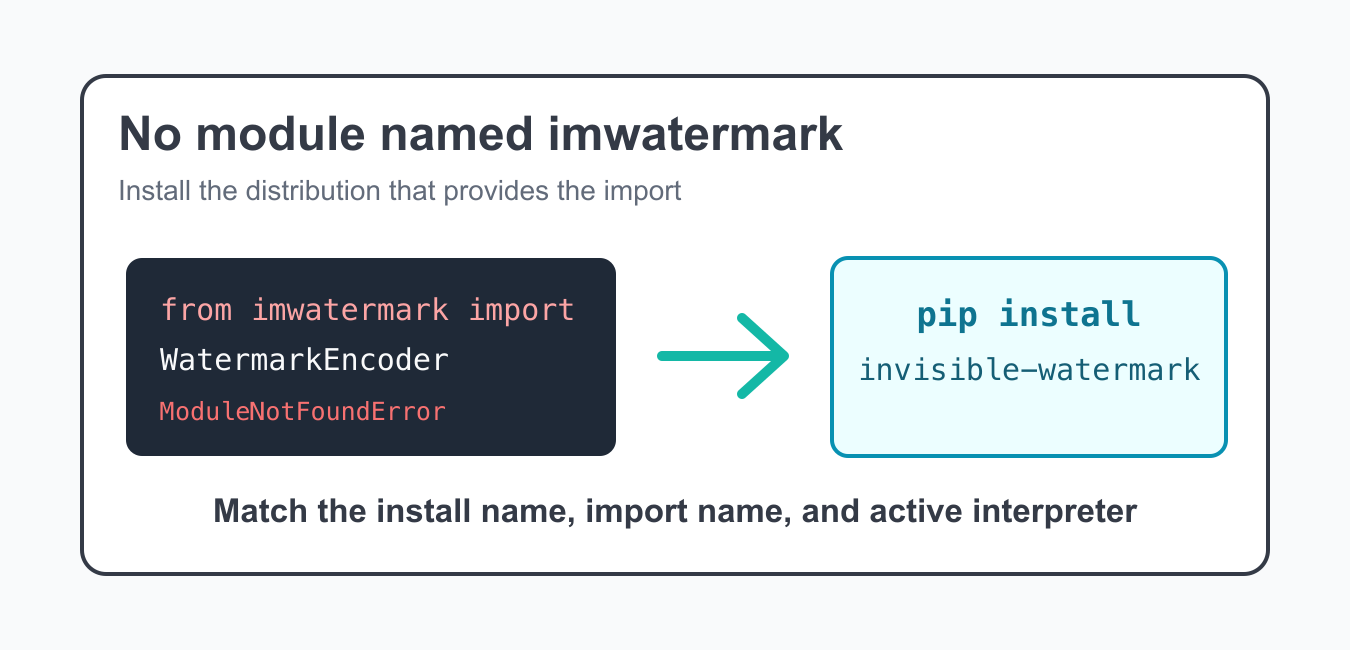
Quick answer: No module named imwatermark means the running interpreter cannot resolve that import. The cause may be an uninstalled distribution, a distribution/import-name mismatch, a different notebook kernel, a local shadowing file, or a package that no longer supports the current environment.
The error ModuleNotFoundError: No module named 'imwatermark' means Python cannot find the module that your code is trying to import. In this case, the common fix is to install the invisible-watermark distribution, because that package exposes the imwatermark import.
This package-name difference is the part that causes confusion. The import name is imwatermark, but the install command uses invisible-watermark. Installing a similarly named package may not provide the module your script needs.
The fastest way to avoid guessing is to treat install names and import names as separate facts. A distribution can install one or more importable modules, and the visible import name does not always match the PyPI project name. That is normal in Python packaging, but it can make import errors look more confusing than they are.
Check the invisible-watermark PyPI page for the current package information. For related setup checks, see how to check your Python version and how notebooks handle running multiple Jupyter cells.
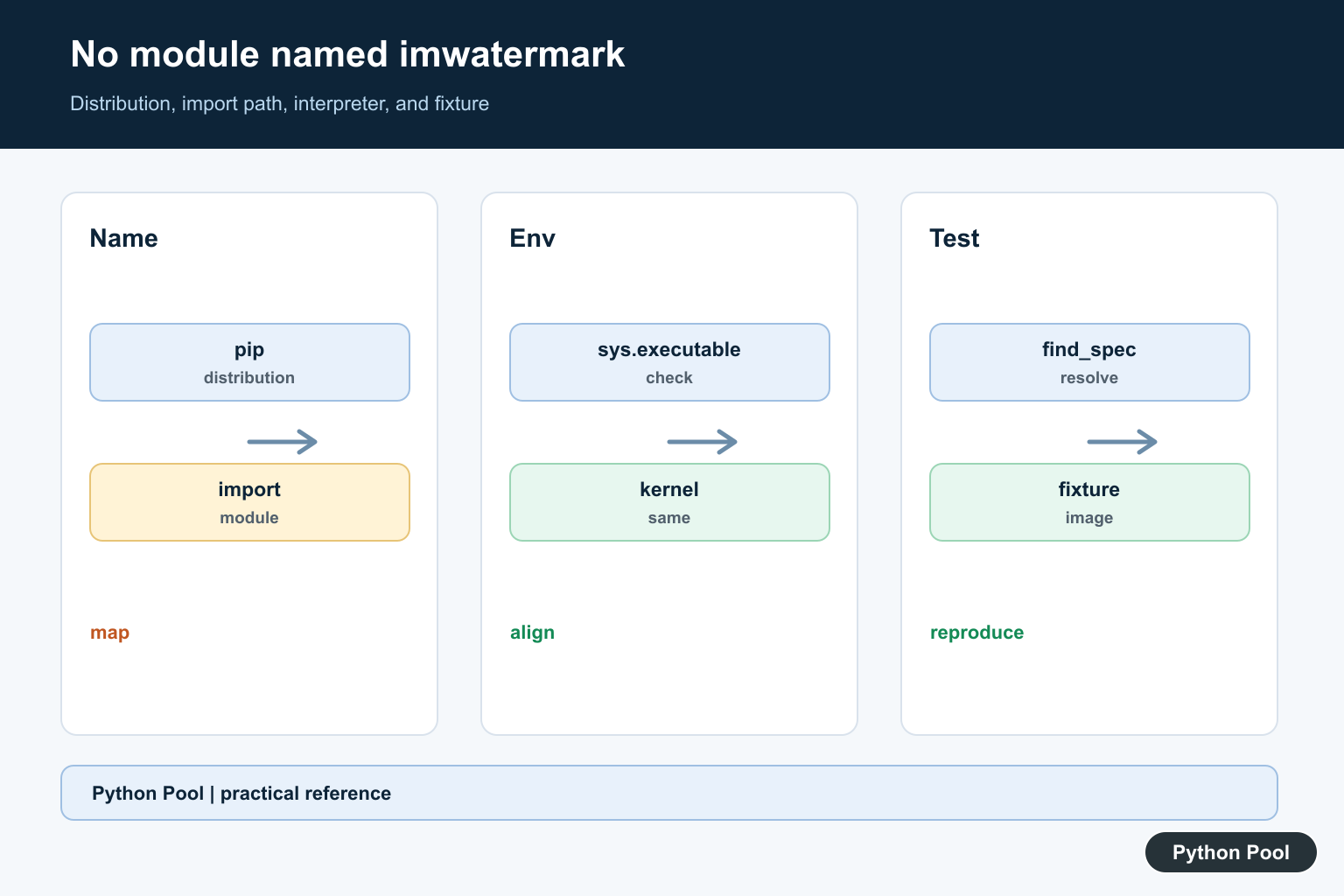
Reproduce The Import Error
The error usually appears on a direct import from imwatermark. Catching it can confirm the failure before you change the environment.
try:
    from imwatermark import WatermarkEncoder
except ModuleNotFoundError as error:
    print(error)
If this fails, Python is looking in the current interpreter’s package paths and cannot find the module. The next step is to install the correct distribution into that same interpreter.
Install The Correct Package
Use the current Python executable to run pip. This avoids installing the package into a different Python version by accident.
import subprocess
import sys

subprocess.check_call([
    sys.executable,
    "-m",
    "pip",
    "install",
    "invisible-watermark",
])
After the install finishes, restart the script, terminal session, notebook kernel, or application process. Long-running processes do not always see newly installed packages immediately.
If your project uses a requirements file, add invisible-watermark there as well. Installing it only by hand fixes one machine, but recording it in project dependencies makes the fix repeatable for deployment and teammates.
Verify The Import And Version
Once installed, import the module and read the installed distribution version. This confirms both names: the install name and the import name.
import importlib.metadata as metadata
from imwatermark import WatermarkDecoder, WatermarkEncoder

print(metadata.version("invisible-watermark"))
print(WatermarkEncoder)
print(WatermarkDecoder)
If this works in a terminal but fails in your editor or notebook, the editor is using a different interpreter. Point the editor to the same environment where the package was installed.
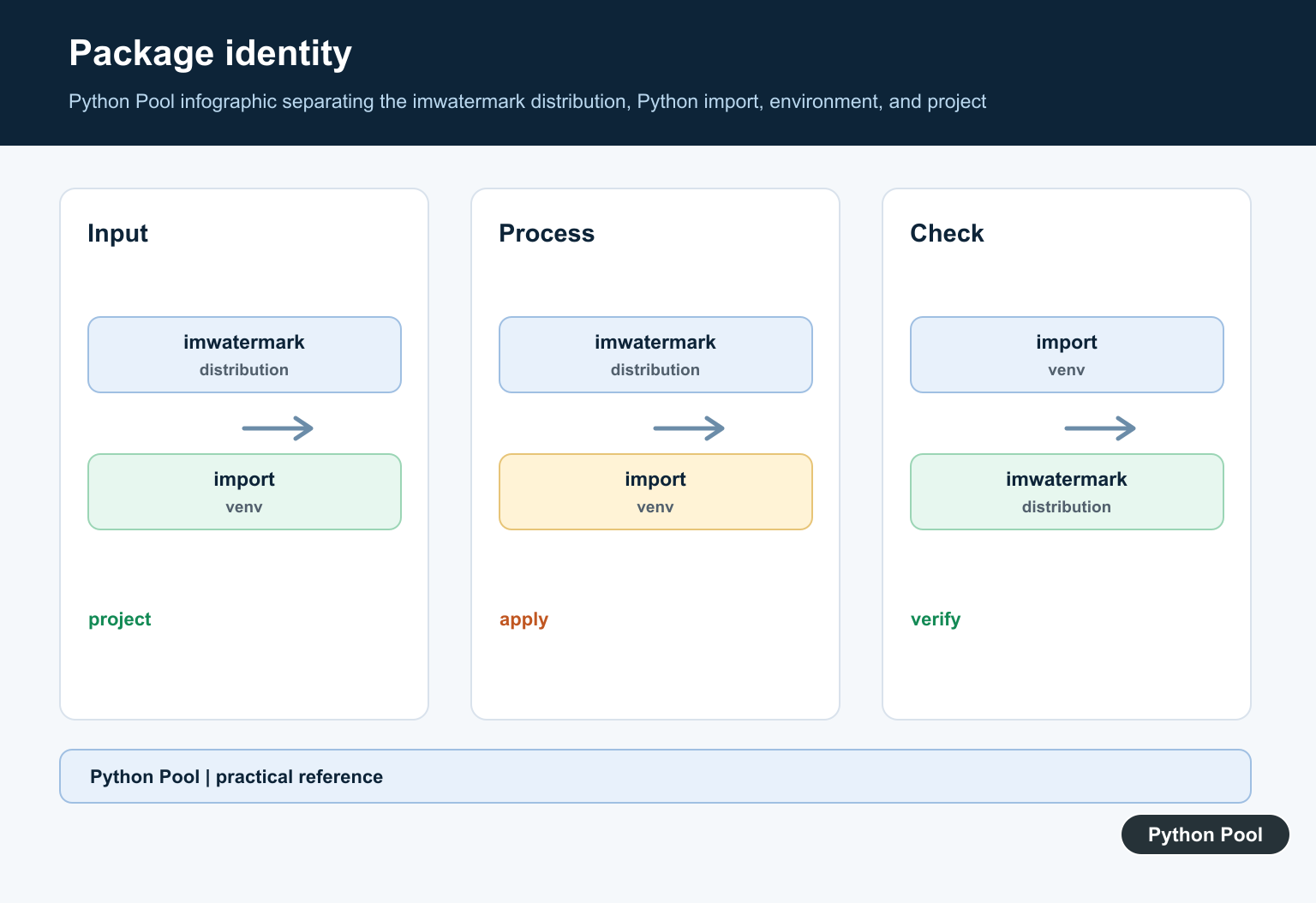
Check The Active Python Environment
Print the executable and package paths from the failing process. This is faster than guessing which virtual environment is active.
import site
import sys

print("Python executable:", sys.executable)
print("Python version:", sys.version)

for path in site.getsitepackages():
    print("Package path:", path)
Run this from the same place that raises the error. A shell, notebook, web worker, and background job can all use different Python environments on the same machine.
Confirm Related Dependencies
The watermark package relies on other scientific and computer-vision libraries. If the import works but encoding fails later, check whether those dependencies are importable too.
import importlib.util

for module_name in ["cv2", "numpy", "imwatermark"]:
    found = importlib.util.find_spec(module_name) is not None
    print(f"{module_name}: {found}")
A missing dependency produces a different error from No module named imwatermark. Fix the first import problem, then handle dependency-specific errors from the new traceback.
Read each new traceback from the top failing import instead of assuming the first fix failed. Resolving imwatermark can reveal the next missing package in the chain, especially in minimal containers or fresh virtual environments.
Test A Minimal Encoder Import
A small smoke test proves that the module can create the encoder class before you connect it to real files or larger processing code.
from imwatermark import WatermarkEncoder

encoder = WatermarkEncoder()
encoder.set_watermark("bytes", b"pythonpool")

print(type(encoder).__name__)
This does not prove that every watermark workflow is configured, but it proves that the core import path and class creation work in the current environment.
Fix Notebook Kernels
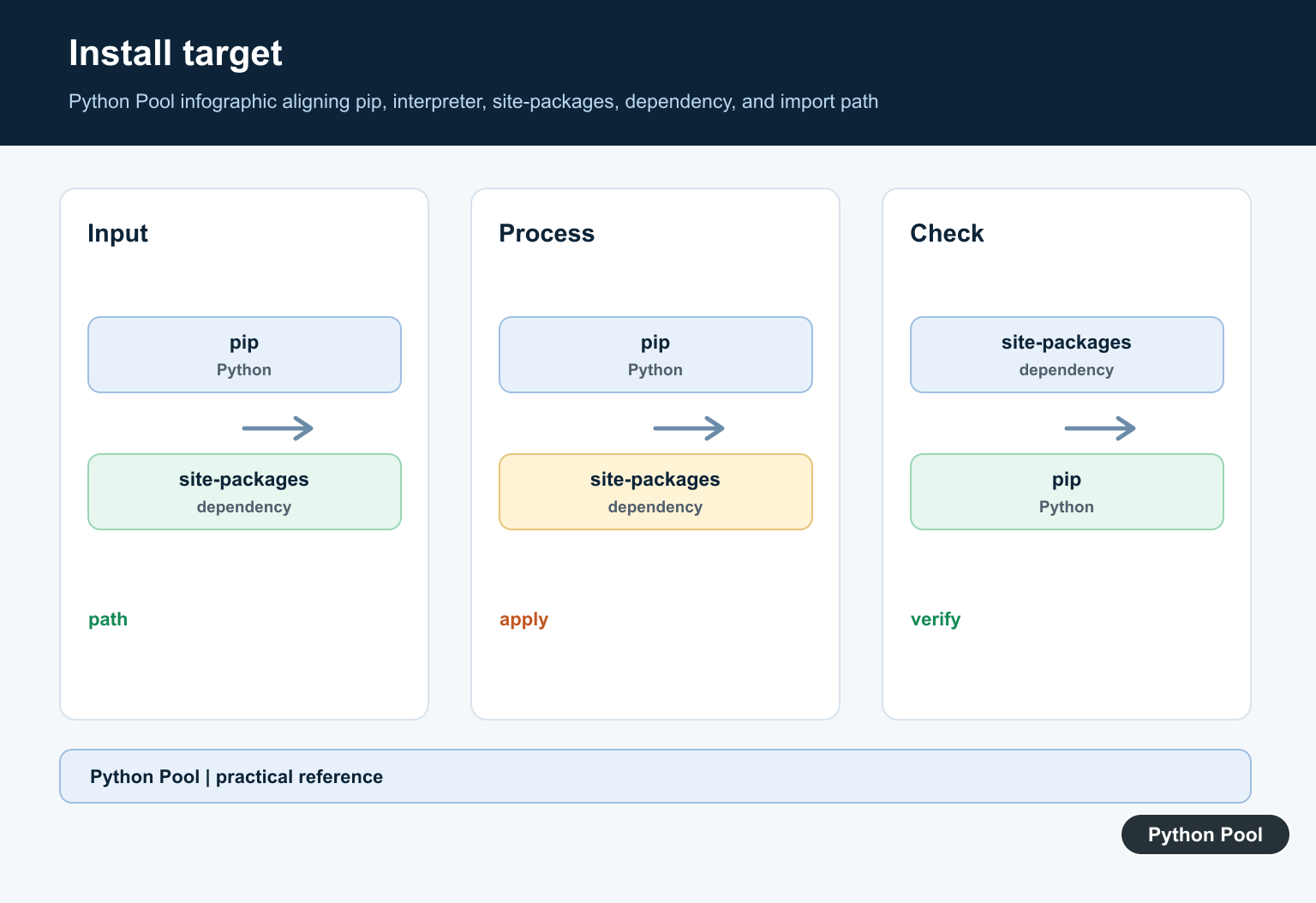
Notebook users often install a package in one terminal and run code in another kernel. Install through the kernel’s own Python executable when you need the package inside that notebook.
In a notebook, run the install through the same kernel that executes the import, then restart the kernel and rerun the import cell. Restarting clears old import state and forces the notebook to load packages from the current environment.
Best Fix Strategy
Start by installing invisible-watermark into the exact Python environment that raises the error. Then verify the import, check the installed version, and restart the process that runs the code.
Avoid solving this by copying package folders by hand. Manual copies are fragile, hard to repeat, and easy to break during deployment. Use pip, a requirements file, or your project’s dependency manager so the fix is reproducible.
Also check capitalization in imports. Python imports are case-sensitive on many systems, so imwatermark and a differently capitalized name are not interchangeable. Keep the import exactly as the package documents it.
The reliable pattern is to match the install name to the import name, verify the interpreter path, and test the smallest import before returning to the full watermark workflow. That resolves the imwatermark error without hiding environment problems.
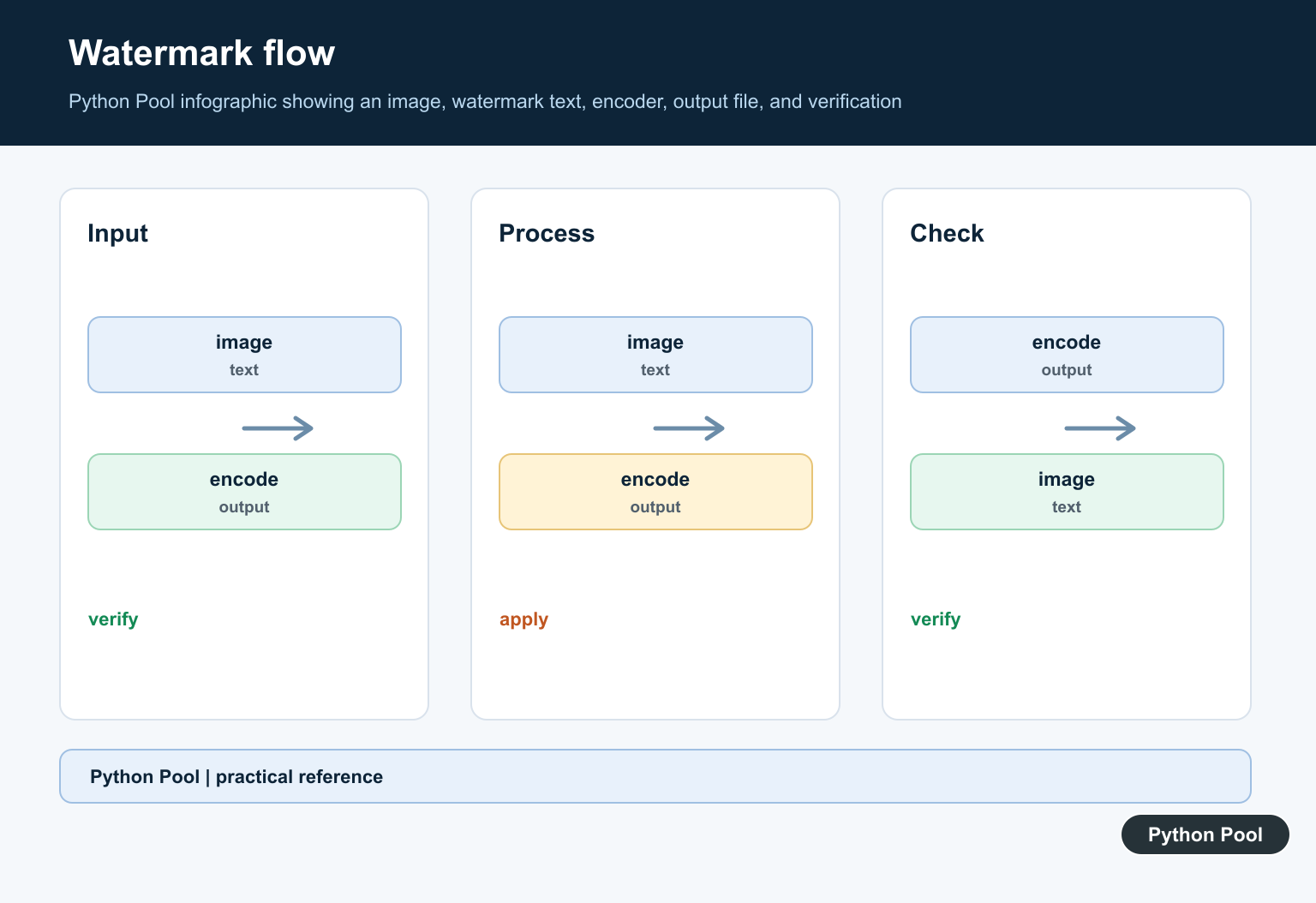
Identify The Project And Import Name
Start from the code’s intended project and current documentation. A PyPI distribution name and an import name are not guaranteed to match, and similarly named projects may be unrelated. Record the exact package, version, repository, and supported Python versions before installing anything.
Install Through The Active Interpreter
Use python -m pip rather than an unqualified pip when possible, then print sys.executable and importlib.util.find_spec(‘imwatermark’) from the same interpreter. This distinguishes an installation problem from a module-name or path problem.
Check Shadowing And Kernel State
A local file or directory named imwatermark can shadow an installed package, while a notebook kernel may use another virtual environment. Compare sys.path, sys.executable, and the module __file__ in the shell, IDE, notebook, and test runner that matter.
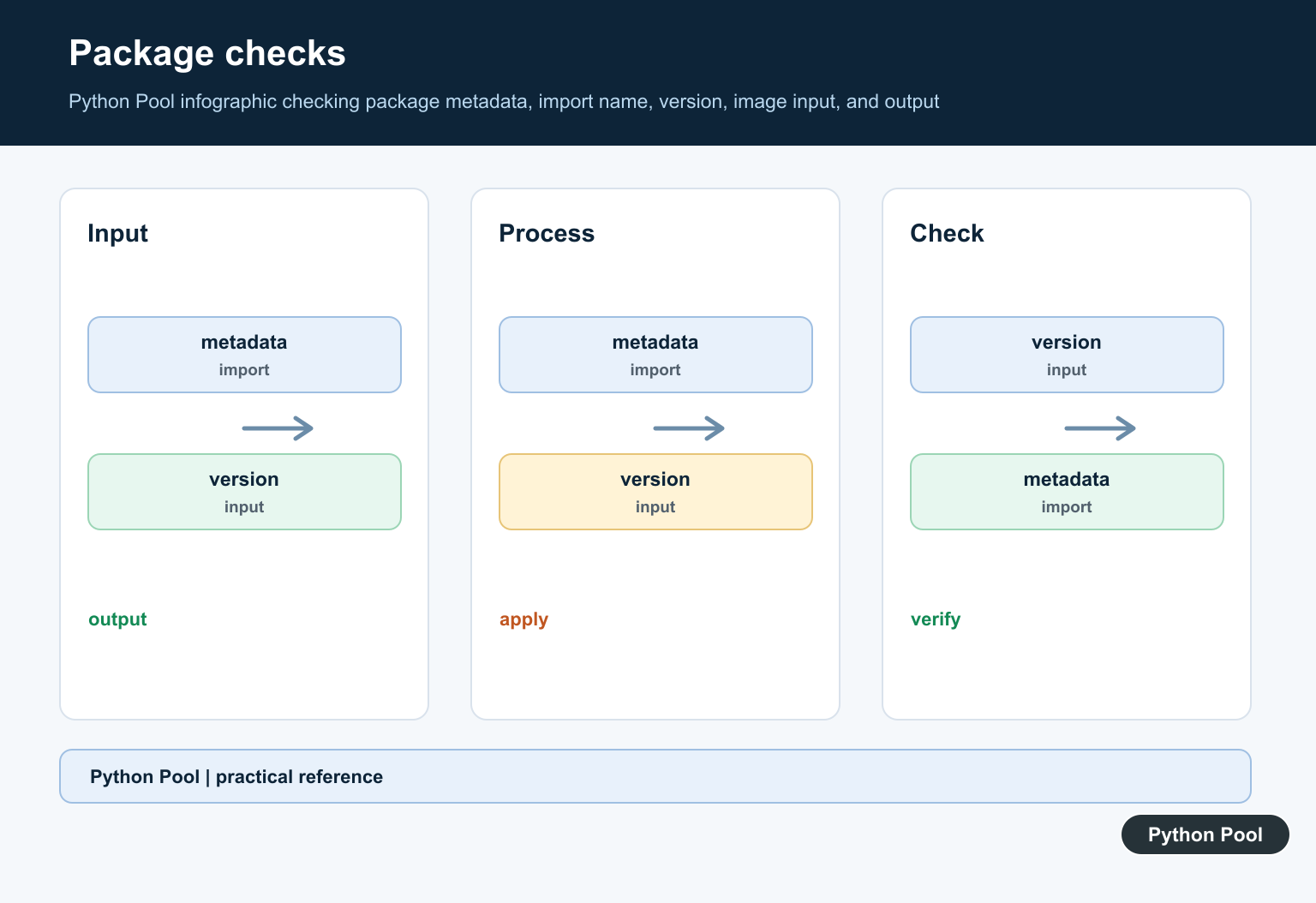
Test A Minimal Import Before The Image Pipeline
Import the public module in a short script, inspect its version or file where supported, and run one small deterministic image fixture. Do not debug a large encoder or watermark workflow until the package boundary itself is known to work.
Review Dependencies And Alternatives
Image packages can depend on native libraries, model files, or specific versions of Pillow, OpenCV, or NumPy. Read the project requirements and security posture, pin a compatible environment, and choose a maintained alternative deliberately if the original project is unavailable.
Keep Installation Reproducible
Record the Python version, operating system, package versions, and installation command in a requirements or environment file. Test a clean environment and the actual deployment entry point so a one-off global install does not hide the next import failure.
Python’s find_spec reference helps diagnose import resolution. The Python Packaging User Guide covers environment installation. Related guidance includes dependency isolation and minimal tests.
For related image dependencies, compare Pillow and NumPy conversion, package environments, and minimal tests when isolating an import failure.
Frequently Asked Questions
Why does No module named imwatermark happen?
The package is not installed in the active interpreter, the import name differs from the distribution name, or a local environment is shadowing the expected installation.
How do I install the correct package?
Identify the project and supported distribution from its current documentation, then install it with the same Python executable that will run the code.
How do I verify the import path?
Use importlib.util.find_spec() or a minimal import and print the module’s __file__ from the active environment before running the full image pipeline.
Why does it work in a notebook but not a script?
The notebook kernel and shell may use different interpreters or virtual environments; compare sys.executable in both contexts.